
Introduction
Images are often used on web pages, but sometimes an image needs more than just the <img> element.
You may want to show a caption under a photo. You may want to group a diagram with its explanation. You may want to show a code example with a label. You may also want to make it clear that a caption belongs to a specific image or example.
HTML provides two useful elements for this:
<figure>and:
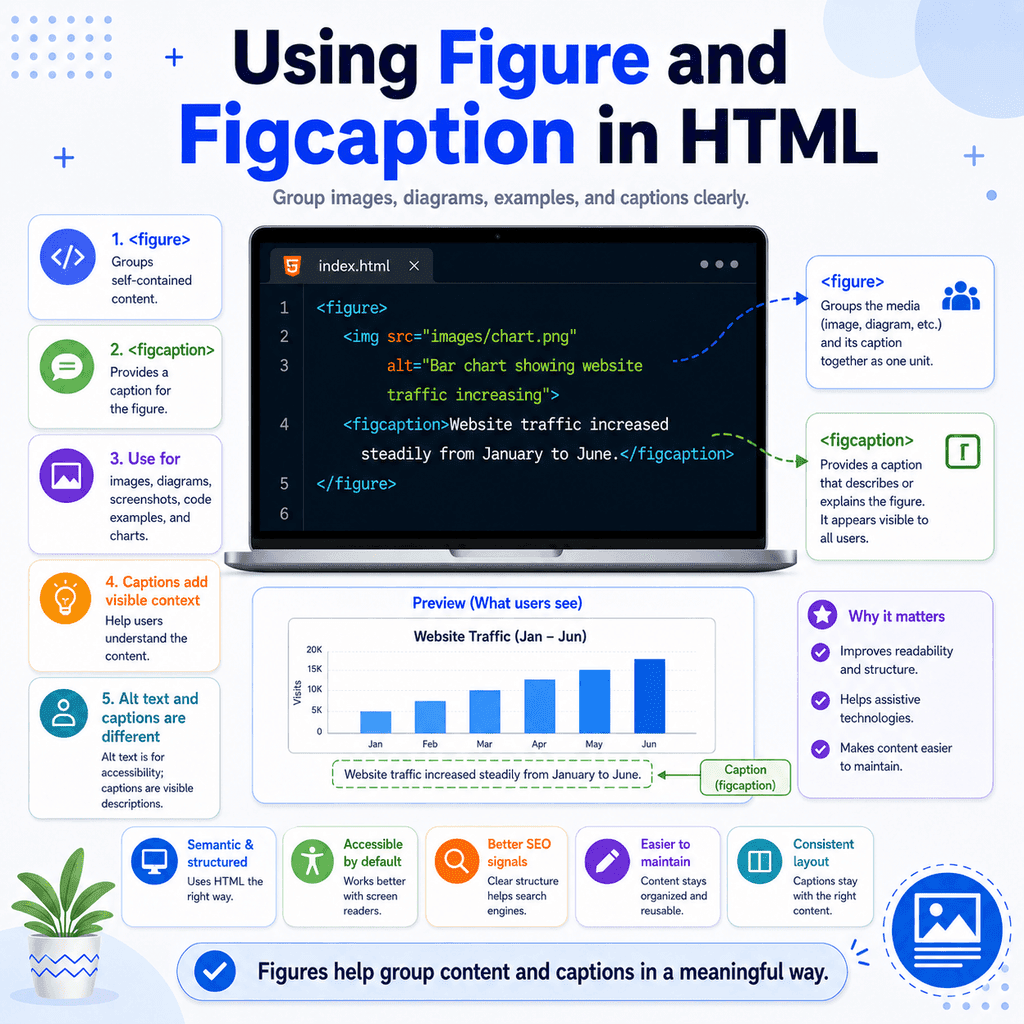
<figcaption>The <figure> element is used to group self-contained content.
The <figcaption> element is used to provide a caption for that content.
Together, they help connect images, diagrams, examples, and captions in a clear and meaningful way.
What Is the <figure> Element?
The <figure> element is used to group content that is self-contained.
Self-contained content means content that can stand on its own and still make sense.
Common examples include:
imagesdiagramschartsillustrationsphotoscode examplestablesscreenshotsFor example:
<figure> <img src=”images/mountain.jpg” alt=”Snow-covered mountain at sunrise”></figure>In this example, the image is placed inside a <figure> element.
The <figure> element tells the browser that this image is a separate piece of content.
What Is the <figcaption> Element?
The <figcaption> element adds a caption to a <figure>.
For example:
<figure> <img src=”images/mountain.jpg” alt=”Snow-covered mountain at sunrise”> <figcaption>Snow-covered mountain at sunrise.</figcaption></figure>The caption belongs to the figure.
The browser will usually display the caption near the image, often underneath it.
The exact appearance depends on the browser and any CSS you add.
A Basic Figure with an Image
Here is a simple example:
<figure> <img src=”images/team.jpg” alt=”Our team standing outside the office”> <figcaption>Our team outside the Birmingham office.</figcaption></figure>This example has two main parts.
The image:
<img src=”images/team.jpg” alt=”Our team standing outside the office”>The caption:
<figcaption>Our team outside the Birmingham office.</figcaption>The <figure> element groups them together:
<figure> …</figure>This makes it clear that the caption describes that specific image.
Why Use <figure> and <figcaption>?
You do not need <figure> for every image.
For example, a small decorative icon or logo may not need a figure.
But <figure> is useful when the image or media is part of the page content and needs a caption or explanation.
For example, this is less clear:
<img src=”images/chart.png” alt=”Chart showing website traffic increasing”><p>Website traffic increased steadily between January and June.</p>The paragraph might be a caption, or it might be normal page text.
This is clearer:
<figure> <img src=”images/chart.png” alt=”Chart showing website traffic increasing”> <figcaption>Website traffic increased steadily between January and June.</figcaption></figure>Now the caption is explicitly connected to the image.
Where Should <figcaption> Go?
The <figcaption> element should be placed inside the <figure> element.
It can usually go before or after the main figure content.
Caption after the image:
<figure> <img src=”images/product.jpg” alt=”Black wireless headphones in a charging case”> <figcaption>Black wireless headphones with charging case.</figcaption></figure>Caption before the image:
<figure> <figcaption>Black wireless headphones with charging case.</figcaption> <img src=”images/product.jpg” alt=”Black wireless headphones in a charging case”></figure>Most commonly, captions are placed after the image because that is how readers often expect captions to appear.
One Caption per Figure
A <figure> should usually have one <figcaption>.
For example:
<figure> <img src=”images/garden.jpg” alt=”Small garden with raised vegetable beds”> <figcaption>A small garden with raised vegetable beds.</figcaption></figure>Avoid adding several separate <figcaption> elements inside the same figure:
<figure> <img src=”images/garden.jpg” alt=”Small garden with raised vegetable beds”> <figcaption>A small garden.</figcaption> <figcaption>Photo taken in spring.</figcaption></figure>If you need more detail, put it into one caption:
<figure> <img src=”images/garden.jpg” alt=”Small garden with raised vegetable beds”> <figcaption>A small garden with raised vegetable beds, photographed in spring.</figcaption></figure>Captions and Alt Text Are Not the Same
A common mistake is thinking that alt text and <figcaption> do the same job.
They are related, but they are not the same.
The alt attribute gives alternative text for the image.
The <figcaption> gives a visible caption for the figure.
For example:
<figure> <img src=”images/laptop-desk.jpg” alt=”Laptop open on a desk beside a notebook and coffee cup”> <figcaption>A simple workspace for writing HTML.</figcaption></figure>The alt text describes the image for users who cannot see it or when the image fails to load.
The caption is visible page content that helps explain the image to all users.
Should the Alt Text and Caption Be Identical?
Usually, the alt text and caption should not be exactly the same.
If they are identical, some screen reader users may hear the same information twice.
For example, this may be repetitive:
<figure> <img src=”images/bridge.jpg” alt=”A stone bridge over a river”> <figcaption>A stone bridge over a river.</figcaption></figure>A better version might be:
<figure> <img src=”images/bridge.jpg” alt=”Stone bridge crossing a narrow river”> <figcaption>The old village bridge, built in the nineteenth century.</figcaption></figure>The alt text describes the image.
The caption adds useful context.
When an Image Has a Caption, Do You Still Need Alt Text?
In most cases, yes.
The <img> element should still have an alt attribute.
For meaningful images, use useful alt text:
<figure> <img src=”images/recycling-chart.png” alt=”Bar chart showing recycling rates increasing from 2020 to 2024″> <figcaption>Recycling rates increased each year from 2020 to 2024.</figcaption></figure>For decorative images, use an empty alt attribute:
<figure> <img src=”images/decorative-divider.png” alt=””> <figcaption>Section divider used in the printed version of the guide.</figcaption></figure>However, if the image is truly decorative, it probably does not need to be inside a <figure> at all.
Using <figure> for Diagrams
The <figure> element is useful for diagrams because diagrams often need captions.
For example:
<figure> <img src=”images/html-structure-diagram.png” alt=”Diagram showing the doctype, html, head, and body parts of an HTML page”> <figcaption>The basic structure of an HTML document.</figcaption></figure>This tells the browser and reader that the diagram and caption belong together.
The diagram is the main content.
The caption explains what the diagram shows.
Using <figure> for Screenshots
Screenshots are another good use case.
For example:
<figure> <img src=”images/browser-preview.png” alt=”Browser window showing a page heading and paragraph”> <figcaption>A simple HTML page opened in a browser.</figcaption></figure>This is useful in tutorials because screenshots often need explanatory captions.
Using <figure> for Code Examples
A figure does not have to contain only images.
You can also use it for a code example.
For example:
<figure> <figcaption>Example of an HTML paragraph.</figcaption> <pre><code><p>This is a paragraph.</p></code></pre></figure>In this example, the <figure> groups a code example and its caption.
The <figcaption> explains what the example is.
The <pre> element preserves the formatting.
The <code> element marks the content as code.
This can be useful in tutorials, documentation, and educational pages.
Using <figure> for Tables or Charts
A chart or table can also be placed inside a <figure> when it needs a caption.
For example:
<figure> <table> <tr> <th>Month</th> <th>Visitors</th> </tr> <tr> <td>January</td> <td>1,200</td> </tr> <tr> <td>February</td> <td>1,450</td> </tr> </table> <figcaption>Website visitors increased from January to February.</figcaption></figure>This groups the table with its caption.
Use this when the caption is part of understanding the table or chart.
Figure Content Should Be Related
A <figure> should group content that belongs together.
Good:
<figure> <img src=”images/camera.jpg” alt=”Vintage film camera on a wooden table”> <figcaption>A vintage film camera from the 1970s.</figcaption></figure>Poor:
<figure> <img src=”images/camera.jpg” alt=”Vintage film camera on a wooden table”> <p>Our office is open Monday to Friday.</p></figure>The office opening hours do not describe the camera, so they should not be inside the figure.
Keep the figure focused.
Figure vs Div
You could group an image and caption using a <div>:
<div> <img src=”images/camera.jpg” alt=”Vintage film camera on a wooden table”> <p>A vintage film camera from the 1970s.</p></div>This may work visually, but it does not give the same meaning.
A better option is:
<figure> <img src=”images/camera.jpg” alt=”Vintage film camera on a wooden table”> <figcaption>A vintage film camera from the 1970s.</figcaption></figure>The <figure> element says, “This is a self-contained piece of content.”
The <figcaption> element says, “This is the caption for that content.”
Use meaningful HTML when the relationship matters.
Styling Figures with CSS
Browsers may add default spacing around <figure> elements.
You can control the appearance with CSS.
For example:
<figure class=”image-card”> <img src=”images/mountain.jpg” alt=”Snow-covered mountain at sunrise”> <figcaption>Snow-covered mountain at sunrise.</figcaption></figure>.image-card { margin: 0; max-width: 600px;} .image-card img { width: 100%; height: auto; display: block;} .image-card figcaption { font-size: 0.9rem; color: #555; margin-top: 8px;}The HTML gives the content meaning.
The CSS controls the visual appearance.
A Complete Example
Here is a simple HTML page using <figure> and <figcaption>:
<!DOCTYPE html><html lang=”en”><head> <meta charset=”UTF-8″> <title>Figure and Figcaption Example</title></head><body> <h1>Our Office</h1> <p>Here is a photo of our workspace.</p> <figure> <img src=”images/office.jpg” alt=”Modern office desk with a laptop, notebook, and desk lamp” width=”800″ height=”500″> <figcaption>Our main workspace where we design and build websites.</figcaption> </figure> </body></html>This example uses:
<figure>to group the image and caption,
<img src=”images/office.jpg” alt=”Modern office desk with a laptop, notebook, and desk lamp” width=”800″ height=”500″>to display the image,
and:
<figcaption>Our main workspace where we design and build websites.</figcaption>to provide a visible caption.
Common Mistake: Using <figcaption> Outside <figure>
The <figcaption> element should be inside a <figure>.
Incorrect:
<img src=”images/photo.jpg” alt=”A mountain landscape”><figcaption>A mountain landscape at sunrise.</figcaption>Correct:
<figure> <img src=”images/photo.jpg” alt=”A mountain landscape at sunrise”> <figcaption>A mountain landscape at sunrise.</figcaption></figure>The corrected version clearly connects the caption to the image.
Common Mistake: Using Captions Instead of Alt Text
A caption does not replace the need for alt text.
Incomplete:
<figure> <img src=”images/team.jpg”> <figcaption>Our team outside the office.</figcaption></figure>Better:
<figure> <img src=”images/team.jpg” alt=”Our team standing outside the office”> <figcaption>Our team outside the office.</figcaption></figure>The caption is visible text.
The alt attribute provides alternative text for the image.
Both have a role.
Common Mistake: Using <figure> for Every Image
Not every image needs a <figure>.
This decorative image probably does not need a figure:
<img src=”images/decorative-line.svg” alt=””>This logo may not need a figure either:
<img src=”images/logo.svg” alt=”Bright Web Studio”>Use <figure> when the image, diagram, screenshot, example, or table is a self-contained item and may need a caption.
Do not wrap every image in <figure> automatically.
Common Mistake: Writing Unhelpful Captions
A caption should add useful information.
Weak:
<figure> <img src=”images/chart.png” alt=”Chart showing monthly website visitors”> <figcaption>Chart.</figcaption></figure>Better:
<figure> <img src=”images/chart.png” alt=”Chart showing monthly website visitors”> <figcaption>Website visitors increased steadily over the first six months.</figcaption></figure>The better caption explains why the chart matters.
Best Practices
Use <figure> to group self-contained content.
Use <figcaption> to add a caption to a figure.
Place <figcaption> inside <figure>.
Use one <figcaption> per figure.
Use <figure> for images, diagrams, screenshots, code examples, charts, or tables when a caption is useful.
Do not use <figure> for every image automatically.
Do not use <figcaption> as a general paragraph or label.
Keep the figure content related.
Use useful alt text for meaningful images.
Use captions to add context, not just repeat the alt text.
Use CSS to control the visual styling of figures and captions.
Summary
The <figure> element groups self-contained content.
The <figcaption> element provides a caption for that content.
A basic example looks like this:
<figure> <img src=”images/photo.jpg” alt=”A mountain landscape at sunrise”> <figcaption>A mountain landscape at sunrise.</figcaption></figure>Use <figure> when an image, diagram, screenshot, chart, table, or code example belongs with a caption.
Use <figcaption> when the figure needs a visible explanation.
Remember that captions and alt text are different. Alt text helps describe the image when it cannot be seen or loaded. A caption is visible content that gives context to the figure.
Used well, <figure> and <figcaption> make your HTML clearer, more meaningful, and easier to understand.