
Introduction
HTML is not only about placing text, images, and links on a page. It is also about describing what that content means.
Semantic HTML means using HTML elements that clearly describe the role or purpose of the content inside them.
For example, this:
<nav> <a href=”index.html”>Home</a> <a href=”about.html”>About</a> <a href=”contact.html”>Contact</a></nav>is more meaningful than this:
<div> <a href=”index.html”>Home</a> <a href=”about.html”>About</a> <a href=”contact.html”>Contact</a></div>Both examples may look similar in the browser, especially after CSS is added. However, the first example gives the browser more information. It says, “This group of links is navigation.”
That is the main idea behind semantic HTML: choose elements based on meaning, not only appearance.
What Does Semantic HTML Mean?
The word “semantic” means related to meaning.
In HTML, semantic elements describe the meaning or purpose of the content.
For example:
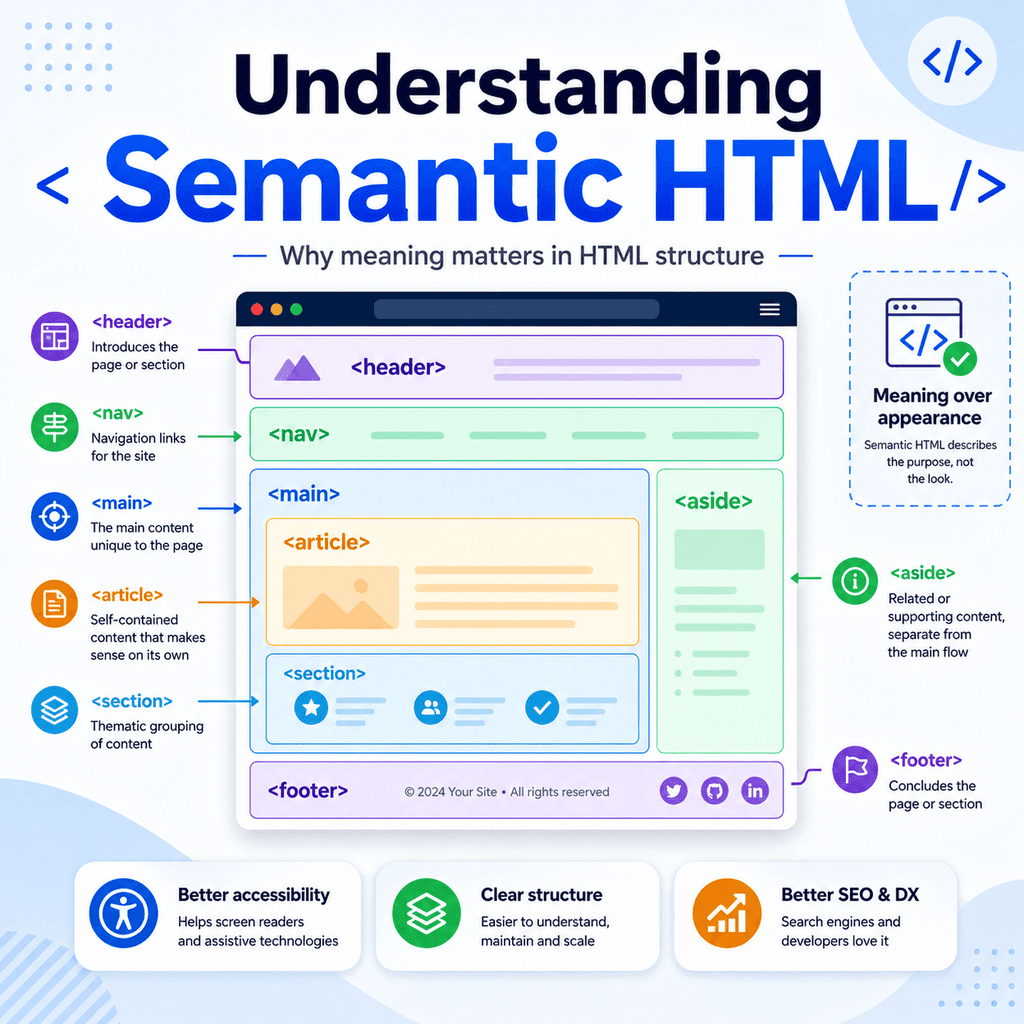
<header>means introductory content or a header area.
<nav>means navigation links.
<main>means the main content of the page.
<article>means a self-contained piece of content.
<section>means a distinct section of related content.
<footer>means footer content.
These elements do not just create boxes on a page. They describe what those boxes are for.
Semantic vs Non-Semantic HTML
Some HTML elements tell you little about the meaning of the content.
For example:
<div>and:
<span>are useful, but they are generic.
A <div> is a generic block-level container.
A <span> is a generic inline container.
They do not tell the browser whether the content is navigation, a header, an article, or a footer.
For example:
<div class=”nav”> <a href=”index.html”>Home</a> <a href=”about.html”>About</a></div>This may work visually, but the meaning is only suggested by the class name.
A more semantic version is:
<nav> <a href=”index.html”>Home</a> <a href=”about.html”>About</a></nav>Now the meaning is built into the HTML element itself.
Why Meaning Matters
Meaning matters because web pages are used by more than just sighted users looking at a screen.
HTML is also read by browsers, search engines, screen readers, browser extensions, translation tools, accessibility tools, and other software.
When you use meaningful elements, these tools can understand the page more accurately.
Semantic HTML can help with:
accessibilitypage structuresearch engine understandingmaintainabilityreadability for developersThe page may not look different immediately, but the structure is more useful and reliable.
Semantic HTML and Accessibility
Semantic HTML is important for accessibility.
Assistive technologies, such as screen readers, can use semantic elements to help users understand and navigate a page.
For example, a <nav> element can identify a navigation area.
A <main> element can identify the main content.
A proper heading structure can help users move between sections.
For example:
<header> <h1>My Website</h1></header> <nav> <a href=”index.html”>Home</a> <a href=”services.html”>Services</a> <a href=”contact.html”>Contact</a></nav> <main> <h2>Welcome</h2> <p>This is the main content of the page.</p></main>This structure gives users and tools clearer information about the page.
A screen reader user may be able to jump directly to navigation or main content, depending on their software and settings.
Semantic HTML and Search Engines
Search engines use many signals to understand web pages.
Semantic HTML can help make the structure of the page clearer.
For example:
<article> <h1>How to Add Images Using HTML</h1> <p>This article explains how the img element works.</p></article>This says that the content is a self-contained article.
However, semantic HTML should not be treated as a trick for search rankings. Its main purpose is to describe content accurately.
Good semantic structure helps search engines understand the page, but it should also help people and assistive technologies.
Semantic HTML and Maintainability
Semantic HTML also makes code easier to read and maintain.
Compare this:
<div class=”top”> <div class=”menu”> <a href=”index.html”>Home</a> <a href=”about.html”>About</a> </div></div>with this:
<header> <nav> <a href=”index.html”>Home</a> <a href=”about.html”>About</a> </nav></header>The second version is easier to understand because the element names describe the structure.
A developer can quickly see that the page has a header and a navigation area.
This makes future editing easier.
Common Semantic HTML Elements
There are many semantic HTML elements, but some are especially common.
The <header> Element
The <header> element is used for introductory content.
It often contains a site title, logo, heading, navigation, or introduction.
For example:
<header> <h1>Bright Web Studio</h1> <p>Simple websites for small businesses.</p></header>A page can have more than one <header>. For example, an article can also have its own header.
<article> <header> <h2>Latest News</h2> <p>Published on 12 June 2026</p> </header> <p>Our new website has launched.</p></article>The <nav> Element
The <nav> element is used for major navigation links.
For example:
<nav> <a href=”index.html”>Home</a> <a href=”about.html”>About</a> <a href=”services.html”>Services</a> <a href=”contact.html”>Contact</a></nav>Use <nav> for important groups of navigation links, not every single link on a page.
A link inside a paragraph does not need to be placed in <nav>:
<p>Read more on our <a href=”services.html”>services page</a>.</p>The <main> Element
The <main> element contains the main content of the page.
For example:
<main> <h1>About Us</h1> <p>We build simple websites for small businesses.</p></main>A page should usually have one main area.
Do not use <main> for repeated content such as site navigation, sidebars, or footers.
The <section> Element
The <section> element groups related content into a distinct section.
A section usually has a heading.
For example:
<section> <h2>Our Services</h2> <p>We design and build websites.</p></section>Use <section> when the content forms a meaningful section of the page.
Do not use <section> only because you want a styling hook. If you only need a generic container for styling, a <div> may be more appropriate.
The <article> Element
The <article> element is used for self-contained content.
This means the content could make sense on its own, separate from the rest of the page.
Examples include:
blog postsnews articlesforum postsproduct cardsuser commentstutorialsExample:
<article> <h2>How to Create Lists in HTML</h2> <p>This article explains unordered, ordered, and description lists.</p></article>If you copied this article to another page or feed, it would still make sense as its own item.
The <footer> Element
The <footer> element is used for footer information.
It may contain copyright text, contact information, related links, author information, or legal links.
For example:
<footer> <p>© 2026 Bright Web Studio</p> <a href=”privacy.html”>Privacy Policy</a></footer>Like <header>, a page can have more than one <footer>. An article may have its own footer with author or publication information.
The <aside> Element
The <aside> element is used for content that is related to the main content but separate from it.
Examples include:
sidebarsrelated linksauthor notesadvertisementscallout boxesExample:
<aside> <h2>Related Tutorials</h2> <ul> <li><a href=”html-links.html”>HTML Links</a></li> <li><a href=”html-images.html”>HTML Images</a></li> </ul></aside>The content is related to the page but not part of the main article flow.
Choosing the Right Semantic Element
Choosing the right semantic element depends on the role of the content.
Ask yourself:
Is this the main content of the page?Is this navigation?Is this a self-contained article or item?Is this a distinct section of related content?Is this introductory content?Is this footer information?Is this related but separate content?For example:
<main> <article> <h1>Understanding Semantic HTML</h1> <section> <h2>Why Meaning Matters</h2> <p>Semantic HTML helps describe the structure and purpose of content.</p> </section> </article></main>Here, <main> contains the main content.
<article> contains the article itself.
<section> groups a section within the article.
Each element has a clear purpose.
Semantic HTML Does Not Replace CSS
Semantic HTML describes meaning.
CSS controls appearance.
For example, this HTML says what the content is:
<nav> <a href=”index.html”>Home</a> <a href=”about.html”>About</a></nav>CSS can decide how it looks:
nav { display: flex; gap: 20px;}Do not choose an HTML element only because of its default appearance.
For example, use <h2> because the text is a second-level heading, not because the browser makes it large and bold.
Use CSS to change visual style.
Semantic HTML and Headings
Headings are also part of semantic structure.
A good heading structure helps explain how the page is organised.
For example:
<h1>HTML Tutorials</h1> <section> <h2>Text Content</h2> <p>Learn how to use headings, paragraphs, and lists.</p></section> <section> <h2>Media Content</h2> <p>Learn how to add images and captions.</p></section>The <h1> describes the main topic.
Each <h2> introduces a major section.
Avoid choosing heading levels only for visual size. Use heading levels to show structure.
Semantic HTML and Buttons
Another common mistake is using the wrong element for interactive content.
If something performs an action on the page, it is usually a button:
<button>Open menu</button>If something goes to another page or location, it is usually a link:
<a href=”contact.html”>Contact Us</a>Avoid using a <div> as a fake button:
<div class=”button”>Open menu</div>This may be harder for keyboards, screen readers, and other tools to understand.
Use the element that matches the purpose.
When Is <div> Still Useful?
Semantic HTML does not mean you should never use <div>.
The <div> element is still useful when you need a generic container and no more specific semantic element fits.
For example:
<div class=”card”> <h2>Web Design</h2> <p>Simple websites for small businesses.</p></div>A card may be a design pattern rather than a specific semantic landmark.
If the content is a self-contained article, <article> may be better.
If it is only a layout wrapper, <div> may be fine.
The goal is not to avoid <div> completely. The goal is to avoid using <div> when a more meaningful element is clearly better.
A Complete Example
Here is a simple page using semantic HTML:
<!DOCTYPE html><html lang=”en”><head> <meta charset=”UTF-8″> <title>Semantic HTML Example</title></head><body> <header> <h1>Bright Web Studio</h1> <p>Simple websites for small businesses.</p> </header> <nav> <a href=”index.html”>Home</a> <a href=”services.html”>Services</a> <a href=”contact.html”>Contact</a> </nav> <main> <article> <h2>Why Semantic HTML Matters</h2> <section> <h3>Clearer Structure</h3> <p>Semantic elements help describe what each part of a page is for.</p> </section> <section> <h3>Better Accessibility</h3> <p>Assistive technologies can use semantic structure to help users navigate the page.</p> </section> </article> <aside> <h2>Related Tutorials</h2> <ul> <li><a href=”html-headings.html”>HTML Headings</a></li> <li><a href=”html-links.html”>HTML Links</a></li> </ul> </aside> </main> <footer> <p>© 2026 Bright Web Studio</p> </footer> </body></html>This page uses semantic elements to describe the major parts of the layout.
The <header> contains introductory site content.
The <nav> contains navigation links.
The <main> contains the main page content.
The <article> contains a self-contained article.
The <section> elements divide the article into meaningful parts.
The <aside> contains related content.
The <footer> contains footer information.
Common Mistake: Using Only <div> Elements
A page built only with <div> elements may work visually, but it can be harder to understand.
Less meaningful:
<div class=”header”> <div class=”title”>My Website</div></div> <div class=”nav”> <a href=”index.html”>Home</a> <a href=”about.html”>About</a></div> <div class=”main”> <div class=”article”> <div class=”section-title”>Welcome</div> <div class=”text”>This is the main content.</div> </div></div>More meaningful:
<header> <h1>My Website</h1></header> <nav> <a href=”index.html”>Home</a> <a href=”about.html”>About</a></nav> <main> <article> <h2>Welcome</h2> <p>This is the main content.</p> </article></main>The second version describes the page structure more clearly.
Common Mistake: Using Semantic Elements Only for Styling
Do not use semantic elements just because of how they look.
For example, do not use <article> just because it gives you a convenient wrapper.
Use <article> when the content is self-contained.
Do not use <section> for every small group of elements. Use it when the content forms a meaningful section.
If you only need a box for layout, use a <div>.
Common Mistake: Using the Wrong Interactive Element
Avoid using links and buttons interchangeably.
If it navigates somewhere, use a link:
<a href=”about.html”>Learn more</a>If it performs an action, use a button:
<button>Show menu</button>This helps browsers, keyboards, assistive technologies, and scripts understand the intended behaviour.
Best Practices
Choose HTML elements based on meaning.
Use <header> for introductory content.
Use <nav> for major navigation links.
Use <main> for the main page content.
Use <article> for self-contained content.
Use <section> for meaningful sections of related content.
Use <aside> for related but separate content.
Use <footer> for footer information.
Use headings to show the structure of the page.
Use <button> for actions and <a> for navigation.
Use <div> when no more specific semantic element is appropriate.
Use CSS to control appearance instead of choosing elements based on default styling.
Summary
Semantic HTML means using elements that describe the meaning and purpose of the content.
A semantic element tells the browser more than just “this is a box”. It explains what the content is for.
For example:
<nav> <a href=”index.html”>Home</a> <a href=”about.html”>About</a></nav>is more meaningful than:
<div class=”nav”> <a href=”index.html”>Home</a> <a href=”about.html”>About</a></div>Semantic HTML helps make pages easier to understand, easier to maintain, better for accessibility, and clearer for software such as browsers and search engines.
Use meaningful elements when the meaning is clear. Use generic elements like <div> and <span> when no more specific element fits.
The main idea is simple: HTML should describe what the content means, not just how it should look.