
Introduction
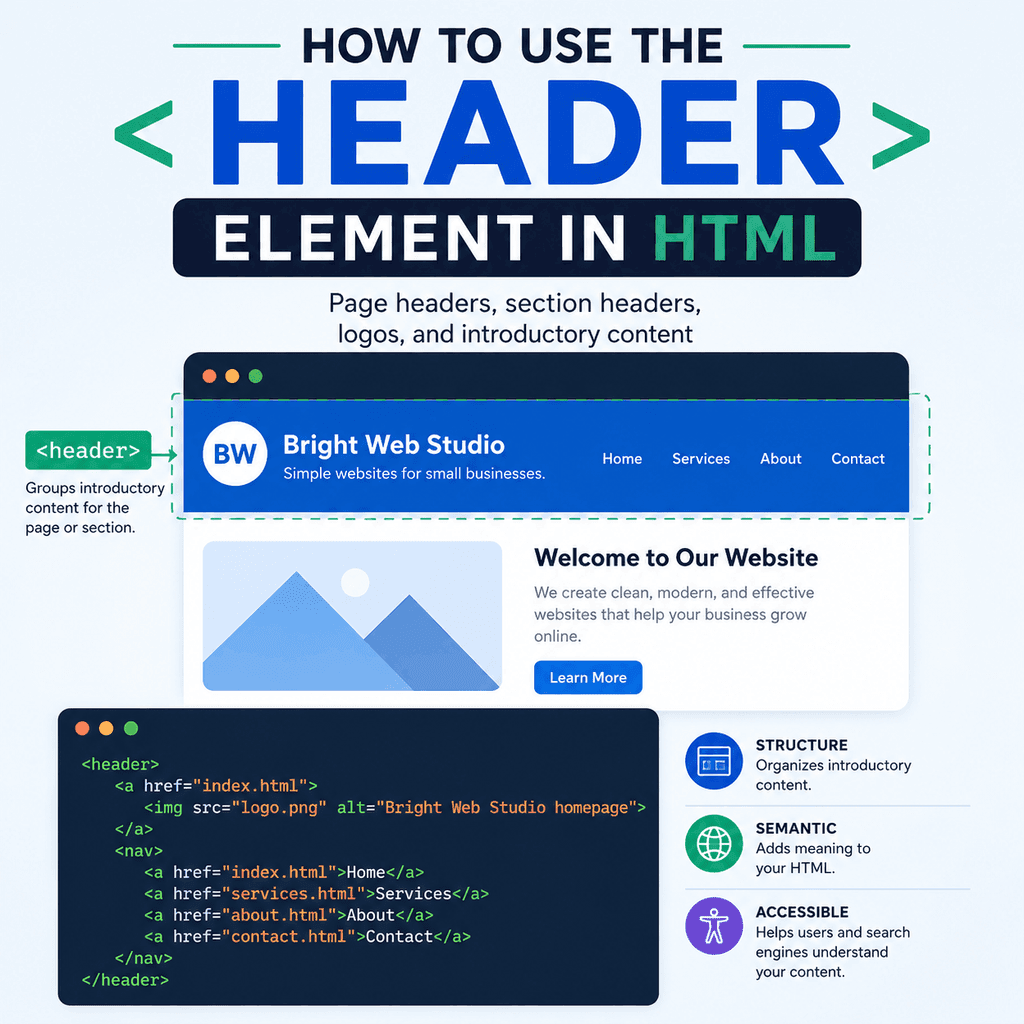
The <header> element is used to represent introductory content. It often appears near the top of a web page or at the start of a section, article, or other part of a page.
A header can contain things like:
a logoa site namea page titlea section titleintroductory textnavigation linkssearch formsauthor or publication informationThe main purpose of the <header> element is to group content that introduces the page or section that follows.
What Is the <header> Element?
The <header> element is a semantic HTML element.
That means it describes the meaning or purpose of the content inside it.
For example:
<header> <h1>Bright Web Studio</h1> <p>Simple websites for small businesses.</p></header>This tells the browser that the heading and paragraph form introductory content.
The <header> element does not automatically make the content look like a designed website header. It gives the content meaning. CSS is used to control how it looks.
A Basic Page Header
A common use of <header> is for the main header at the top of a page.
For example:
<header> <h1>My Website</h1> <p>Learning HTML one step at a time.</p></header>This creates a page header containing a main heading and a short introduction.
The <h1> gives the page its main heading.
The paragraph gives extra introductory text.
The <header> groups them together.
Header vs Head
A common source of confusion is the difference between <header> and <head>.
They are not the same thing.
The <head> element contains information about the document, such as the page title, metadata, stylesheets, and scripts.
For example:
<head> <meta charset=”UTF-8″> <title>My Website</title></head>The <header> element contains introductory content that is usually visible on the page.
For example:
<header> <h1>My Website</h1> <p>Welcome to my site.</p></header>The <head> belongs near the top of the HTML document and is not usually displayed as visible page content.
The <header> belongs inside the <body> and is part of the visible page structure.
The <header> Element Belongs in the <body>
The <header> element should usually be placed inside the <body> element.
For example:
<!DOCTYPE html><html lang=”en”><head> <meta charset=”UTF-8″> <title>Header Example</title></head><body> <header> <h1>My Website</h1> <p>Learning HTML one step at a time.</p> </header> </body></html>The <head> contains document information.
The <body> contains the visible page content.
The <header> appears inside the <body> because it is part of the visible page.
Adding a Logo Inside a Header
Many website headers include a logo.
A logo is usually added with the <img> element.
For example:
<header> <img src=”images/logo.png” alt=”Bright Web Studio logo”> <h1>Bright Web Studio</h1></header>In this example, the header contains a logo image and a site name.
The src attribute tells the browser where the logo image is.
The alt attribute describes the image.
If the logo already includes the company name visually, you may write alt text that identifies the logo clearly:
<img src=”images/logo.png” alt=”Bright Web Studio”>If the same text appears beside the logo as visible text, you may sometimes use an empty alt attribute to avoid repetition:
<header> <img src=”images/logo-icon.png” alt=””> <h1>Bright Web Studio</h1></header>In that version, the image is treated as decorative because the nearby heading already gives the name.
Adding Navigation Inside a Header
A page header often contains navigation links.
For example:
<header> <h1>My Website</h1> <nav> <a href=”index.html”>Home</a> <a href=”about.html”>About</a> <a href=”services.html”>Services</a> <a href=”contact.html”>Contact</a> </nav></header>The <header> groups the introductory site content.
The <nav> element identifies the navigation area.
The <a> elements create the links.
This is a common structure for website headers.
A Header with a Logo and Navigation
Here is a slightly more complete example:
<header> <a href=”index.html”> <img src=”images/logo.png” alt=”Bright Web Studio”> </a> <nav> <a href=”index.html”>Home</a> <a href=”services.html”>Services</a> <a href=”portfolio.html”>Portfolio</a> <a href=”contact.html”>Contact</a> </nav></header>In this example, the logo is inside a link.
Clicking the logo takes the user back to the homepage.
This is a common website pattern.
Because the logo is acting as a link, the alt text should explain the purpose clearly enough. For example:
<img src=”images/logo.png” alt=”Bright Web Studio homepage”>This tells users that the linked image goes to the homepage.
Using <header> for a Section
The <header> element is not only for the top of the whole page.
It can also introduce a section.
For example:
<section> <header> <h2>Our Services</h2> <p>We offer practical web design services for small businesses.</p> </header> <p>Our services include website design, content updates, and basic SEO support.</p></section>In this example, the header introduces the “Our Services” section.
The section has its own heading and short introduction.
This is useful when a section needs a clear opening area.
Using <header> Inside an Article
A header can also introduce an article.
For example:
<article> <header> <h2>How to Add Images Using HTML</h2> <p>Published on 12 June 2026 by Chris Smith</p> </header> <p>This article explains how the img element works.</p></article>The <article> element contains a self-contained article.
The <header> inside it introduces that article.
It may contain the article title, author, date, category, or short summary.
This is common in blogs, news articles, tutorials, and documentation pages.
Page Header vs Section Header
A page can have more than one <header> element.
For example:
<body> <header> <h1>Bright Web Studio</h1> <nav> <a href=”index.html”>Home</a> <a href=”services.html”>Services</a> <a href=”contact.html”>Contact</a> </nav> </header> <main> <section> <header> <h2>Our Services</h2> <p>Practical website support for small businesses.</p> </header> <p>We design, build, and maintain simple websites.</p> </section> </main> </body>The first <header> introduces the whole page or site.
The second <header> introduces a specific section.
Both are valid because they introduce different parts of the page.
What Should Go Inside <header>?
The content inside <header> should introduce the page, section, article, or related content.
Common content includes:
a headinga logointroductory textnavigationa search formauthor informationpublication datecategory labelssummary textFor example:
<article> <header> <h2>Understanding Semantic HTML</h2> <p>Semantic HTML helps describe the meaning of page content.</p> <p>Published in HTML Tutorials</p> </header> <p>The article content starts here.</p></article>The header introduces the article before the main article text begins.
What Should Not Go Inside <header>?
Do not use <header> for content just because it appears near the top visually.
Use it when the content is introductory.
For example, this is a good use:
<header> <h1>Contact Us</h1> <p>Use the form below to get in touch.</p></header>This is less appropriate:
<header> <p>This is a random paragraph that does not introduce anything.</p></header>The <header> element should have a clear purpose.
It should help introduce or identify the content that follows.
Header Does Not Mean Heading
Another common confusion is between <header> and heading elements such as <h1>, <h2>, and <h3>.
A heading element creates a title or section heading:
<h1>My Website</h1>A header element groups introductory content:
<header> <h1>My Website</h1> <p>Learning HTML one step at a time.</p></header>A <header> often contains a heading, but it is not itself a heading.
Think of it this way:
<h1> to <h6> = headings<header> = a container for introductory contentStyling a Header with CSS
The <header> element gives the content meaning. CSS controls how it looks.
For example:
<header class=”site-header”> <h1>Bright Web Studio</h1> <nav> <a href=”index.html”>Home</a> <a href=”services.html”>Services</a> <a href=”contact.html”>Contact</a> </nav></header>You could style it like this:
.site-header { display: flex; justify-content: space-between; align-items: center; padding: 24px; background-color: #f2f6ff;} .site-header nav { display: flex; gap: 16px;}The HTML describes the structure.
The CSS controls layout, spacing, colour, and alignment.
A Complete Example
Here is a complete HTML page using a page header and an article header:
<!DOCTYPE html><html lang=”en”><head> <meta charset=”UTF-8″> <title>Header Element Example</title></head><body> <header> <a href=”index.html”> <img src=”images/logo.png” alt=”Bright Web Studio homepage”> </a> <nav> <a href=”index.html”>Home</a> <a href=”services.html”>Services</a> <a href=”contact.html”>Contact</a> </nav> </header> <main> <article> <header> <h1>How to Use the Header Element in HTML</h1> <p>Learn how headers introduce pages, sections, and articles.</p> </header> <p>The header element is used for introductory content.</p> </article> </main> </body></html>This page has two headers.
The first <header> introduces the site and contains the logo and navigation.
The second <header> introduces the article and contains the article title and summary.
Common Mistake: Confusing <head> and <header>
Incorrect:
<head> <h1>My Website</h1> <nav> <a href=”index.html”>Home</a> </nav></head>The <head> element is not for visible page content.
Correct:
<head> <title>My Website</title></head><body> <header> <h1>My Website</h1> <nav> <a href=”index.html”>Home</a> </nav> </header></body>The visible heading and navigation belong inside the <body>, usually inside a <header>.
Common Mistake: Using <header> Only Once
Some learners think there can only be one <header> on a page.
That is not true.
A page can have a site header, and an article or section can also have its own header.
For example:
<header> <h1>My Blog</h1></header> <article> <header> <h2>Latest Post</h2> <p>Published today</p> </header> <p>This is the blog post content.</p></article>This is valid because each header introduces a different part of the page.
Common Mistake: Using <header> for Any Top Area
The word “header” can make it sound like it should be used for anything at the top of a design.
That is not always correct.
Use <header> when the content introduces a page, section, or article.
If you only need a generic container for styling, use a <div>.
For example:
<div class=”top-banner”> <p>Free delivery this week only.</p></div>This may be better than <header> if the banner is promotional and does not introduce the page or section.
Common Mistake: Using a Logo Without Useful Alt Text
If a logo image communicates the site or company name, it needs suitable alt text.
Weak:
<img src=”images/logo.png” alt=”logo”>Better:
<img src=”images/logo.png” alt=”Bright Web Studio”>If the logo links to the homepage, make the purpose clear:
<a href=”index.html”> <img src=”images/logo.png” alt=”Bright Web Studio homepage”></a>If the logo is decorative because the same name appears beside it as visible text, use empty alt text:
<header> <img src=”images/logo-icon.png” alt=””> <h1>Bright Web Studio</h1></header>Common Mistake: Replacing Headings with Styled Text
A header often needs a heading element.
Avoid this:
<header> <p class=”big-text”>My Website</p></header>Better:
<header> <h1>My Website</h1></header>If the text is the main heading, use a heading element.
Use CSS to control how the heading looks.
Best Practices
Use <header> for introductory content.
Place <header> inside the <body>, not inside <head>.
Use a page header for site identity, logos, navigation, or page introductions.
Use section or article headers when a smaller part of the page needs its own introduction.
Use headings such as <h1> or <h2> inside headers when appropriate.
Use <nav> inside a header when the header contains major navigation links.
Use useful alt text for logos.
Remember that a page can have more than one <header>.
Do not use <header> only for visual styling.
Use CSS to control how headers look.
Summary
The <header> element is used for introductory content.
A simple page header might look like this:
<header> <h1>My Website</h1> <p>Learning HTML one step at a time.</p></header>A header can contain a logo, heading, navigation links, introductory text, article details, or section introductions.
The <header> element is different from the <head> element. The <head> contains document information, while <header> contains visible introductory content inside the page.
A page can have more than one <header>, as long as each one introduces a different part of the page.
Used well, the <header> element makes your HTML structure clearer, more meaningful, and easier to understand.