
Introduction
HTML often needs to link to other files. These files might be other web pages, images, stylesheets, scripts, documents, or downloads.
For example, an HTML page might link to:
<a href=”about.html”>About Us</a>Or display an image:
<img src=”images/logo.png” alt=”Company logo”>In both examples, the HTML uses a file path.
A file path tells the browser where to find a file.
What Is a File Path?
A file path is the location of a file.
In HTML, file paths are often used in attributes such as:
hrefand:
srcThe href attribute is commonly used for links:
<a href=”contact.html”>Contact</a>The src attribute is commonly used for images:
<img src=”photo.jpg” alt=”A landscape photo”>In these examples, contact.html and photo.jpg are file paths.
The browser reads the file path and tries to find the matching file.
Why File Paths Matter
If the file path is correct, the browser can load the file.
If the file path is wrong, the browser cannot find it.
That can cause problems such as:
A link goes to a missing page.
An image does not load.
A stylesheet is not applied.
A script does not run.
A download file cannot be found.
Many beginner HTML problems are actually file path problems. The HTML element may be correct, but the path points to the wrong place.
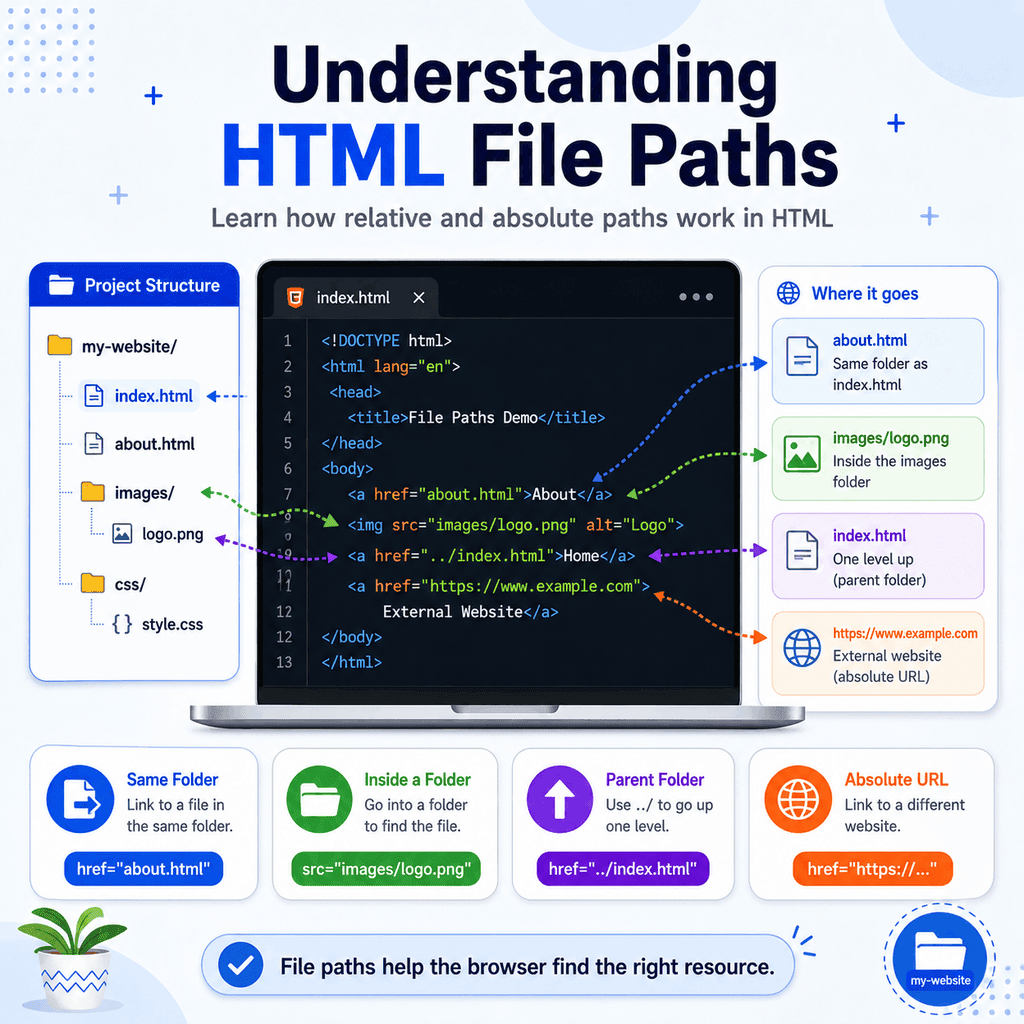
A Simple Website Folder
Imagine you have a project folder like this:
my-website/ index.html about.html contact.html images/ logo.png team.jpg css/ style.cssThis folder contains three HTML pages, an images folder, and a CSS folder.
The file path you write depends on where the current HTML file is located and where the target file is located.
Linking to a File in the Same Folder
If two files are in the same folder, you can link to the target file by using its file name.
For example:
my-website/ index.html about.htmlIf you are inside index.html and want to link to about.html, use:
<a href=”about.html”>About Us</a>This tells the browser to look for about.html in the same folder as the current page.
The same idea applies to images:
my-website/ index.html photo.jpgUse:
<img src=”photo.jpg” alt=”A landscape photo”>The browser looks for photo.jpg in the same folder as index.html.
Linking to a File Inside a Folder
If the target file is inside a folder, include the folder name in the path.
For example:
my-website/ index.html images/ logo.pngFrom index.html, you can link to the image like this:
<img src=”images/logo.png” alt=”Company logo”>This tells the browser:
Start in the same folder as index.html.
Go into the images folder.
Find logo.png.
The forward slash / separates folder names and file names in web paths.
Linking to a File in a Parent Folder
Sometimes the file you want is in a folder above the current file.
For example:
my-website/ index.html pages/ about.htmlIf you are inside pages/about.html and want to link back to index.html, use:
<a href=”../index.html”>Home</a>The .. means “go up one folder level”.
So this path means:
Go up from the pages folder.
Find index.html.
Another example:
my-website/ images/ logo.png pages/ about.htmlFrom pages/about.html, you can load the logo like this:
<img src=”../images/logo.png” alt=”Company logo”>This means:
Go up one level from pages.
Go into the images folder.
Find logo.png.
Linking Between Folders
File paths can move up and then down into another folder.
For example:
my-website/ pages/ about.html documents/ brochure.pdfFrom pages/about.html, you can link to documents/brochure.pdf like this:
<a href=”../documents/brochure.pdf”>Download our brochure</a>This means:
Go up one folder from pages.
Go into documents.
Find brochure.pdf.
Once you understand .., moving between folders becomes easier.
Relative File Paths
A relative file path describes the location of a file relative to the current page.
For example:
<a href=”about.html”>About Us</a><img src=”images/logo.png” alt=”Company logo”><a href=”../index.html”>Home</a>These are all relative paths.
They do not include the full website address.
They depend on where the current HTML file is located.
Relative paths are commonly used when linking files within the same website project.
Absolute File Paths
An absolute file path gives a full location.
For websites, an absolute URL usually includes the protocol and domain name.
For example:
<a href=”https://www.example.com/about.html”>About Us</a>This path tells the browser exactly where the file is located on the web.
Absolute URLs are often used when linking to another website:
<a href=”https://www.wikipedia.org”>Visit Wikipedia</a>They can also be used for files on your own website, but for internal links, relative paths are often shorter and easier to maintain.
Root-Relative Paths
There is another common type of path called a root-relative path.
A root-relative path starts with a forward slash:
<a href=”/about.html”>About Us</a>This means “start at the root of the website”.
For example:
<img src=”/images/logo.png” alt=”Company logo”>This tells the browser to start at the main website folder, then go into images, then find logo.png.
Root-relative paths can be useful on live websites, but they can be confusing when opening HTML files directly from your computer using file://.
For simple local practice, relative paths are usually easier.
Local Files vs Websites
When you are practising HTML on your computer, you might open files directly in the browser.
The browser address may look like this:
file:///Users/alex/Documents/my-website/index.htmlor on Windows:
file:///C:/Users/Alex/Documents/my-website/index.htmlThis means the browser is reading a file from your computer.
When a page is live online, the address might look like this:
https://www.example.com/index.htmlThe same relative path logic still applies, but the files are now being served from a website instead of your local computer.
Linking Local HTML Pages
Suppose your project looks like this:
my-website/ index.html about.html contact.htmlFrom index.html, you can link to the other pages like this:
<nav> <a href=”index.html”>Home</a> <a href=”about.html”>About</a> <a href=”contact.html”>Contact</a></nav>Because all three files are in the same folder, only the file names are needed.
Linking to Images
Images commonly use file paths in the src attribute.
Example:
my-website/ index.html images/ beach.jpgThe image path from index.html is:
<img src=”images/beach.jpg” alt=”A beach at sunset”>If the image does not load, check:
The folder name.
The file name.
The file extension.
The capitalisation.
The location of the HTML file.
Linking to CSS Files
Stylesheets also use file paths.
For example:
my-website/ index.html css/ style.cssTo connect style.css to index.html, use:
<link rel=”stylesheet” href=”css/style.css”>This link usually goes inside the <head> element:
<head> <link rel=”stylesheet” href=”css/style.css”></head>This tells the browser to look inside the css folder for style.css.
Linking to Downloads
You can also link to local downloadable files.
For example:
my-website/ index.html documents/ guide.pdfThe link could be:
<a href=”documents/guide.pdf”>Download the guide</a>When clicked, the browser may open or download the file, depending on the browser settings and file type.
File Names and Capitalisation
File names must match the path you write.
For example, this path:
<img src=”images/logo.png” alt=”Logo”>expects a folder called:
imagesand a file called:
logo.pngIf the actual file is called:
Logo.pngor:
logo.PNGit may not work on some servers.
To avoid problems, use lowercase file names consistently.
Recommended:
logo.pngteam-photo.jpgabout.htmlstyle.cssAvoid:
Logo.PNGTeam Photo.JPGAbout.HTMLSpaces in File Names
Avoid spaces in file and folder names.
Instead of:
team photo.jpguse:
team-photo.jpgThen the path is easier to write:
<img src=”images/team-photo.jpg” alt=”Our team”>Spaces can be handled by browsers, but they often make paths harder to read and easier to break.
Hyphens are usually a good choice for separating words in file names.
Common Mistake: Path Points to the Wrong Folder
One common mistake is forgetting to include the folder name.
For example, if your file is here:
my-website/ images/ logo.pngThis will not work from index.html:
<img src=”logo.png” alt=”Logo”>The browser looks for logo.png next to index.html.
The correct path is:
<img src=”images/logo.png” alt=”Logo”>Common Mistake: Wrong Number of ../
Another common mistake is using too many or too few ../ sections.
For example:
my-website/ index.html pages/ about.htmlFrom pages/about.html, this works:
<a href=”../index.html”>Home</a>This does not work:
<a href=”index.html”>Home</a>That would make the browser look for:
my-website/pages/index.htmlwhich does not exist.
The correct path needs to go up one level first.
Common Mistake: Confusing Local Computer Paths with Web Paths
A local computer path might look like this on Windows:
C:\Users\Alex\Documents\my-website\images\logo.pngBut that is not the kind of path you should usually write in HTML.
Avoid this:
<img src=”C:\Users\Alex\Documents\my-website\images\logo.png” alt=”Logo”>Use a web-style relative path instead:
<img src=”images/logo.png” alt=”Logo”>In HTML, use forward slashes /, not Windows backslashes \.
Common Mistake: Linking to a File Outside the Project Folder
When building a website, keep related files inside your project folder.
Avoid linking to random files from your desktop or downloads folder.
For example, avoid:
<img src=”../Downloads/logo.png” alt=”Logo”>Instead, copy the image into your project folder:
my-website/ images/ logo.pngThen link to it cleanly:
<img src=”images/logo.png” alt=”Logo”>This makes your project portable. If you move the website folder or upload it online, the files are still organised together.
A Complete Example
Here is a simple project folder:
my-website/ index.html about.html images/ logo.png css/ style.css documents/ guide.pdfThe index.html file could use these paths:
<!DOCTYPE html><html lang=”en”><head> <meta charset=”UTF-8″> <title>File Paths Example</title> <link rel=”stylesheet” href=”css/style.css”></head><body> <img src=”images/logo.png” alt=”Company logo”> <nav> <a href=”index.html”>Home</a> <a href=”about.html”>About</a> <a href=”documents/guide.pdf”>Download Guide</a> <a href=”https://www.example.com”>External Website</a> </nav> </body></html>This example includes:
A CSS file in the css folder.
An image in the images folder.
A document in the documents folder.
A local link to another page.
An absolute link to another website.
Best Practices
Use relative paths for files inside the same website project.
Use absolute URLs when linking to external websites.
Use lowercase file and folder names.
Avoid spaces in file and folder names.
Use hyphens for multi-word names.
Keep images in an images folder.
Keep CSS files in a css folder.
Keep downloadable files in a documents or downloads folder.
Use forward slashes / in HTML paths.
Check spelling, capitalisation, folder names, and file extensions when a link or image does not work.
Keep all website files inside the project folder so the site remains portable.
Summary
A file path tells the browser where to find a file.
A relative path points to a file based on the current page:
<a href=”about.html”>About</a>A path can go into a folder:
<img src=”images/logo.png” alt=”Logo”>A path can go up one folder level:
<a href=”../index.html”>Home</a>An absolute URL gives the full web address:
<a href=”https://www.example.com”>External Website</a>For local website projects, use clear folders, simple file names, and relative paths.
Once you understand how folders and file paths work, links, images, stylesheets, and downloads become much easier to connect correctly.