
Introduction
HTML is designed to be forgiving. If you make a mistake, the browser will often try to guess what you meant and display the page anyway.
That can be helpful, but it can also be misleading. A page may look correct at first while still containing broken, confusing, or unreliable HTML.
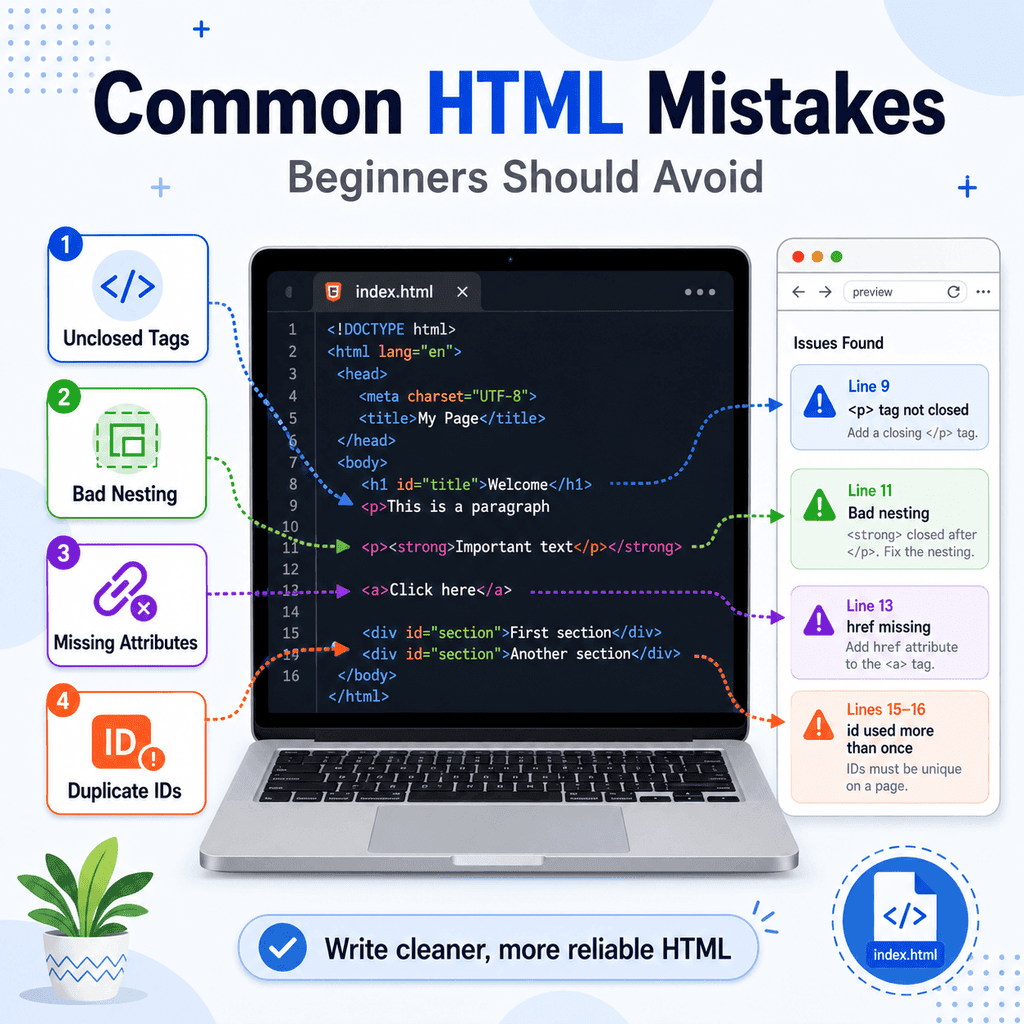
This guide explains some of the most common HTML mistakes to avoid, with a focus on unclosed tags, bad nesting, missing attributes, and duplicate IDs.
Why HTML Mistakes Matter
HTML gives structure and meaning to a web page.
When HTML is written clearly, the browser can understand which parts are headings, paragraphs, links, images, lists, sections, and forms.
When HTML is written incorrectly, several problems can happen:
The page may display in an unexpected way.
CSS may not style the page correctly.
JavaScript may not find the right element.
Links or images may not work.
Screen readers and assistive technologies may receive confusing structure.
Search engines may have a harder time understanding the page.
Good HTML is not just about making the page appear on screen. It is about making the page reliable, readable, and maintainable.
Mistake 1: Forgetting to Close Tags
Many HTML elements use an opening tag and a closing tag.
For example:
<p>This is a paragraph.</p>The opening tag is:
<p>The closing tag is:
</p>A common mistake is forgetting the closing tag.
Incorrect:
<p>This is the first paragraph.<p>This is the second paragraph.Better:
<p>This is the first paragraph.</p><p>This is the second paragraph.</p>Browsers may try to fix missing closing tags automatically, but you should not rely on that. Clear closing tags make your HTML easier to read and reduce the chance of layout problems.
Why Unclosed Tags Cause Problems
An unclosed tag can make the browser misunderstand where an element ends.
For example:
<div class=”card”> <h2>Product Title</h2> <p>This is a product description.</div>In this example, the paragraph is missing its closing </p> tag.
A browser may still display the content, but the structure is less clear than it should be.
Better:
<div class=”card”> <h2>Product Title</h2> <p>This is a product description.</p></div>The corrected version makes it clear that the paragraph ends before the </div>.
Mistake 2: Closing the Wrong Tag
Another common mistake is using the wrong closing tag.
Incorrect:
<h2>About Us</p>The opening tag is <h2>, but the closing tag is </p>.
Correct:
<h2>About Us</h2>The opening and closing tags should match.
Another incorrect example:
<p>This is a paragraph.</div>Correct:
<p>This is a paragraph.</p>When writing HTML, check that each normal element has the correct closing tag.
Mistake 3: Bad Nesting
Nesting means placing one element inside another element.
For example:
<p>This is <strong>important</strong> text.</p>The <strong> element sits inside the <p> element.
This is valid because the <strong> element opens and closes before the paragraph closes.
A common mistake is closing nested elements in the wrong order.
Incorrect:
<p>This is <strong>important</p></strong>Correct:
<p>This is <strong>important</strong></p>In the correct version, the <strong> element closes before the <p> element closes.
A useful rule is: the last element you open should usually be the first one you close.
Bad Nesting with Links
Links are another place where bad nesting can happen.
Correct:
<p>Visit our <a href=”about.html”>about page</a> to learn more.</p>The <a> element sits inside the paragraph and closes before the paragraph closes.
Incorrect:
<p>Visit our <a href=”about.html”>about page</p></a>This is bad nesting because the paragraph closes before the link closes.
Better:
<p>Visit our <a href=”about.html”>about page</a> to learn more.</p>Good nesting keeps the structure predictable.
Mistake 4: Putting Elements in the Wrong Parent
Some HTML elements are expected to appear inside specific parent elements.
For example, <li> elements should be placed inside a list container such as <ul> or <ol>.
Incorrect:
<li>Home</li><li>About</li><li>Contact</li>Correct:
<ul> <li>Home</li> <li>About</li> <li>Contact</li></ul>The <ul> element tells the browser that the list items belong together as an unordered list.
The same applies to ordered lists:
<ol> <li>Open your editor</li> <li>Create an HTML file</li> <li>Open the page in a browser</li></ol>Each <li> belongs inside the <ol>.
Mistake 5: Adding Closing Tags to Empty Elements
Some elements do not contain content and do not need closing tags. These are called empty elements or void elements.
Common examples include:
<br><hr><img src=”photo.jpg” alt=”A landscape photo”>A common mistake is adding closing tags to these elements.
Avoid this:
<br></br>Use this:
<br>Avoid this:
<img src=”photo.jpg” alt=”A landscape photo”></img>Use this:
<img src=”photo.jpg” alt=”A landscape photo”>Empty elements stand on their own. They do not wrap around text or other elements.
Mistake 6: Missing Required or Important Attributes
Attributes give extra information to HTML elements.
For example, the <a> element uses the href attribute to create a working link:
<a href=”contact.html”>Contact Us</a>If the href attribute is missing, the text may look like a link in the code, but it does not have a destination.
Incomplete:
<a>Contact Us</a>Better:
<a href=”contact.html”>Contact Us</a>The href attribute tells the browser where the link should go.
Missing Image Attributes
Images use the <img> element.
A basic image usually needs a src attribute and an alt attribute.
<img src=”team.jpg” alt=”Our team standing outside the office”>The src attribute tells the browser where the image file is.
The alt attribute provides alternative text for the image.
A common mistake is leaving out the src attribute:
<img alt=”Our team standing outside the office”>Without src, the browser does not know which image to load.
Another common mistake is leaving out useful alt text:
<img src=”team.jpg”>Better:
<img src=”team.jpg” alt=”Our team standing outside the office”>The alt text is important for accessibility and for situations where the image cannot load.
Empty Alt Text Is Sometimes Correct
Not every image needs descriptive alt text.
If an image is purely decorative and does not add useful information, an empty alt attribute can be appropriate:
<img src=”decorative-line.png” alt=””>This tells assistive technologies that the image can be ignored.
However, if the image communicates meaning, use a useful description:
<img src=”warning-icon.png” alt=”Warning”>Do not leave meaningful images without appropriate alternative text.
Mistake 7: Putting Attributes in the Wrong Place
Attributes belong inside the opening tag.
Correct:
<a href=”https://www.example.com”>Visit Example</a>Incorrect:
<a>Visit Example</a href=”https://www.example.com”>The browser needs the href attribute when the link starts.
Another correct example:
<p class=”intro”>This is the introduction.</p>Incorrect:
<p>This is the introduction.</p class=”intro”>Attributes should be written inside the opening tag, after the element name.
Mistake 8: Forgetting Quotation Marks Around Attribute Values
It is good practice to put attribute values inside quotation marks.
Recommended:
<a href=”about.html”>About Us</a>Avoid:
<a href=about.html>About Us</a>Browsers may understand some unquoted values, but quoted values are clearer and safer.
Quotation marks are especially important when the value contains special characters or spaces.
For example:
<img src=”team photo.jpg” alt=”Our team photo”>This is easier to read and less error-prone than an unquoted version.
Mistake 9: Duplicate IDs
The id attribute gives an element a unique identifier.
For example:
<h2 id=”contact”>Contact Us</h2>An ID should be unique on the page. That means the same id value should not be used on multiple elements.
Incorrect:
<h2 id=”services”>Web Design</h2><p id=”services”>We build websites for small businesses.</p>Both elements use the same ID: services.
Correct:
<h2 id=”services”>Web Design</h2><p id=”services-description”>We build websites for small businesses.</p>Each ID is now unique.
Why Duplicate IDs Are a Problem
Duplicate IDs can cause problems with links, CSS, and JavaScript.
For example, a link can jump to an element with a matching ID:
<a href=”#contact”>Go to contact section</a> <h2 id=”contact”>Contact Us</h2>If more than one element has id="contact", the browser may not behave as expected.
JavaScript can also use IDs to find elements:
document.getElementById(“contact”)This expects one unique element.
If there are duplicate IDs, the result can be confusing and unreliable.
Use an ID only once per page.
IDs vs Classes
Beginners often confuse id and class.
An id should be unique:
<h2 id=”main-heading”>Welcome</h2>A class can be reused on many elements:
<p class=”highlight”>First highlighted paragraph.</p><p class=”highlight”>Second highlighted paragraph.</p>Use id when you need one specific element.
Use class when you want to group multiple elements or apply the same styling to more than one element.
Incorrect use of duplicate IDs:
<p id=”highlight”>First paragraph.</p><p id=”highlight”>Second paragraph.</p>Better:
<p class=”highlight”>First paragraph.</p><p class=”highlight”>Second paragraph.</p>Mistake 10: Using Unclear File Paths
HTML often refers to other files, such as images, CSS files, or other pages.
For example:
<img src=”images/logo.png” alt=”Company logo”>If the file path is wrong, the image will not load.
Incorrect:
<img src=”logo.png” alt=”Company logo”>This may fail if the image is actually inside an images folder.
Correct:
<img src=”images/logo.png” alt=”Company logo”>If an image, stylesheet, or link is not working, check the file name, folder name, spelling, and file extension.
Mistake 11: Using Spaces or Inconsistent Capitalisation in File Names
File names can cause problems if they are inconsistent.
For example, this link:
<a href=”About.html”>About</a>may not match a file called:
about.htmlOn some systems, About.html and about.html may be treated as different files.
It is usually best to use lowercase file names and avoid spaces:
Recommended:
about.htmlcontact.htmlmy-first-page.htmlAvoid:
About.HTMLcontact page.htmlMyFirstPage.htmlUse hyphens to separate words:
about-us.htmlMistake 12: Relying on the Browser to Fix Everything
Browsers are good at handling imperfect HTML. They may still display a page even if the code contains mistakes.
However, this does not mean the HTML is correct.
For example, this may still appear in a browser:
<p>This is <strong>important</p></strong>But it is still badly nested.
Writing valid, well-structured HTML makes your page more reliable across different browsers, devices, and tools.
How to Check Your HTML
A useful way to find mistakes is to use an HTML validator.
An HTML validator checks your code and reports problems such as missing closing tags, invalid nesting, duplicate IDs, and incorrect attributes.
You can also use your code editor to help spot mistakes. Many code editors highlight syntax, auto-close tags, and show warnings.
Another simple method is to check your code slowly and look for pairs:
Does every normal opening tag have a matching closing tag?
Are nested elements closed in the correct order?
Are important attributes present?
Are ID values unique?
Are file paths correct?
A Complete Example with Mistakes
Here is an example containing several common mistakes:
<section id=”about”> <h2>About Us</h3> <p>We create <strong>simple websites.</p></strong> <img src=”team.jpg”> <a>Read more</a> <p id=”about”>More information about our company.</p></section>This code has several problems.
The <h2> closes with </h3>.
The <strong> element is badly nested inside the paragraph.
The image is missing useful alt text.
The link is missing an href attribute.
The ID about is used twice.
Corrected Version
Here is a better version:
<section id=”about”> <h2>About Us</h2> <p>We create <strong>simple websites.</strong></p> <img src=”team.jpg” alt=”Our team working together”> <a href=”about.html”>Read more</a> <p id=”about-description”>More information about our company.</p></section>In this version:
The heading uses matching opening and closing tags.
The nested <strong> element closes before the paragraph closes.
The image has useful alt text.
The link has an href attribute.
Each ID is unique.
Best Practices
Close normal HTML elements clearly.
Make sure opening and closing tags match.
Close nested elements in the correct order.
Use empty elements correctly, without unnecessary closing tags.
Add important attributes such as href, src, and alt.
Place attributes inside the opening tag.
Use quotation marks around attribute values.
Use each ID only once per page.
Use classes when you need to reuse the same styling or grouping.
Use lowercase file names and avoid spaces.
Check your HTML with a validator or code editor.
Summary
Common HTML mistakes are easy to make, especially when you are learning.
The most important ones to watch for are:
Unclosed tags:
<p>This paragraph is missing its closing tag.Bad nesting:
<p>This is <strong>important</p></strong>Missing attributes:
<a>Contact Us</a>Duplicate IDs:
<h2 id=”contact”>Contact</h2><p id=”contact”>Email us here.</p>Better HTML is clear, consistent, and properly structured.
Close your tags, nest elements correctly, include important attributes, and keep IDs unique.
These habits will make your pages easier to read, easier to style, easier to debug, and more reliable in the browser.