
Introduction
The <nav> element is used to identify a section of a page that contains important navigation links.
Navigation links help users move around a website or page. They may link to the homepage, about page, services page, contact page, product categories, article sections, or other important destinations.
For example:
<nav> <a href=”index.html”>Home</a> <a href=”about.html”>About</a> <a href=”services.html”>Services</a> <a href=”contact.html”>Contact</a></nav>This tells the browser that these links form a navigation area.
The <nav> element is a semantic HTML element. That means it gives meaning to the content inside it. It does not just create a visual box. It tells browsers, search engines, assistive technologies, and developers that this group of links is used for navigation.
What Is the <nav> Element?
The <nav> element represents a section of navigation links.
The name nav is short for “navigation”.
A simple example looks like this:
<nav> <a href=”index.html”>Home</a> <a href=”about.html”>About</a> <a href=”contact.html”>Contact</a></nav>Each <a> element creates a hyperlink.
The <nav> element groups those links together and describes their purpose.
Without <nav>, the browser can still display the links. However, the page structure is less meaningful.
Less meaningful:
<div> <a href=”index.html”>Home</a> <a href=”about.html”>About</a> <a href=”contact.html”>Contact</a></div>More meaningful:
<nav> <a href=”index.html”>Home</a> <a href=”about.html”>About</a> <a href=”contact.html”>Contact</a></nav>The second version clearly says, “This is navigation.”
When Should You Use <nav>?
Use <nav> for important groups of links that help users navigate.
Common examples include:
main site navigationfooter navigationsidebar navigationsection navigationbreadcrumb navigationtable of contents linkscategory linksFor example, a main menu is a good use of <nav>:
<nav> <a href=”index.html”>Home</a> <a href=”services.html”>Services</a> <a href=”portfolio.html”>Portfolio</a> <a href=”contact.html”>Contact</a></nav>These links help users move between major pages of the website.
Not Every Link Needs <nav>
A common mistake is putting every link inside a <nav> element.
That is not necessary.
For example, a link inside a paragraph does not usually need <nav>:
<p> You can learn more on our <a href=”services.html”>services page</a>.</p>This is just a normal link in the content.
It does not need to be wrapped in <nav> because it is not part of a navigation menu or major group of navigation links.
Use <nav> when the group of links is an important navigation section.
A Basic Navigation Menu
Here is a simple navigation menu:
<nav> <a href=”index.html”>Home</a> <a href=”about.html”>About</a> <a href=”services.html”>Services</a> <a href=”contact.html”>Contact</a></nav>This creates four links.
The href attribute tells the browser where each link should go.
For example:
<a href=”about.html”>About</a>This creates a link to the about.html file.
The text between the opening and closing <a> tags is the visible link text:
AboutUsing <nav> Inside a Header
A navigation menu is often placed inside a page header.
For example:
<header> <h1>Bright Web Studio</h1> <nav> <a href=”index.html”>Home</a> <a href=”services.html”>Services</a> <a href=”portfolio.html”>Portfolio</a> <a href=”contact.html”>Contact</a> </nav></header>The <header> contains introductory site content.
The <nav> contains the main navigation links.
This is a common structure for the top area of a website.
Using a List Inside <nav>
Navigation menus are often written as lists because a menu is usually a list of links.
For example:
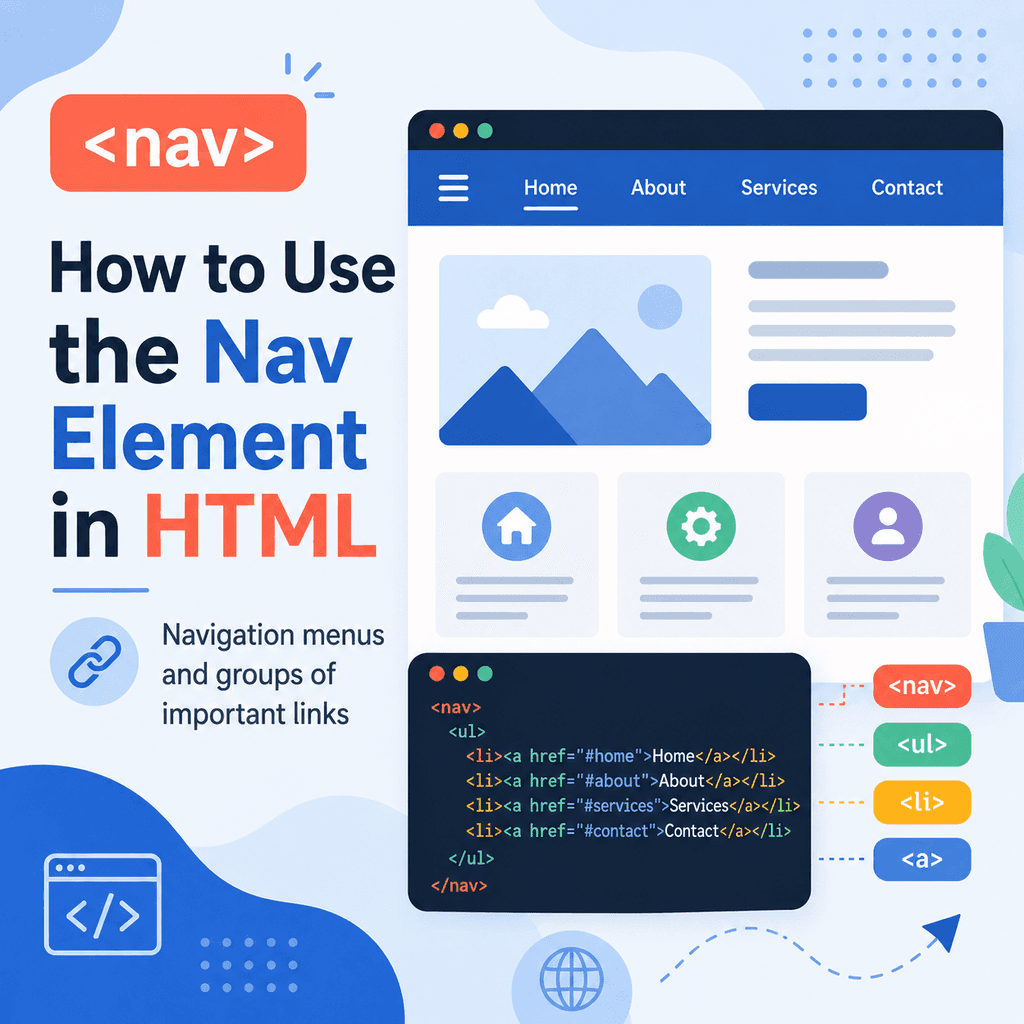
<nav> <ul> <li><a href=”index.html”>Home</a></li> <li><a href=”about.html”>About</a></li> <li><a href=”services.html”>Services</a></li> <li><a href=”contact.html”>Contact</a></li> </ul></nav>This structure uses:
<nav>to identify the navigation area,
<ul>to create an unordered list,
<li>to create each list item,
and:
<a>to create each link.
This is a strong structure because it shows that the links are grouped as a menu.
Should Navigation Links Use a List?
You do not always have to use a list inside <nav>.
This is valid:
<nav> <a href=”index.html”>Home</a> <a href=”about.html”>About</a> <a href=”contact.html”>Contact</a></nav>This is also valid:
<nav> <ul> <li><a href=”index.html”>Home</a></li> <li><a href=”about.html”>About</a></li> <li><a href=”contact.html”>Contact</a></li> </ul></nav>For simple examples, direct links inside <nav> are easy to understand.
For larger menus, lists are often clearer because the navigation is a group of related items.
Main Navigation
The main navigation usually contains the most important links on a website.
For example:
<header> <a href=”index.html”> <img src=”images/logo.png” alt=”Bright Web Studio homepage”> </a> <nav> <ul> <li><a href=”index.html”>Home</a></li> <li><a href=”services.html”>Services</a></li> <li><a href=”work.html”>Our Work</a></li> <li><a href=”contact.html”>Contact</a></li> </ul> </nav></header>This header includes a linked logo and a navigation menu.
Clicking the logo goes to the homepage.
The navigation links go to important pages.
Footer Navigation
A page can have more than one <nav> element.
For example, a website may have main navigation at the top and footer navigation at the bottom.
<footer> <nav> <a href=”privacy.html”>Privacy Policy</a> <a href=”terms.html”>Terms</a> <a href=”accessibility.html”>Accessibility</a> </nav></footer>This navigation helps users find important support, legal, or informational pages.
It is still navigation, even though it appears in the footer.
Sidebar Navigation
A sidebar can also contain navigation.
For example:
<aside> <nav> <h2>HTML Tutorials</h2> <ul> <li><a href=”html-introduction.html”>Introduction to HTML</a></li> <li><a href=”html-links.html”>HTML Links</a></li> <li><a href=”html-images.html”>HTML Images</a></li> <li><a href=”html-forms.html”>HTML Forms</a></li> </ul> </nav></aside>This could be used on a tutorial website to help users move between related lessons.
The <aside> contains related content.
The <nav> identifies the links as navigation.
Page Section Navigation
Sometimes navigation links point to sections on the same page.
For example:
<nav> <a href=”#introduction”>Introduction</a> <a href=”#examples”>Examples</a> <a href=”#summary”>Summary</a></nav> <section id=”introduction”> <h2>Introduction</h2> <p>This section introduces the topic.</p></section> <section id=”examples”> <h2>Examples</h2> <p>This section contains examples.</p></section> <section id=”summary”> <h2>Summary</h2> <p>This section summarises the topic.</p></section>The href="#introduction" link points to the element with:
id=”introduction”This kind of navigation is often used for long articles, documentation pages, and tables of contents.
Breadcrumb Navigation
Breadcrumbs show where a page sits within a website structure.
For example:
<nav aria-label=”Breadcrumb”> <a href=”index.html”>Home</a> <span>›</span> <a href=”tutorials.html”>Tutorials</a> <span>›</span> <span>HTML Navigation</span></nav>This shows a path from the homepage to the current page.
The aria-label="Breadcrumb" attribute gives the navigation area a clear accessible label.
This is useful when a page has more than one navigation area.
Labelling Multiple Navigation Areas
A page can have more than one <nav> element.
For example, it might have:
main navigationfooter navigationbreadcrumb navigationsidebar navigationWhen there are several navigation areas, it can be helpful to label them.
For example:
<nav aria-label=”Main navigation”> <a href=”index.html”>Home</a> <a href=”services.html”>Services</a> <a href=”contact.html”>Contact</a></nav> <nav aria-label=”Footer navigation”> <a href=”privacy.html”>Privacy Policy</a> <a href=”terms.html”>Terms</a></nav>The aria-label helps assistive technologies distinguish between navigation areas.
For a simple page with one navigation menu, you may not need this. For more complex pages, labels can make the structure clearer.
Navigation and Accessibility
The <nav> element can help accessibility because it identifies a navigation region.
Assistive technologies may allow users to jump between page regions, including navigation areas.
This can make it easier to move around a page without reading every line from top to bottom.
Clear link text also matters.
Good:
<a href=”services.html”>View our services</a>Less helpful:
<a href=”services.html”>Click here</a>Navigation links should usually be short, clear, and predictable.
For example:
<a href=”about.html”>About</a><a href=”contact.html”>Contact</a>These are simple and understandable.
Styling Navigation with CSS
The <nav> element gives meaning to the HTML.
CSS controls how the navigation looks.
For example:
<nav class=”main-nav”> <a href=”index.html”>Home</a> <a href=”about.html”>About</a> <a href=”services.html”>Services</a> <a href=”contact.html”>Contact</a></nav>You could style it like this:
.main-nav { display: flex; gap: 20px;} .main-nav a { text-decoration: none;}This can display the links in a row and remove the default underline.
The HTML provides structure and meaning.
The CSS controls spacing, layout, colour, typography, and appearance.
Styling a List-Based Navigation Menu
If your navigation uses a list, you may want to remove the default bullet points.
For example:
<nav class=”main-nav”> <ul> <li><a href=”index.html”>Home</a></li> <li><a href=”about.html”>About</a></li> <li><a href=”services.html”>Services</a></li> <li><a href=”contact.html”>Contact</a></li> </ul></nav>CSS:
.main-nav ul { list-style: none; padding: 0; margin: 0; display: flex; gap: 20px;} .main-nav a { text-decoration: none;}The list structure remains meaningful, but the browser no longer displays bullet points.
A Complete Example
Here is a simple page using the <nav> element:
<!DOCTYPE html><html lang=”en”><head> <meta charset=”UTF-8″> <title>Navigation Example</title></head><body> <header> <h1>Bright Web Studio</h1> <nav aria-label=”Main navigation”> <ul> <li><a href=”index.html”>Home</a></li> <li><a href=”services.html”>Services</a></li> <li><a href=”portfolio.html”>Portfolio</a></li> <li><a href=”contact.html”>Contact</a></li> </ul> </nav> </header> <main> <h2>Welcome</h2> <p>We create simple websites for small businesses.</p> </main> <footer> <nav aria-label=”Footer navigation”> <a href=”privacy.html”>Privacy Policy</a> <a href=”terms.html”>Terms</a> </nav> </footer> </body></html>This example has two navigation areas.
The first <nav> is the main navigation.
The second <nav> is the footer navigation.
The aria-label attributes help identify each navigation area more clearly.
Common Mistake: Using <nav> for Every Link
Not every link belongs inside <nav>.
This does not need <nav>:
<p> Read our <a href=”privacy.html”>privacy policy</a> for more information.</p>This is just a normal link inside a paragraph.
Use <nav> for groups of links that help users navigate around the site or page.
Common Mistake: Using <div> When <nav> Is More Meaningful
This works visually:
<div class=”menu”> <a href=”index.html”>Home</a> <a href=”about.html”>About</a> <a href=”contact.html”>Contact</a></div>But this is more meaningful:
<nav class=”menu”> <a href=”index.html”>Home</a> <a href=”about.html”>About</a> <a href=”contact.html”>Contact</a></nav>If the content is a navigation menu, use <nav>.
Common Mistake: Unclear Link Text
Navigation links should be easy to understand.
Weak:
<a href=”services.html”>Click here</a>Better:
<a href=”services.html”>Services</a>The second version tells users where the link goes.
This is especially important for screen reader users, keyboard users, and anyone scanning the page quickly.
Common Mistake: Too Many Links in the Main Navigation
A main navigation menu should usually focus on the most important destinations.
If you add too many links, the menu becomes harder to scan.
For example, this may be too much for a simple site:
<nav> <a href=”index.html”>Home</a> <a href=”about.html”>About</a> <a href=”team.html”>Team</a> <a href=”history.html”>History</a> <a href=”services.html”>Services</a> <a href=”pricing.html”>Pricing</a> <a href=”blog.html”>Blog</a> <a href=”news.html”>News</a> <a href=”careers.html”>Careers</a> <a href=”contact.html”>Contact</a></nav>A simpler version may be easier to use:
<nav> <a href=”index.html”>Home</a> <a href=”about.html”>About</a> <a href=”services.html”>Services</a> <a href=”contact.html”>Contact</a></nav>More links can still appear in dropdowns, sidebars, footers, or dedicated index pages if needed.
Common Mistake: Forgetting That Navigation Needs Links
The <nav> element should contain navigation links.
This is not useful:
<nav> <p>Welcome to our website.</p></nav>A better use is:
<nav> <a href=”index.html”>Home</a> <a href=”about.html”>About</a></nav>If the content does not help users navigate, it probably does not belong inside <nav>.
Best Practices
Use <nav> for important groups of navigation links.
Use clear link text.
Use <nav> for main menus, footer menus, sidebars, breadcrumbs, and tables of contents.
Do not put every link on the page inside <nav>.
Use a list inside <nav> when the navigation is naturally a list of links.
Use aria-label when a page has multiple navigation areas.
Place main navigation near the top of the page, often inside <header>.
Use CSS to control the appearance of navigation menus.
Keep main navigation focused on important links.
Use <a> elements for navigation links.
Summary
The <nav> element identifies a navigation section on a web page.
A simple example looks like this:
<nav> <a href=”index.html”>Home</a> <a href=”about.html”>About</a> <a href=”contact.html”>Contact</a></nav>Use <nav> for important groups of links, such as main menus, footer links, sidebar menus, breadcrumbs, or tables of contents.
Do not use <nav> for every individual link.
The <nav> element gives meaning to the page structure. It helps browsers, assistive technologies, search engines, and developers understand that a group of links is used for navigation.
Used well, <nav> makes your HTML clearer, more accessible, and easier to maintain.