
Introduction
CSS selectors do not only target elements by tag name, class, or ID.
They can also target elements based on where they appear inside the HTML structure.
For example, you may want to style links inside a navigation menu differently from links inside normal article text.
HTML:
<nav> <a href=”index.html”>Home</a> <a href=”about.html”>About</a></nav> <p> Read our <a href=”guide.html”>full guide</a>.</p>Both are links.
They both use the <a> element.
But they are in different parts of the page.
CSS lets you target them differently:
nav a { font-weight: bold;}This selector targets links inside a <nav> element.
That is a descendant selector.
CSS also has a child selector:
nav > a { font-weight: bold;}This targets only links that are direct children of the <nav> element.
Descendant and child selectors are useful because HTML is structured like a tree.
Elements can contain other elements.
CSS can use that structure to select elements more precisely.
HTML Has a Structure
HTML elements can be nested inside other HTML elements.
Example:
<section class=”card”> <h2>CSS Selectors</h2> <p>Selectors choose which elements to style.</p></section>In this example, the <h2> and <p> are inside the <section>.
The section is the parent element.
The heading and paragraph are child elements.
You can also describe the heading and paragraph as descendants of the section.
CSS can use these relationships.
For example:
.card p { color: #333333;}This selects paragraphs inside elements with class="card".
Parent, Child, and Descendant
To understand descendant and child selectors, it helps to understand three terms.
A parent is an element that contains another element.
A child is an element directly inside another element.
A descendant is any element inside another element, even if it is nested several levels deep.
Example:
<article class=”card”> <div class=”card-content”> <p>This is a paragraph.</p> </div></article>The <article> is the parent of the <div>.
The <div> is a child of the <article>.
The <p> is a child of the <div>.
The <p> is also a descendant of the <article>, even though it is not a direct child.
This difference matters when using CSS selectors.
What Is a Descendant Selector?
A descendant selector targets an element that is inside another element.
It uses a space between selectors.
Example:
.card p { color: #333333;}This means:
select any p element inside an element with class=”card”The paragraph can be directly inside .card.
It can also be nested deeper inside .card.
The space is important.
It tells CSS to look for an element inside another element.
Descendant Selector Example
HTML:
<article class=”card”> <h2>HTML</h2> <p>HTML structures web pages.</p></article> <article class=”card”> <h2>CSS</h2> <p>CSS styles web pages.</p></article>CSS:
.card p { line-height: 1.6;}This selects both paragraphs because both paragraphs are inside elements with class="card".
It does not select every paragraph on the page.
It only selects paragraphs that are descendants of .card.
Descendant Selectors Can Reach Deeply
A descendant selector can match elements nested several levels deep.
HTML:
<article class=”card”> <div class=”card-content”> <p>This paragraph is nested inside card content.</p> </div></article>CSS:
.card p { color: navy;}This still matches the paragraph.
The paragraph is not a direct child of .card, but it is still inside .card.
That makes it a descendant.
This is useful, but it also means descendant selectors can affect more elements than you expect.
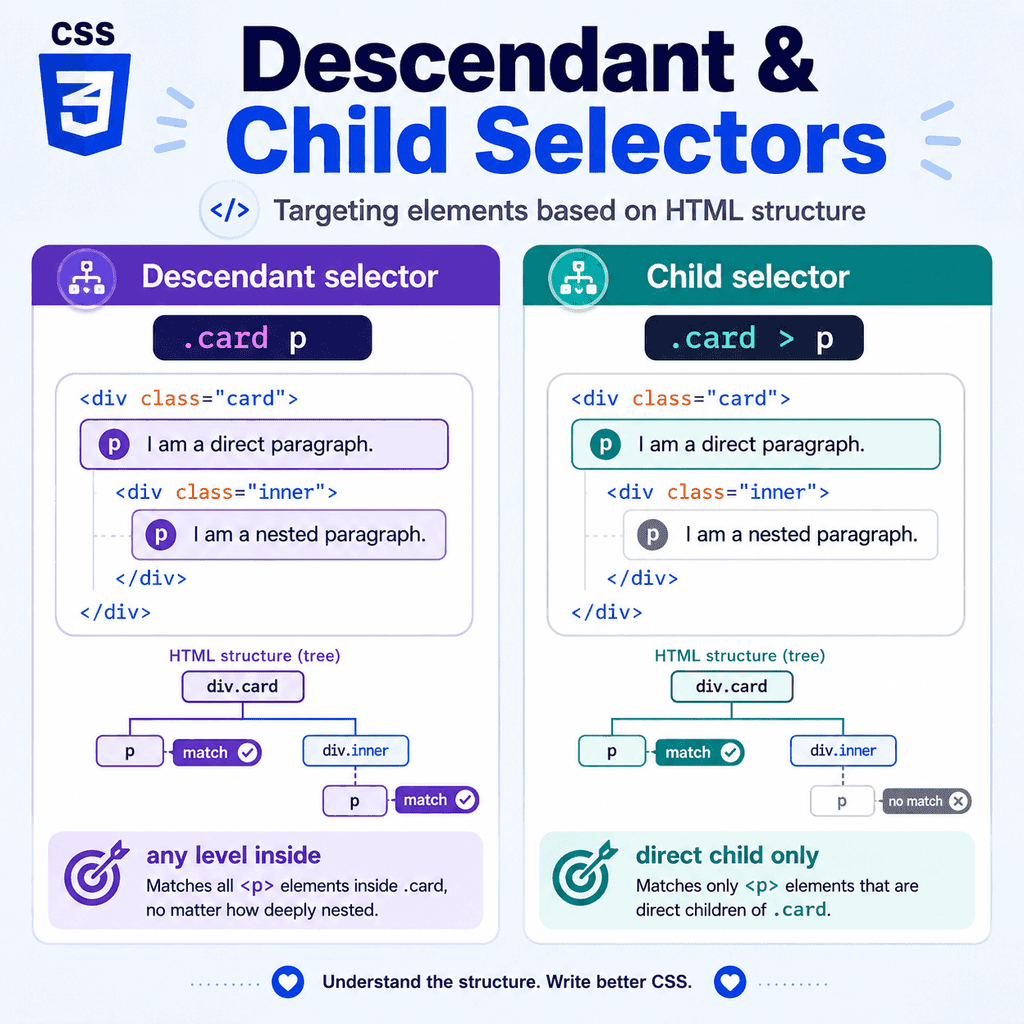
What Is a Child Selector?
A child selector targets only direct children.
It uses the greater-than symbol:
>Example:
.card > p { color: navy;}This means:
select p elements that are direct children of elements with class=”card”It does not select paragraphs nested deeper inside other elements.
The child selector is more restrictive than the descendant selector.
Child Selector Example
HTML:
<article class=”card”> <p>This paragraph is a direct child.</p> <div> <p>This paragraph is nested deeper.</p> </div></article>CSS:
.card > p { color: navy;}This selects only the first paragraph:
<p>This paragraph is a direct child.</p>It does not select the second paragraph because the second paragraph is inside the <div>.
The second paragraph is a descendant of .card, but it is not a direct child.
Descendant vs Child Selectors
The difference is how deep the selector can reach.
Descendant selector:
.card p { color: navy;}This selects any paragraph inside .card, even if it is nested deeply.
Child selector:
.card > p { color: navy;}This selects only paragraphs that are direct children of .card.
A simple comparison:
.card p:selects p elements anywhere inside .card .card > p:selects only p elements directly inside .cardThe descendant selector is broader.
The child selector is more controlled.
Why Structure-Based Selectors Are Useful
Structure-based selectors let you style elements based on context.
For example, a link inside navigation may need a different style from a link inside an article.
HTML:
<nav class=”site-nav”> <a href=”index.html”>Home</a> <a href=”about.html”>About</a></nav> <article> <p> Read the <a href=”css-guide.html”>CSS guide</a>. </p></article>CSS:
.site-nav a { text-decoration: none; font-weight: bold;}This styles only links inside .site-nav.
It does not style links inside the article.
This is one of the most common uses of descendant selectors.
Styling Navigation Links
Navigation links are often styled differently from normal text links.
HTML:
<nav class=”site-nav”> <ul> <li><a href=”index.html”>Home</a></li> <li><a href=”lessons.html”>Lessons</a></li> <li><a href=”contact.html”>Contact</a></li> </ul></nav>CSS:
.site-nav a { text-decoration: none;}This targets all links inside .site-nav.
The links are nested inside list items, which are nested inside the unordered list, which is inside the navigation element.
The descendant selector still works because the links are descendants of .site-nav.
Styling Only Direct List Items
Sometimes you only want to style direct children.
Example:
<ul class=”menu”> <li>Home</li> <li> Lessons <ul> <li>HTML</li> <li>CSS</li> </ul> </li> <li>Contact</li></ul>If you write:
.menu li { font-weight: bold;}this targets every <li> inside .menu, including nested list items.
If you write:
.menu > li { font-weight: bold;}this targets only the top-level list items.
The nested HTML and CSS list items are not direct children of .menu.
They are direct children of the nested <ul>.
Descendant Selectors for Component Styling
Descendant selectors are useful inside components.
HTML:
<article class=”card”> <h2>CSS Basics</h2> <p>Learn how CSS styles web pages.</p> <a href=”css-basics.html”>Read more</a></article>CSS:
.card h2 { margin-top: 0;} .card p { color: #333333;} .card a { font-weight: bold;}These selectors style headings, paragraphs, and links only when they appear inside .card.
This keeps the styles tied to the card component.
Child Selectors for Component Layout
Child selectors are useful when styling only the immediate contents of a component.
HTML:
<section class=”panel”> <h2>Panel Title</h2> <p>Panel text.</p> <div> <p>Nested text inside another container.</p> </div></section>CSS:
.panel > * { margin-top: 0;}This targets only direct children of .panel.
In this example, it targets the <h2>, the first <p>, and the <div>.
It does not directly target the nested paragraph inside the <div>.
This can be useful when managing spacing at the component level.
The > Symbol
The child selector uses the > symbol.
Example:
.card > h2 { margin-top: 0;}You can read it as:
select h2 elements that are direct children of .cardSpaces around the > are optional, but they make the selector easier to read.
These are equivalent:
.card > h2 { margin-top: 0;}.card>h2 { margin-top: 0;}The first version is usually easier to read.
The Space in Descendant Selectors
The descendant selector uses a space.
Example:
.card h2 { margin-top: 0;}The space means:
find h2 elements somewhere inside .cardThe space is not just formatting.
It is part of the selector.
This is different from:
.cardh2 { margin-top: 0;}That would select elements with class="cardh2".
The space changes the meaning.
Chaining Selectors Is Different
This selector uses a space:
.card .title { color: navy;}It selects elements with class="title" inside elements with class="card".
This selector has no space:
.card.title { color: navy;}It selects elements that have both classes:
<div class=”card title”>…</div>These are very different.
A space means descendant.
No space means the same element must match both parts.
Descendant Selector with Classes
You can use descendant selectors with classes.
HTML:
<section class=”course-card”> <h2 class=”card-title”>HTML Fundamentals</h2></section>CSS:
.course-card .card-title { color: navy;}This selects elements with class="card-title" inside elements with class="course-card".
It does not select every .card-title on the page.
It only selects .card-title elements in that context.
Child Selector with Classes
You can also use child selectors with classes.
HTML:
<section class=”course-card”> <h2 class=”card-title”>HTML Fundamentals</h2> <div> <h2 class=”card-title”>Nested Heading</h2> </div></section>CSS:
.course-card > .card-title { color: navy;}This selects only the .card-title that is a direct child of .course-card.
It does not select the nested .card-title inside the <div>.
Use child selectors when the direct structure matters.
Descendant Selectors with Type Selectors
You can combine type selectors.
Example:
article p { line-height: 1.6;}This selects all paragraphs inside articles.
HTML:
<article> <h2>Article Title</h2> <p>This paragraph is inside an article.</p></article> <aside> <p>This paragraph is inside an aside.</p></aside>The first paragraph matches.
The second paragraph does not match because it is not inside an <article>.
Child Selectors with Type Selectors
Example:
article > p { line-height: 1.6;}This selects only paragraphs that are direct children of an <article>.
HTML:
<article> <p>This paragraph matches.</p> <div> <p>This paragraph does not match article > p.</p> </div></article>The first paragraph matches.
The second paragraph is nested inside a <div>, so it does not match the child selector.
Combining Descendant Selectors with IDs
You can use IDs in descendant selectors.
HTML:
<main id=”main-content”> <p>This paragraph is in the main content.</p></main> <footer> <p>This paragraph is in the footer.</p></footer>CSS:
#main-content p { font-size: 1.1rem;}This selects paragraphs inside the element with id="main-content".
It does not select the footer paragraph.
IDs should be unique, so this targets one specific section of the page.
Choosing Between Descendant and Child Selectors
Use a descendant selector when you want to style matching elements anywhere inside a section or component.
Example:
.card a { font-weight: bold;}This styles links anywhere inside .card.
Use a child selector when you only want to style direct children.
Example:
.card > a { font-weight: bold;}This styles only links directly inside .card.
A simple rule:
Use a space when any depth is fine.Use > when only direct children should match.Be Careful with Deep Descendant Selectors
Descendant selectors can become too long.
Example:
.page .content .article .card .card-body p { color: #333333;}This is very specific to one structure.
If the HTML changes, the selector may stop working.
A simpler class selector may be better:
.card-body-text { color: #333333;}or:
.card p { color: #333333;}Deep descendant selectors can make CSS harder to maintain.
Use the shortest selector that clearly targets what you need.
Be Careful with Broad Descendant Selectors
This selector may be too broad:
main p { color: #333333;}It selects every paragraph inside <main>.
That may be fine for base styling, but it may also affect paragraphs in cards, forms, notices, sidebars, and other components inside the main content.
Sometimes a class is safer:
.article-content p { color: #333333;}This targets paragraphs inside article content more deliberately.
Descendant Selectors and Specificity
A descendant selector’s specificity depends on the selectors inside it.
Example:
.card p { color: navy;}This includes one class selector and one type selector.
It is more specific than:
p { color: black;}So if both apply, .card p can override p.
HTML:
<article class=”card”> <p>This paragraph is inside a card.</p></article>The paragraph may appear navy because .card p is more specific.
Child Selectors and Specificity
The > symbol does not add specificity by itself.
For example:
.card > p { color: navy;}has specificity based on .card and p.
The child combinator controls the relationship between elements.
It does not make the selector more powerful by itself.
The same is true for the space in descendant selectors.
Combinators affect matching, not selector weight.
Descendant and Child Selectors with Lists
Lists are a common place to use descendant and child selectors.
HTML:
<ul class=”menu”> <li> Lessons <ul> <li>HTML</li> <li>CSS</li> </ul> </li> <li>Contact</li></ul>CSS:
.menu li { padding: 8px;}This affects all list items, including nested ones.
CSS:
.menu > li { padding: 8px;}This affects only the top-level list items.
The difference is important when styling menus with nested submenus.
Descendant and Child Selectors with Forms
Forms often contain nested elements.
HTML:
<form class=”contact-form”> <div class=”form-row”> <label for=”email”>Email address</label> <input type=”email” id=”email” name=”email”> </div></form>CSS:
.contact-form label { display: block; margin-bottom: 4px;}This styles labels anywhere inside .contact-form.
CSS:
.contact-form > label { display: block;}This would not match the label in the example because the label is inside .form-row, not directly inside the form.
In this case, the descendant selector is more appropriate.
Descendant and Child Selectors with Cards
HTML:
<article class=”card”> <header> <h2>Card Title</h2> </header> <p>Card text.</p></article>CSS:
.card h2 { margin-top: 0;}This selects the <h2> even though it is inside the <header>.
CSS:
.card > h2 { margin-top: 0;}This does not select the <h2> because the heading is not a direct child of .card.
It is a child of <header>.
This shows why you need to choose the selector based on the real HTML structure.
A Complete Example
HTML:
<!DOCTYPE html><html lang=”en”><head> <meta charset=”UTF-8″> <title>Descendant and Child Selectors Example</title> <link rel=”stylesheet” href=”styles.css”></head><body> <nav class=”site-nav”> <ul> <li><a href=”index.html”>Home</a></li> <li><a href=”lessons.html”>Lessons</a></li> <li><a href=”contact.html”>Contact</a></li> </ul> </nav> <main class=”page-content”> <article class=”card”> <header> <h2>CSS Selectors</h2> </header> <p> Descendant and child selectors target elements based on structure. </p> <a href=”selectors.html”>Read more</a> </article> <section class=”panel”> <h2>Top-Level Panel Heading</h2> <div> <h2>Nested Heading</h2> <p>This paragraph is nested inside a div.</p> </div> </section> </main> </body></html>CSS:
/* Descendant selector: all links inside site navigation */.site-nav a { text-decoration: none; font-weight: bold;} /* Descendant selector: headings anywhere inside cards */.card h2 { margin-top: 0;} /* Child selector: only direct links inside cards */.card > a { font-weight: bold;} /* Child selector: only direct h2 children of panel */.panel > h2 { color: navy;} /* Descendant selector: all paragraphs inside page content */.page-content p { line-height: 1.6;}This example shows how descendant and child selectors target different parts of the same HTML structure.
How the Complete Example Works
This selector:
.site-nav a { text-decoration: none;}targets all links inside .site-nav.
The links are nested inside <li> elements and a <ul>, but they are still descendants of .site-nav.
This selector:
.card h2 { margin-top: 0;}targets the <h2> inside .card, even though the heading is inside a <header>.
This selector:
.card > a { font-weight: bold;}targets only links that are direct children of .card.
This selector:
.panel > h2 { color: navy;}targets only the top-level panel heading, not the nested heading inside the <div>.
Common Mistake: Using a Descendant Selector When a Child Selector Is Needed
HTML:
<ul class=”menu”> <li> Lessons <ul> <li>HTML</li> <li>CSS</li> </ul> </li></ul>This CSS affects all list items:
.menu li { font-weight: bold;}If you only want the top-level items, use:
.menu > li { font-weight: bold;}The child selector is more controlled.
Common Mistake: Using a Child Selector When the Element Is Nested Deeper
HTML:
<article class=”card”> <header> <h2>Card Title</h2> </header></article>This CSS does not match the heading:
.card > h2 { margin-top: 0;}The <h2> is not a direct child of .card.
It is inside <header>.
Use a descendant selector instead:
.card h2 { margin-top: 0;}or target the exact structure:
.card > header > h2 { margin-top: 0;}Choose the selector that matches the actual HTML.
Common Mistake: Making Selectors Too Long
Less maintainable:
body main article div section ul li a { color: navy;}This is fragile.
If the HTML structure changes, the rule may stop working.
Better:
.lesson-link { color: navy;}or:
.lesson-list a { color: navy;}Use structure-based selectors when structure matters.
Use classes when the element has a specific role or component style.
Common Mistake: Forgetting That a Space Means Descendant
This selector:
.card .title { color: navy;}selects .title elements inside .card.
This selector:
.card.title { color: navy;}selects one element that has both classes.
HTML that matches .card.title:
<div class=”card title”>…</div>HTML that matches .card .title:
<div class=”card”> <h2 class=”title”>…</h2></div>The space changes the meaning.
Common Mistake: Using Structure When a Class Would Be Clearer
This works:
main section article p { color: #333333;}But it may be clearer to use a class:
<p class=”article-text”>Text content.</p>CSS:
.article-text { color: #333333;}Structure-based selectors are useful, but classes can make intent clearer.
The best choice depends on whether you are styling based on structure or based on component meaning.
Best Practices
Use descendant selectors when an element can appear anywhere inside another element.
Use child selectors when only direct children should match.
Remember that a space means descendant.
Remember that > means direct child.
Use descendant selectors for contextual styling, such as links inside navigation.
Use child selectors for controlled layout and top-level component styling.
Avoid very long descendant selector chains.
Use classes when they make the purpose clearer.
Check the actual HTML structure before choosing a selector.
Use browser developer tools to confirm whether a selector matches.
Be careful with nested lists, cards, forms, and navigation menus.
Summary
Descendant and child selectors target elements based on HTML structure.
A descendant selector uses a space:
.card p { color: navy;}This selects any <p> element inside .card, even if it is nested deeply.
A child selector uses >:
.card > p { color: navy;}This selects only <p> elements that are direct children of .card.
The main difference is depth:
descendant selector = any level insidechild selector = directly inside onlyUse descendant selectors when broad context is enough.
Use child selectors when direct structure matters.
When used carefully, these selectors help you write CSS that follows the structure of your HTML more precisely.