
Introduction
CSS can select elements by tag name, class, ID, and where they appear inside other elements.
CSS can also select elements based on nearby sibling elements.
Sibling selectors are useful when elements share the same parent and you want to style one element depending on what appears before it.
For example, you may want to add spacing only to paragraphs that come after another paragraph:
p + p { margin-top: 1rem;}Or you may want to style every paragraph that comes after a heading in the same section:
h2 ~ p { color: #333333;}The two main sibling selectors are:
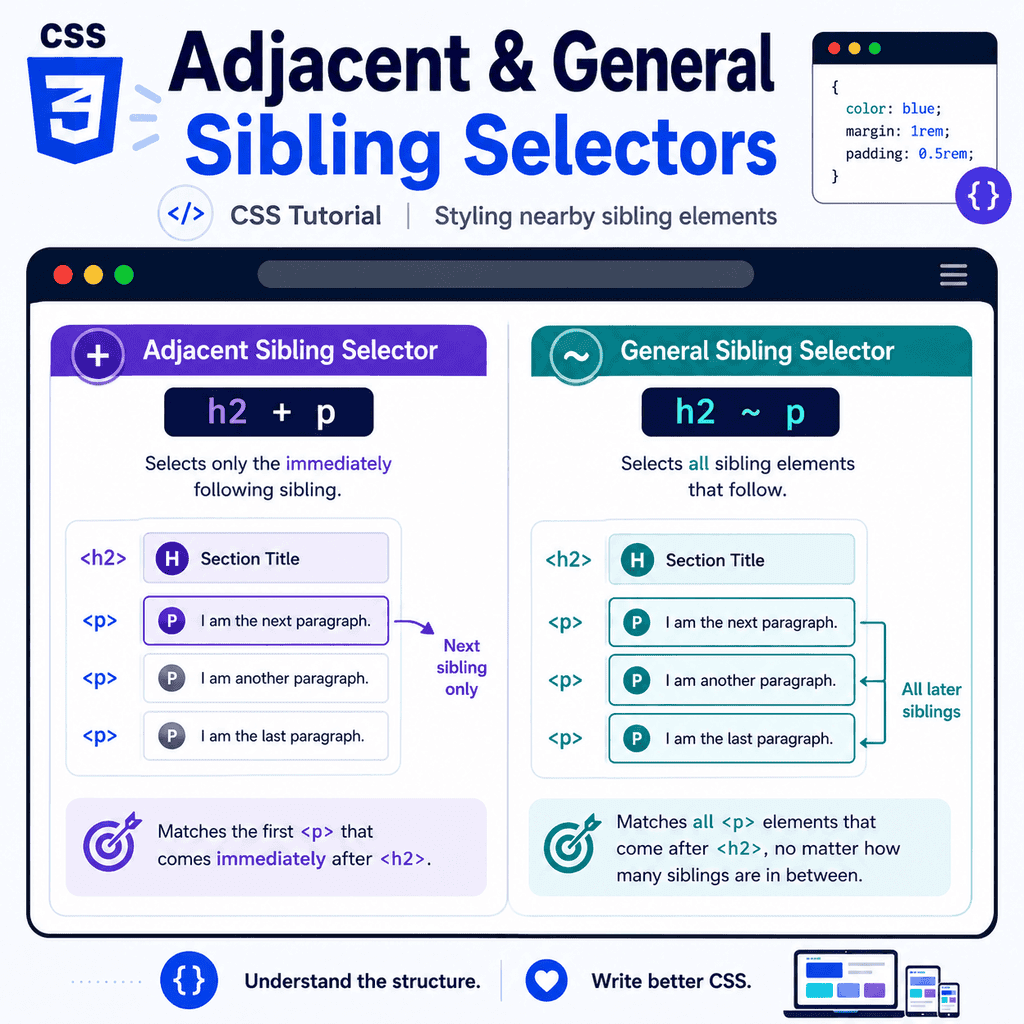
adjacent sibling selector: +general sibling selector: ~The adjacent sibling selector targets the next matching sibling immediately after another element.
The general sibling selector targets later matching siblings after another element, even when they are not immediately next to it.
These selectors are useful for styling elements based on order and relationship in the HTML structure.
What Is a Sibling Element?
Sibling elements are elements that share the same parent.
Example:
<section> <h2>CSS Selectors</h2> <p>First paragraph.</p> <p>Second paragraph.</p></section>In this example, the <h2> and both <p> elements are siblings because they are all directly inside the same <section>.
The <section> is the parent.
The <h2> and paragraphs are children of that parent.
Because they share the same parent, CSS sibling selectors can be used between them.
Siblings Must Share the Same Parent
Sibling selectors only work when elements share the same parent.
This works:
<section> <h2>Heading</h2> <p>Paragraph.</p></section>The <h2> and <p> are siblings.
This does not work in the same way:
<section> <h2>Heading</h2> <div> <p>Paragraph.</p> </div></section>The <h2> and <p> are not siblings.
The <p> is inside the <div>.
The <h2> and <div> are siblings, but the <h2> and nested <p> are not.
This matters when using + and ~.
What Is the Adjacent Sibling Selector?
The adjacent sibling selector uses the plus symbol:
+It selects an element that comes immediately after another element, as long as both elements share the same parent.
Example:
h2 + p { font-weight: bold;}This means:
select a p element that comes immediately after an h2 elementOnly the next matching sibling is selected.
If something else appears between the <h2> and the <p>, the selector will not match.
Adjacent Sibling Selector Example
HTML:
<section> <h2>About CSS</h2> <p>This paragraph comes immediately after the heading.</p> <p>This is another paragraph.</p></section>CSS:
h2 + p { font-size: 1.2rem;}This selects the first paragraph because it comes immediately after the <h2>.
It does not select the second paragraph.
The second paragraph comes after another paragraph, not immediately after the heading.
Adjacent Means Immediately Next
The adjacent sibling selector is strict.
HTML:
<section> <h2>About CSS</h2> <img src=”css-diagram.png” alt=”CSS diagram”> <p>This paragraph is after the image.</p></section>CSS:
h2 + p { font-weight: bold;}This does not select the paragraph.
Why?
Because the paragraph is not immediately after the <h2>.
The <img> is immediately after the <h2>.
The adjacent sibling selector only checks the next sibling.
What Is the General Sibling Selector?
The general sibling selector uses the tilde symbol:
~It selects matching sibling elements that come after another element, as long as they share the same parent.
Example:
h2 ~ p { color: #333333;}This means:
select p elements that come after an h2 element and share the same parentUnlike the adjacent sibling selector, the general sibling selector does not require the element to be immediately next.
It can match later siblings.
General Sibling Selector Example
HTML:
<section> <h2>About CSS</h2> <img src=”css-diagram.png” alt=”CSS diagram”> <p>First paragraph after the heading.</p> <p>Second paragraph after the heading.</p></section>CSS:
h2 ~ p { color: navy;}This selects both paragraphs.
The paragraphs are not immediately after the heading, but they are later siblings of the <h2>.
The image does not stop the general sibling selector from finding later matching paragraphs.
Adjacent vs General Sibling Selectors
The difference is how far the selector can reach.
Adjacent sibling selector:
h2 + p { color: navy;}This selects only the first <p> immediately after an <h2>.
General sibling selector:
h2 ~ p { color: navy;}This selects all later <p> siblings after an <h2>.
A simple comparison:
h2 + p:selects the next p immediately after h2 h2 ~ p:selects later p siblings after h2Both selectors only look forward.
They do not select previous siblings.
Sibling Selectors Only Look Forward
Sibling selectors select elements that come after the first selector.
Example:
h2 + p { color: navy;}This can select a paragraph after a heading.
It cannot select a heading before a paragraph.
HTML:
<section> <p>Intro text.</p> <h2>Section Heading</h2></section>The selector h2 + p does not select the paragraph because the paragraph comes before the heading.
CSS sibling selectors work from left to right through later siblings.
Styling Paragraphs After Headings
A common use of the adjacent sibling selector is styling the first paragraph after a heading.
HTML:
<article> <h2>CSS Layout</h2> <p>This first paragraph introduces the section.</p> <p>This second paragraph gives more detail.</p></article>CSS:
h2 + p { font-size: 1.1rem; font-weight: bold;}This styles only the first paragraph after the heading.
This can be useful for introductions, summaries, or lead paragraphs.
Adding Space Between Consecutive Paragraphs
Another common use is spacing between paragraphs.
HTML:
<article> <p>First paragraph.</p> <p>Second paragraph.</p> <p>Third paragraph.</p></article>CSS:
p + p { margin-top: 1rem;}This applies margin to any paragraph that immediately follows another paragraph.
The first paragraph does not get top margin.
The second and third paragraphs do.
This is a useful spacing pattern because it adds space between paragraphs rather than above every paragraph.
Styling Elements After Images
You can use adjacent sibling selectors to style text after images.
HTML:
<figure> <img src=”layout-example.png” alt=”Example layout”> <figcaption>A simple layout example.</figcaption></figure>CSS:
img + figcaption { font-size: 0.9rem; color: #555555;}This selects a <figcaption> that comes immediately after an <img>.
This is useful when the caption is directly associated with the image.
Styling Lists After Headings
You can style a list that immediately follows a heading.
HTML:
<section> <h2>Topics Covered</h2> <ul> <li>Selectors</li> <li>Properties</li> <li>Values</li> </ul></section>CSS:
h2 + ul { margin-top: 0.5rem;}This selects the unordered list only when it comes immediately after an <h2>.
This can be useful for controlling spacing in article sections.
Styling All Later Paragraphs After a Heading
The general sibling selector can style all later matching siblings.
HTML:
<section> <h2>Important Notes</h2> <p>First note.</p> <p>Second note.</p> <p>Third note.</p></section>CSS:
h2 ~ p { color: #333333;}This selects all three paragraphs because they all come after the heading and share the same parent.
This is broader than h2 + p.
Use it when several later siblings should be affected.
Styling Items After a Special Marker
The general sibling selector is useful when one element acts as a marker for later elements.
HTML:
<ul class=”task-list”> <li>Set up HTML</li> <li class=”current”>Write CSS</li> <li>Test layout</li> <li>Publish page</li></ul>CSS:
.current ~ li { color: #777777;}This selects list items after the item with class="current".
It does not select the current item.
It does not select earlier items.
This can be useful for steps, timelines, menus, and progress lists.
Styling Messages After an Error
Sibling selectors can help style messages that appear after form controls.
HTML:
<label for=”email”>Email address</label><input type=”email” id=”email” class=”has-error”><p class=”error-message”>Please enter a valid email address.</p>CSS:
.has-error + .error-message { color: red;}This selects the error message only when it immediately follows an element with class="has-error".
This pattern depends on the HTML order.
If the error message is not immediately after the input, the adjacent sibling selector will not match.
Sibling Selectors in Forms
Sibling selectors are often useful in forms.
HTML:
<div class=”form-row”> <input type=”checkbox” id=”subscribe”> <label for=”subscribe”>Subscribe to updates</label></div>CSS:
input + label { margin-left: 0.5rem;}This adds space to a label that immediately follows an input.
This can be useful for checkboxes and radio buttons.
However, remember that the selector depends on the label coming after the input.
If the label comes before the input, this selector will not match.
Adjacent Sibling Selector with Classes
You can use adjacent sibling selectors with classes.
HTML:
<div class=”notice”>Important update</div><p class=”notice-text”>This update affects your account.</p>CSS:
.notice + .notice-text { margin-top: 0.5rem;}This selects .notice-text only when it immediately follows .notice.
If another element appears between them, the selector will not match.
This is useful when two components are designed to appear together.
General Sibling Selector with Classes
You can also use the general sibling selector with classes.
HTML:
<div class=”start-marker”>Start here</div><p class=”step”>Step one</p><p class=”step”>Step two</p><p class=”step”>Step three</p>CSS:
.start-marker ~ .step { border-left: 3px solid navy;}This selects all .step elements that come after .start-marker.
They do not need to be immediately after it.
They only need to be later siblings with the same parent.
Sibling Selectors with IDs
Sibling selectors can also use IDs.
HTML:
<h2 id=”setup”>Setup</h2><p>Install the project files.</p><p>Open the folder in your editor.</p>CSS:
#setup ~ p { color: #333333;}This selects paragraphs that come after the element with id="setup" and share the same parent.
IDs should still be unique.
For reusable patterns, classes are usually better.
Combining Sibling Selectors with Other Selectors
Sibling selectors can be combined with classes, IDs, type selectors, and pseudo-classes.
Example:
.card h2 + p { font-size: 1.1rem;}This means:
inside .card, select a p that immediately follows an h2HTML:
<article class=”card”> <h2>Card Title</h2> <p>This paragraph is selected.</p></article>This selector is useful when the relationship matters only inside a component.
Sibling Selectors and Spacing Systems
Sibling selectors are useful for spacing because they can avoid adding extra space before the first item.
Example:
.stack > * + * { margin-top: 1rem;}This selector means:
inside .stack, select each direct child that immediately follows another direct childHTML:
<div class=”stack”> <h2>Title</h2> <p>First paragraph.</p> <p>Second paragraph.</p> <a href=”next.html”>Continue</a></div>The first child does not get top margin.
Every following child gets top margin.
This creates consistent vertical spacing between direct children.
Understanding .stack > * + *
This selector may look advanced:
.stack > * + * { margin-top: 1rem;}Break it down:
.stack = an element with class=”stack”> = direct child* + * = any element immediately after another elementTogether, it selects every direct child of .stack except the first one.
This is useful for layout spacing because it adds space between items without adding unwanted space above the first item.
It is a common pattern in modern CSS.
Sibling Selectors Do Not Select Parents
Sibling selectors cannot select a parent based on a child.
For example:
input + label { color: navy;}This can style a label after an input.
It cannot style the parent .form-row based on whether it contains that input.
Modern CSS has a :has() selector that can sometimes select parents based on children, but that is a different topic.
Sibling selectors work between sibling elements.
They do not move upward to parent elements.
Sibling Selectors Do Not Select Previous Elements
Sibling selectors only select later siblings.
Example:
<p class=”intro”>Intro paragraph.</p><h2>Section Heading</h2>CSS:
h2 + p { color: navy;}This does not select the intro paragraph because it comes before the heading.
There is no basic CSS selector that means “select the previous sibling” using only + or ~.
The selected element must come after the first selector.
Using Sibling Selectors Carefully
Sibling selectors are powerful, but they depend on HTML order.
This can be good when order is meaningful.
For example:
h2 + p { font-size: 1.1rem;}This clearly targets an introductory paragraph after a heading.
However, if the HTML structure changes, the selector may stop matching.
For example, adding an image between the heading and paragraph breaks h2 + p.
If the relationship is important but not always immediate, use ~ or add a class.
When a Class Is Better
Sometimes a class is clearer than a sibling selector.
Sibling selector:
h2 + p { font-size: 1.1rem;}Class-based approach:
<p class=”section-intro”>This paragraph introduces the section.</p>CSS:
.section-intro { font-size: 1.1rem;}The class approach does not depend on the paragraph’s exact position.
Use sibling selectors when the structure itself is the reason for the style.
Use classes when the element has a role that should remain styled even if the order changes.
Adjacent Sibling Selector Specificity
The + symbol does not add specificity by itself.
Example:
h2 + p { color: navy;}The specificity comes from h2 and p.
The plus symbol only describes the relationship between them.
It tells the browser that the paragraph must immediately follow the heading.
The same principle applies to the general sibling selector.
General Sibling Selector Specificity
The ~ symbol also does not add specificity by itself.
Example:
.current ~ li { color: #777777;}The specificity comes from .current and li.
The tilde symbol describes the sibling relationship.
It tells the browser that the <li> must come after .current and share the same parent.
Combinators such as +, ~, >, and spaces affect matching, not specificity by themselves.
A Complete Example
HTML:
<!DOCTYPE html><html lang=”en”><head> <meta charset=”UTF-8″> <title>Sibling Selectors Example</title> <link rel=”stylesheet” href=”styles.css”></head><body> <main class=”container”> <article class=”article-content”> <h1>CSS Sibling Selectors</h1> <p> This first paragraph comes immediately after the heading. </p> <p> This paragraph follows another paragraph. </p> <figure> <img src=”selectors.png” alt=”Diagram of CSS sibling selectors”> <figcaption>Adjacent and general sibling selectors depend on element order.</figcaption> </figure> <h2>Steps</h2> <ol class=”steps”> <li>Write the HTML.</li> <li class=”current”>Add the current class.</li> <li>Style later steps.</li> <li>Test the result.</li> </ol> <form class=”signup-form”> <label for=”email”>Email address</label> <input type=”email” id=”email” class=”has-error”> <p class=”error-message”>Please enter a valid email address.</p> </form> </article> </main> </body></html>CSS:
/* First paragraph immediately after the main heading */h1 + p { font-size: 1.2rem; font-weight: bold;} /* Paragraphs that immediately follow another paragraph */p + p { margin-top: 1rem;} /* Captions immediately after images */img + figcaption { font-size: 0.9rem; color: #555555;} /* Steps after the current step */.current ~ li { color: #777777;} /* Error message immediately after an invalid field */.has-error + .error-message { color: red; font-weight: bold;}This example shows several practical uses of sibling selectors.
How the Complete Example Works
This selector:
h1 + p { font-size: 1.2rem;}selects only the paragraph that immediately follows the <h1>.
This selector:
p + p { margin-top: 1rem;}selects paragraphs that immediately follow another paragraph.
This selector:
img + figcaption { font-size: 0.9rem;}selects a caption immediately after an image.
This selector:
.current ~ li { color: #777777;}selects later list items after the current item.
This selector:
.has-error + .error-message { color: red;}selects an error message that immediately follows a field with class="has-error".
Common Mistake: Using + When the Elements Are Not Adjacent
HTML:
<h2>Section Title</h2><img src=”image.jpg” alt=””><p>Intro paragraph.</p>CSS:
h2 + p { font-weight: bold;}This does not select the paragraph because the image is between the heading and paragraph.
Use ~ if the paragraph can appear later:
h2 ~ p { font-weight: bold;}Or add a class to the paragraph if it has a specific role:
.section-intro { font-weight: bold;}Common Mistake: Expecting Sibling Selectors to Work Across Different Parents
HTML:
<section> <h2>Heading</h2></section> <section> <p>Paragraph.</p></section>CSS:
h2 + p { color: navy;}This does not match.
The <h2> and <p> do not share the same parent.
Sibling selectors require sibling elements.
They cannot jump across separate parent elements.
Common Mistake: Expecting Sibling Selectors to Select Previous Elements
HTML:
<p class=”intro”>Intro paragraph.</p><h2>Section Heading</h2>CSS:
h2 + p { color: navy;}This does not select the intro paragraph because it appears before the heading.
Sibling selectors only select later siblings.
They do not select earlier siblings.
Common Mistake: Confusing + and ~
This selector:
h2 + p { color: navy;}selects only a paragraph immediately after an <h2>.
This selector:
h2 ~ p { color: navy;}selects later paragraph siblings after an <h2>.
Use + for the next sibling.
Use ~ for later siblings.
Common Mistake: Relying on Sibling Selectors When HTML Order May Change
This selector depends on a specific order:
input + label { margin-left: 0.5rem;}It works only when the label comes immediately after the input.
If the HTML changes to:
<label for=”email”>Email address</label><input type=”email” id=”email”>the selector no longer matches.
Use sibling selectors when the order is reliable.
Use classes when the element should be styled regardless of exact order.
Common Mistake: Using General Sibling Selectors Too Broadly
This selector can affect many elements:
h2 ~ p { color: navy;}It selects every later paragraph sibling after an <h2>.
If the section has many paragraphs, all of them may be affected.
If you only want the first paragraph, use:
h2 + p { color: navy;}If you want a specific paragraph role, use a class:
.section-summary { color: navy;}Best Practices
Use + when you need the next immediate sibling.
Use ~ when you need later siblings that share the same parent.
Remember that sibling selectors only select elements that come after the first selector.
Remember that sibling selectors require the same parent.
Use adjacent sibling selectors for first paragraphs, captions, and nearby error messages.
Use general sibling selectors for later steps, later messages, and elements after a marker.
Use classes when the style should not depend on exact HTML order.
Avoid broad general sibling selectors unless the broad effect is intentional.
Use browser developer tools to check whether elements are truly siblings.
Keep selectors readable.
Summary
Adjacent and general sibling selectors style elements based on nearby sibling relationships.
The adjacent sibling selector uses +:
h2 + p { font-weight: bold;}This selects a <p> element immediately after an <h2>.
The general sibling selector uses ~:
h2 ~ p { color: navy;}This selects later <p> siblings after an <h2>.
The main difference is:
+ = the next matching sibling only~ = later matching siblingsBoth selectors require the elements to share the same parent.
Both selectors only look forward.
They do not select previous siblings or parent elements.
Used carefully, sibling selectors help you write CSS that responds to the order and structure of your HTML without adding unnecessary classes.