
Introduction
HTML pages are built from elements. Some elements stand on their own, while other elements sit inside larger elements. This is called nesting.
Nesting is one of the most important ideas in HTML because it explains how a page is organised. It also helps you understand why indentation matters, why closing tags must be in the correct order, and how elements relate to each other.
What Is HTML Nesting?
HTML nesting means placing one element inside another element.
For example:
<p>This is a <strong>very important</strong> message.</p>In this example, the <strong> element sits inside the <p> element.
The paragraph is the larger container.
The strong element is nested inside it.
The browser reads this as a paragraph that contains some important text.
A Simple Nesting Example
Here is a simple example with a section, a heading, and a paragraph:
<section> <h2>About Us</h2> <p>We create simple websites for small businesses.</p></section>The <h2> and <p> elements sit inside the <section> element.
This means the heading and paragraph belong to that section.
The section starts here:
<section>The section ends here:
</section>Everything between those two tags is inside the section.
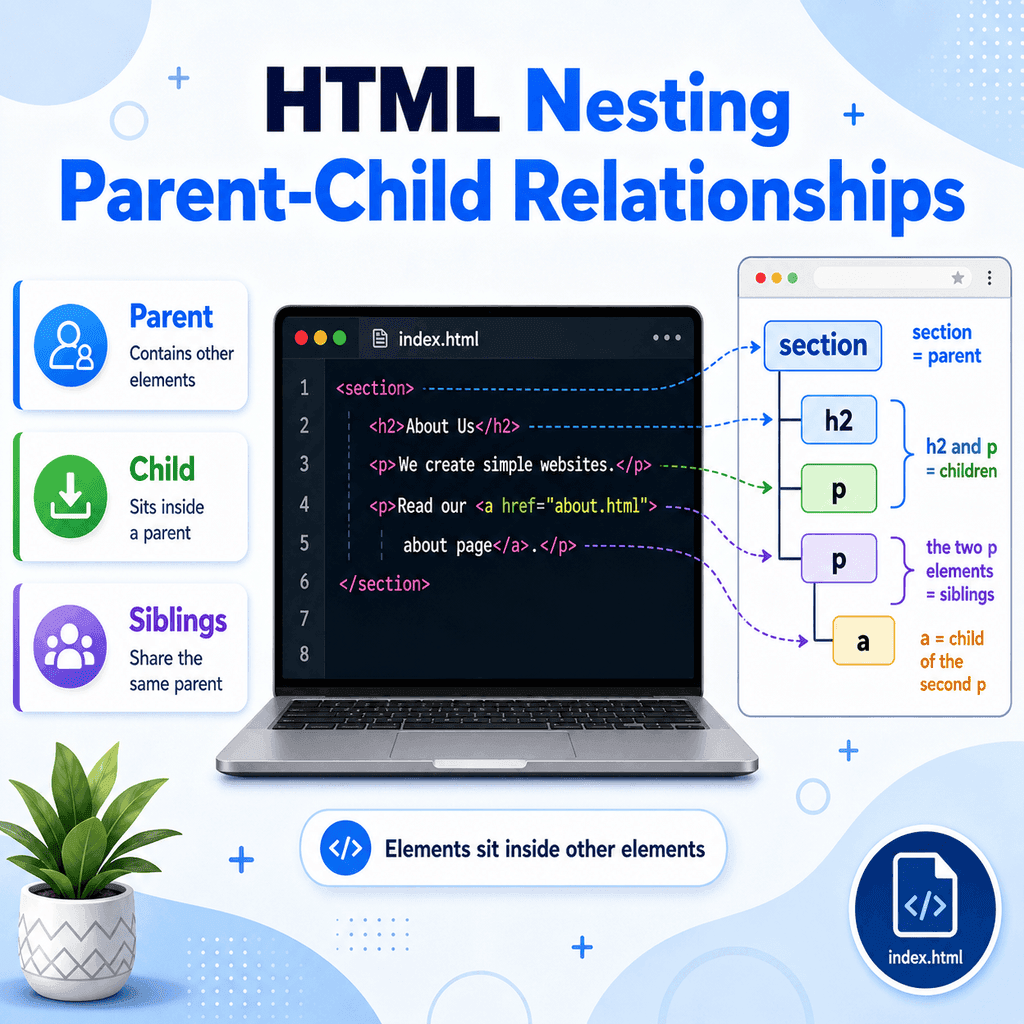
Parent and Child Elements
When one element contains another element, we can describe their relationship using family terms.
The outer element is called the parent.
The element inside it is called the child.
For example:
<section> <h2>About Us</h2> <p>We create simple websites for small businesses.</p></section>In this example, <section> is the parent element.
The <h2> and <p> elements are child elements of <section>.
The <h2> and <p> elements are also siblings because they share the same parent.
Parent, Child, and Sibling Relationships
A useful way to think about this is:
section├── h2└── pThis shows that the <section> element contains both the <h2> and the <p> element.
The <h2> is not inside the <p>.
The <p> is not inside the <h2>.
They are next to each other inside the same parent.
Nested Elements Can Have Their Own Children
A child element can also contain another element.
For example:
<article> <h2>Latest News</h2> <p>Read our <a href=”news.html”>latest updates</a> here.</p></article>In this example, <article> is the parent of <h2> and <p>.
The <p> element is the parent of the <a> element.
The <a> element is a child of the <p> element.
This creates a deeper structure:
article├── h2└── p └── aThis structure means the link belongs inside the paragraph, and the paragraph belongs inside the article.
Ancestors and Descendants
When nesting becomes deeper, you may also hear the terms ancestor and descendant.
An ancestor is any element higher up in the structure.
A descendant is any element contained somewhere inside another element, even if it is several levels deeper.
For example:
<article> <section> <h2>Services</h2> <p>We build websites.</p> </section></article>The <article> element is the parent of <section>.
The <section> element is the parent of <h2> and <p>.
The <article> element is also an ancestor of <h2> and <p> because they sit somewhere inside it.
The <h2> and <p> elements are descendants of <article>.
Why Nesting Matters
Nesting matters because it tells the browser how parts of the page belong together.
For example:
<nav> <ul> <li><a href=”index.html”>Home</a></li> <li><a href=”about.html”>About</a></li> <li><a href=”contact.html”>Contact</a></li> </ul></nav>This structure tells the browser that:
The <nav> element contains navigation.
The <ul> element contains a list.
Each <li> element is a list item.
Each <a> element is a link inside a list item.
The structure can be shown like this:
nav└── ul ├── li │ └── a ├── li │ └── a └── li └── aThis is much clearer than a collection of unrelated elements.
Correctly Closing Nested Elements
When elements are nested, they must be closed in the correct order.
The most recently opened element should usually be closed first.
Correct:
<p>This is <strong>important</strong> text.</p>Incorrect:
<p>This is <strong>important</p></strong>In the correct version, the <strong> element opens inside the paragraph and closes before the paragraph closes.
In the incorrect version, the paragraph closes while the <strong> element is still open. This creates invalid and confusing structure.
Think of Nesting Like Boxes
A simple way to understand nesting is to think of boxes inside boxes.
For example:
<div> <p> <strong>Important text</strong> </p></div>The <div> is the outer box.
The <p> is a box inside the <div>.
The <strong> element is inside the <p>.
So the structure is:
div└── p └── strongIf you open a small box inside a larger box, you should close the small box before closing the larger one.
Indentation Helps Show Nesting
Indentation means adding spaces at the start of lines to show which elements are inside other elements.
For example:
<section> <h2>About Us</h2> <p>We create simple websites.</p></section>The <h2> and <p> lines are indented because they are inside <section>.
Here is a deeper example:
<nav> <ul> <li> <a href=”index.html”>Home</a> </li> <li> <a href=”about.html”>About</a> </li> </ul></nav>Each level of indentation shows another level of nesting.
The browser does not require this exact indentation, but humans do. Well-indented HTML is much easier to read, edit, and debug.
Empty Elements and Nesting
Some HTML elements do not contain other content.
These are empty elements, also called void elements.
For example:
<br><hr><img src=”photo.jpg” alt=”A landscape photo”>These elements do not wrap around text or child elements.
For example, this is incorrect:
<img src=”photo.jpg” alt=”A landscape photo”> <p>This paragraph is inside the image.</p></img>The <img> element cannot contain a paragraph.
Use empty elements as standalone elements inside the appropriate parent:
<section> <h2>Our Office</h2> <img src=”office.jpg” alt=”A desk with a laptop”> <p>This is where we work.</p></section>In this example, the <img> is a child of <section>, just like the heading and paragraph.
Nesting Lists
Lists are a common place where nesting is important.
A basic list looks like this:
<ul> <li>HTML</li> <li>CSS</li> <li>JavaScript</li></ul>The <ul> element is the parent.
Each <li> element is a child.
A nested list is a list inside a list item:
<ul> <li>HTML <ul> <li>Headings</li> <li>Paragraphs</li> <li>Links</li> </ul> </li> <li>CSS</li></ul>The second <ul> sits inside the first <li>, not directly inside the first <ul>.
This matters because a nested list is a sub-list of a particular list item.
Common Mistake: Closing Tags in the Wrong Order
Incorrect nesting is one of the most common HTML mistakes.
Incorrect:
<p>This text is <em>important</p></em>Correct:
<p>This text is <em>important</em></p>The <em> element starts inside the paragraph, so it should end before the paragraph ends.
Common Mistake: Putting Elements in the Wrong Parent
Some elements are expected to appear inside specific parent elements.
For example, <li> elements should be inside list containers such as <ul> or <ol>.
Incorrect:
<li>Home</li><li>About</li><li>Contact</li>Correct:
<ul> <li>Home</li> <li>About</li> <li>Contact</li></ul>The <ul> element tells the browser that the <li> elements belong together as a list.
Common Mistake: Poor Indentation
This code may work, but it is hard to read:
<section><h2>About</h2><p>This is the about section.</p></section>This is easier to read:
<section> <h2>About</h2> <p>This is the about section.</p></section>Indentation does not change the meaning of the page, but it makes the nesting easier to understand.
A Complete Example
Here is a simple HTML page that uses clear nesting and parent-child relationships:
<!DOCTYPE html><html lang=”en”><head> <meta charset=”UTF-8″> <title>Nesting Example</title></head><body> <main> <article> <h1>Learning HTML Nesting</h1> <section> <h2>Why Nesting Matters</h2> <p> Nesting shows how one element can sit inside another element. It helps organise content clearly. </p> <p> Read more on the <a href=”about.html”>about page</a>. </p> </section> </article> </main> </body></html>This structure can be shown like this:
html├── head│ ├── meta│ └── title└── body └── main └── article ├── h1 └── section ├── h2 ├── p └── p └── aThis makes it easier to see how each element relates to the others.
Best Practices
Use indentation to show which elements are nested inside other elements.
Close nested elements in the reverse order that you opened them.
Keep related content inside an appropriate parent element.
Use parent elements such as <section>, <article>, <nav>, <ul>, and <main> to organise content.
Do not put child elements inside elements that cannot contain them.
Place nested lists inside <li> elements.
Use comments only when they help clarify larger structures.
Keep your HTML structure as simple as possible.
Summary
HTML nesting means placing one element inside another.
The outer element is the parent.
The element inside it is the child.
Elements that share the same parent are siblings.
A simple example is:
<section> <h2>About Us</h2> <p>We create simple websites.</p></section>In this example, <section> is the parent. The <h2> and <p> elements are children.
Nested elements must be closed in the correct order:
<p>This is <strong>important</strong> text.</p>Good nesting makes HTML easier to read, easier to maintain, and easier for browsers and assistive technologies to understand.