
Introduction
CSS is powerful, but small mistakes can stop styles from working.
A missing colon, a missing semicolon, a misspelled property, or the wrong selector can make a rule fail.
For example, this CSS looks close to correct:
p { color blue;}But it is missing a colon.
The correct version is:
p { color: blue;}CSS is usually forgiving.
If the browser finds one invalid declaration, it may ignore that declaration and continue reading the rest of the stylesheet.
That means a page may partly work while one style silently fails.
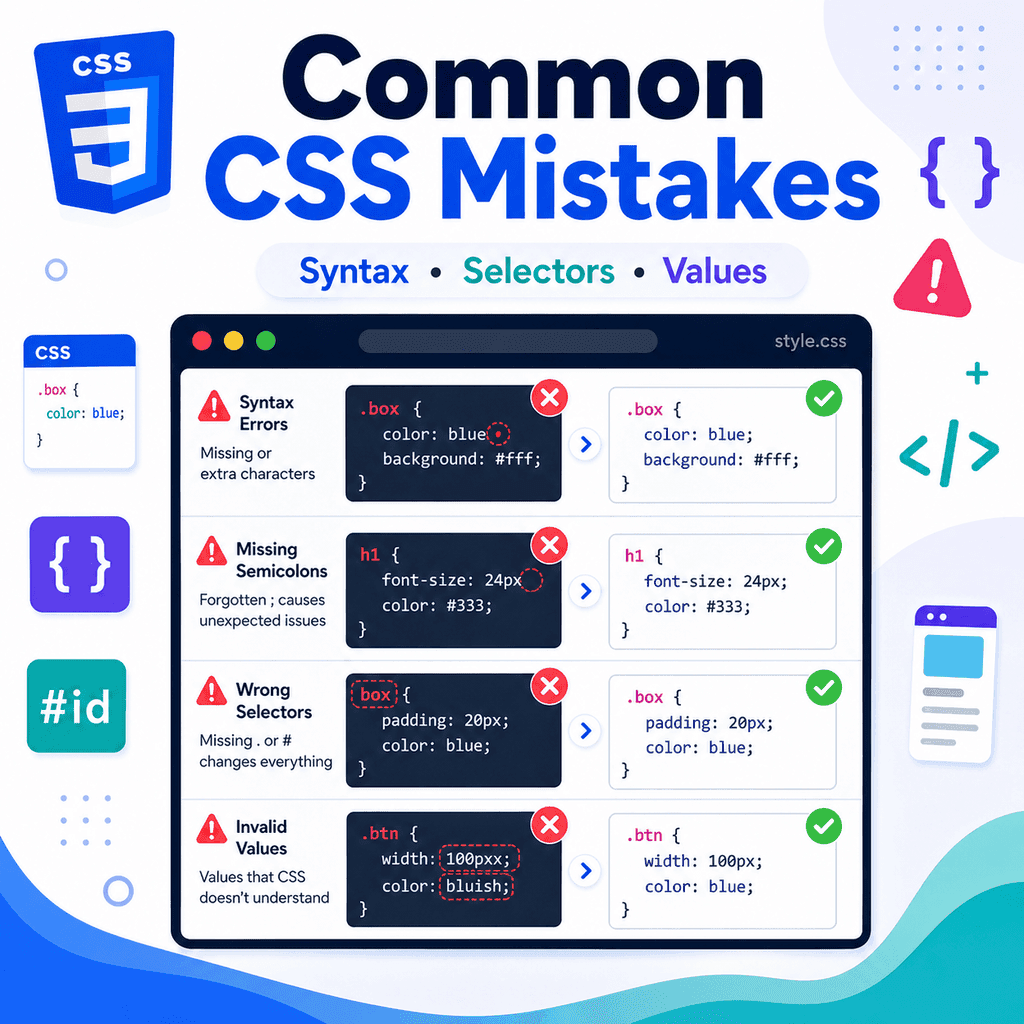
This article explains common CSS mistakes and how to avoid them, with a focus on syntax errors, missing semicolons, wrong selectors, and invalid values.
Why CSS Mistakes Happen
CSS has a simple structure, but it must still be written correctly.
A basic CSS ruleset looks like this:
selector { property: value;}For example:
h1 { color: navy;}This includes:
a selectorcurly bracesa propertya colona valuea semicolonIf one of these parts is missing or written incorrectly, the browser may ignore the rule or declaration.
Mistake 1: Missing the Colon
A CSS declaration needs a colon between the property and the value.
Incorrect:
p { color blue;}Correct:
p { color: blue;}The property is:
colorThe value is:
blueThe colon tells the browser where the property ends and the value begins.
Without the colon, the browser cannot read the declaration properly.
Mistake 2: Missing Semicolons
A semicolon separates one declaration from the next.
Incorrect:
p { color: blue font-size: 18px;}Correct:
p { color: blue; font-size: 18px;}The missing semicolon after color: blue can stop the browser from reading the next declaration correctly.
If there is only one declaration, the final semicolon may still be understood by the browser:
p { color: blue}However, it is better to use semicolons consistently:
p { color: blue;}This helps prevent errors when you add more declarations later.
Mistake 3: Forgetting Curly Braces
CSS declarations must go inside curly braces.
Incorrect:
h1 color: navy;Correct:
h1 { color: navy;}The opening brace starts the declaration block:
{The closing brace ends it:
}If you forget the braces, the browser will not know which declarations belong to the selector.
Mistake 4: Forgetting the Closing Brace
A missing closing brace can affect the CSS that follows.
Incorrect:
h1 { color: navy; p { color: #333333;}Correct:
h1 { color: navy;} p { color: #333333;}In the incorrect example, the h1 rule never closes properly.
This can cause later CSS to be ignored or interpreted incorrectly.
When a large section of CSS suddenly stops working, check for missing closing braces.
Mistake 5: Using the Wrong Selector
CSS only applies if the selector matches the HTML.
For example, this CSS targets a class called intro:
.intro { font-size: 1.2rem;}But this HTML does not have that class:
<p class=”introduction”>Welcome to the page.</p>The selector .intro will not match class="introduction".
A matching version would be:
<p class=”intro”>Welcome to the page.</p>or the CSS could be changed to:
.introduction { font-size: 1.2rem;}Selector names must match exactly.
Mistake 6: Forgetting the Dot for Class Selectors
A class selector needs a dot.
HTML:
<p class=”note”>This is a note.</p>Incorrect CSS:
note { color: blue;}Correct CSS:
.note { color: blue;}Without the dot, note is treated as an element selector.
The browser looks for an element called <note>.
It does not target class="note".
Mistake 7: Forgetting the Hash for ID Selectors
An ID selector needs a hash symbol.
HTML:
<section id=”contact”> <h2>Contact Us</h2></section>Incorrect CSS:
contact { padding: 32px;}Correct CSS:
#contact { padding: 32px;}Without the hash symbol, contact is treated as an element selector.
The browser looks for an element called <contact>.
It does not target id="contact".
Mistake 8: Mixing Up Classes and IDs
Classes and IDs use different selector symbols.
A class uses a dot:
.card { border: 1px solid #cccccc;}An ID uses a hash:
#main-content { padding: 24px;}HTML:
<article class=”card”>…</article><main id=”main-content”>…</main>This will not work if the selector type is wrong.
Incorrect:
#card { border: 1px solid #cccccc;}if the HTML uses:
<article class=”card”>…</article>Correct:
.card { border: 1px solid #cccccc;}Use . for classes and # for IDs.
Mistake 9: Misspelling Property Names
CSS property names must be spelled correctly.
Incorrect:
p { colour: blue;}Correct:
p { color: blue;}CSS uses American English spelling for color.
Another incorrect example:
h1 { font-szie: 2rem;}Correct:
h1 { font-size: 2rem;}If a property name is misspelled, the browser usually ignores that declaration.
Mistake 10: Using Invalid Values
Even if the property name is correct, the value must also be valid.
Incorrect:
p { color: darkishblue;}Correct:
p { color: darkblue;}Another incorrect example:
h1 { font-size: largepx;}Correct:
h1 { font-size: 32px;}The browser ignores values it does not understand.
Use valid values for each CSS property.
Mistake 11: Missing Units
Many CSS values need units.
Incorrect:
.card { padding: 20;}Correct:
.card { padding: 20px;}The value 20 is incomplete for padding.
The browser needs a unit such as:
pxremem%vhvwHowever, zero does not need a unit:
body { margin: 0;}This is valid because zero is zero in any length unit.
Mistake 12: Adding Units Where They Are Not Needed
Some CSS properties do not use length units.
Incorrect:
p { line-height: 1.6px;}This is not always invalid, but it is probably not what you want.
A better version is:
p { line-height: 1.6;}A unitless line-height is commonly used because it scales with the font size.
Another example:
.card { opacity: 50px;}Correct:
.card { opacity: 0.5;}Different properties expect different types of values.
Mistake 13: Using HTML Syntax in CSS
HTML uses angle brackets.
CSS selectors usually do not.
Incorrect CSS:
<p> { color: blue;}Correct CSS:
p { color: blue;}HTML:
<p>This is a paragraph.</p>CSS:
p { color: blue;}Use angle brackets in HTML.
Do not use angle brackets around element selectors in CSS.
Mistake 14: Writing CSS in HTML Without a Style Element
If you write CSS directly in an HTML file, it must go inside a <style> element.
Incorrect:
<head> p { color: blue; }</head>Correct:
<head> <style> p { color: blue; } </style></head>For most real projects, external CSS is usually better:
<link rel=”stylesheet” href=”styles.css”>Then write the CSS in styles.css.
Mistake 15: Forgetting to Link the CSS File
If your CSS is in an external file, the HTML must link to it.
Less complete:
<head> <title>My Page</title></head>Correct:
<head> <title>My Page</title> <link rel=”stylesheet” href=”styles.css”></head>If the stylesheet is not linked, the browser cannot apply it.
If none of your CSS is working, check the <link> element first.
Mistake 16: Using the Wrong CSS File Path
This only works if styles.css is in the same folder as the HTML file:
<link rel=”stylesheet” href=”styles.css”>If the CSS file is inside a folder called css, use:
<link rel=”stylesheet” href=”css/styles.css”>If the HTML file is inside a subfolder, you may need:
<link rel=”stylesheet” href=”../css/styles.css”>Wrong file paths are one of the most common reasons CSS does not load.
Mistake 17: Forgetting rel="stylesheet"
The <link> element needs rel="stylesheet" for CSS.
Incorrect:
<link href=”styles.css”>Correct:
<link rel=”stylesheet” href=”styles.css”>The rel attribute tells the browser that the linked file is a stylesheet.
Without it, the browser may not apply the CSS file correctly.
Mistake 18: Expecting Inline, Internal, and External CSS to Behave Separately
CSS from different places can interact.
For example:
<head> <style> h1 { color: green; } </style></head><body> <h1 style=”color: navy;”>Welcome</h1></body>The inline style may override the internal style.
That means the heading appears navy, not green.
CSS can come from:
browser default stylesexternal stylesheetsinternal style elementsinline style attributesThese sources work together through the cascade.
Mistake 19: Not Understanding Rule Order
When selectors have the same strength, later rules can override earlier rules.
Example:
p { color: black;} p { color: blue;}The paragraph will usually appear blue because the second rule comes later.
Order matters.
This is especially important when using multiple CSS files:
<link rel=”stylesheet” href=”base.css”><link rel=”stylesheet” href=”theme.css”>If both files style the same property with equal specificity, the later file may win.
Mistake 20: Ignoring Specificity
Specificity is how the browser decides which selector is stronger.
Example:
p { color: black;} .intro { color: blue;}HTML:
<p class=”intro”>Welcome to the page.</p>The paragraph appears blue because .intro is more specific than p.
Another example:
.intro { color: blue;} #main-intro { color: green;}HTML:
<p id=”main-intro” class=”intro”>Welcome to the page.</p>The paragraph may appear green because the ID selector is more specific.
If a rule is not applying, another more specific rule may be overriding it.
Mistake 21: Using IDs for Reusable Styles
IDs should be unique on a page.
This is not suitable:
<p id=”note”>First note.</p><p id=”note”>Second note.</p>Better:
<p class=”note”>First note.</p><p class=”note”>Second note.</p>CSS:
.note { background-color: #f5f5f5;}Use classes for reusable styles.
Use IDs for unique elements or page anchors.
Mistake 22: Using the Same ID More Than Once
An ID should identify one specific element.
Incorrect:
<section id=”content”>First section</section><section id=”content”>Second section</section>Correct:
<section id=”intro”>First section</section><section id=”details”>Second section</section>Duplicate IDs can cause problems with CSS, JavaScript, links, labels, and accessibility relationships.
For repeated styling, use a class instead:
<section class=”content-section”>First section</section><section class=”content-section”>Second section</section>Mistake 23: Choosing Class Names That Do Not Match the HTML
CSS:
.error-message { color: red;}HTML:
<p class=”error-msg”>Please enter your email address.</p>The class names do not match.
The CSS uses:
error-messageThe HTML uses:
error-msgThe browser will not treat these as the same class.
Correct:
<p class=”error-message”>Please enter your email address.</p>or update the CSS selector:
.error-msg { color: red;}Class names must match exactly.
Mistake 24: Confusing Spaces and Hyphens in Class Names
This is one class:
<p class=”error-message”>Error text.</p>The matching selector is:
.error-message { color: red;}This is two classes:
<p class=”error message”>Error text.</p>The classes are:
errormessageThey can be selected separately:
.error { color: red;} .message { font-weight: bold;}Spaces separate class names.
Hyphens are part of a class name.
Mistake 25: Putting Important Content in CSS
CSS can add decorative content with pseudo-elements, but important content should be in HTML.
Less suitable:
.button::after { content: “Submit application”;}Better:
<button type=”submit”>Submit application</button>Important text should be part of the HTML so users, browsers, assistive technologies, and search engines can access it reliably.
CSS should control presentation, not provide essential content.
Mistake 26: Removing Focus Styles
Some CSS removes focus outlines:
a:focus,button:focus { outline: none;}This can make a page harder to use with a keyboard.
Better:
a:focus,button:focus { outline: 2px solid #0055cc; outline-offset: 2px;}Focus styles show users which element is active.
Do not remove them unless you provide a clear replacement.
Mistake 27: Using Fixed Widths Everywhere
Fixed widths can break layouts on small screens.
Less flexible:
.container { width: 1200px;}Better:
.container { width: 90%; max-width: 1200px;}The better version lets the container shrink on small screens and stop growing too wide on large screens.
Use flexible layouts when possible.
Mistake 28: Forgetting Responsive Images
Large images can overflow their containers.
Less flexible:
img { width: 800px;}Better:
img { max-width: 100%; height: auto;}This allows images to shrink when the container is smaller.
The height: auto keeps the image proportions correct.
Mistake 29: Using display: none Without Considering Users
This hides an element completely:
.alert { display: none;}That may be correct if the alert should not be shown.
However, do not use display: none for content that users still need.
Hidden content may not be available to many users, including screen reader users.
Use hiding carefully.
If content is important, make sure users can access it when needed.
Mistake 30: Expecting CSS Comments to Use //
CSS comments use /* ... */.
Incorrect:
// This is a commentp { color: blue;}Correct:
/* This is a comment */p { color: blue;}JavaScript can use //.
CSS normally uses /* ... */.
Using the wrong comment syntax can cause CSS errors.
Mistake 31: Forgetting to Close CSS Comments
Incorrect:
/* Card styles.card { padding: 24px;} p { color: #333333;}Correct:
/* Card styles */.card { padding: 24px;} p { color: #333333;}If a comment is not closed, the browser may ignore a large part of the stylesheet.
When CSS suddenly stops working after a comment, check that the comment ends with:
*/Mistake 32: Overusing !important
The !important flag makes a declaration harder to override.
Example:
p { color: red !important;}This can be useful in rare cases, but overusing it makes CSS harder to manage.
If you use !important often, it may mean your selectors, order, or structure need review.
Better:
.article p { color: red;}Use better selectors before reaching for !important.
Mistake 33: Not Checking Browser Developer Tools
If CSS is not working, developer tools can show why.
Use Inspect to check:
whether the element has the class or ID you expectwhich CSS rules applywhich rules are crossed outwhether a declaration is invalidwhether the CSS file loadedwhere spacing is coming fromwhich rule is activeDo not guess.
Inspect the element.
Developer tools are one of the fastest ways to find CSS mistakes.
Mistake 34: Ignoring Crossed-Out CSS
In developer tools, crossed-out CSS usually means a declaration is being overridden or is invalid.
For example:
p { color: black;}may be crossed out because this rule is winning:
.intro { color: blue;}HTML:
<p class=”intro”>Welcome.</p>A crossed-out rule is evidence.
It tells you that the browser read the rule, but another rule or issue prevents it from being active.
Mistake 35: Not Saving Files Before Testing
Sometimes the CSS is correct, but the file is not saved.
If changes are not appearing, check:
is the HTML file saved?is the CSS file saved?did the browser refresh?is the browser showing a cached version?A hard refresh or private window can help when caching is confusing.
But first, make sure your files are saved.
A Broken CSS Example
Here is a CSS example with several mistakes:
card { background-colour white padding: 20; border-radius 8px;} #intro { color: darkishblue;} p { font-szie: 18px;}Problems include:
missing dot for .cardmisspelled background-colormissing colonmissing semicolonmissing unit on paddinginvalid colour valuemisspelled font-sizeA corrected version:
.card { background-color: white; padding: 20px; border-radius: 8px;} #intro { color: darkblue;} p { font-size: 18px;}Small syntax errors can cause several styles to fail.
A Broken HTML and CSS Example
CSS:
.intro-text { color: navy; font-size: 1.2rem;}HTML:
<p class=”intro”>Welcome to the page.</p>The CSS does not apply because the class names do not match.
Correct option 1:
<p class=”intro-text”>Welcome to the page.</p>Correct option 2:
.intro { color: navy; font-size: 1.2rem;}The selector and the HTML class must match exactly.
A Useful Debugging Checklist
When CSS does not work, check these points.
First, check whether the CSS file is linked:
<link rel=”stylesheet” href=”styles.css”>Then check whether the file path is correct.
Then check whether the selector matches the HTML.
Then check the syntax:
curly bracescolonssemicolonsproperty spellingvalid valuesunitsclosed commentsThen inspect the element in browser developer tools.
Look for crossed-out rules, invalid declarations, and active styles.
Best Practices
Write CSS slowly and check the syntax.
Use property: value; for each declaration.
Use semicolons consistently.
Close every ruleset with a closing brace.
Use valid property names.
Use valid values for each property.
Use units where needed.
Use . for class selectors.
Use # for ID selectors.
Make sure selectors match the HTML exactly.
Use classes for reusable styles.
Avoid duplicate IDs.
Avoid unnecessary inline styles.
Avoid overusing !important.
Keep focus styles visible.
Use flexible widths instead of fixed widths where possible.
Use browser developer tools to inspect active rules.
Validate or lint CSS when possible.
Save files before refreshing the browser.
Summary
CSS mistakes are often small, but they can stop styles from working.
Common problems include missing colons:
color blue;instead of:
color: blue;missing semicolons:
color: bluefont-size: 18px;instead of:
color: blue;font-size: 18px;wrong selectors:
note { color: blue;}instead of:
.note { color: blue;}and invalid values:
color: darkishblue;instead of:
color: darkblue;The main idea is to be precise.
CSS depends on correct syntax, matching selectors, valid properties, and valid values.
When something does not work, inspect the element, check the active rules, and fix one issue at a time.