
Introduction
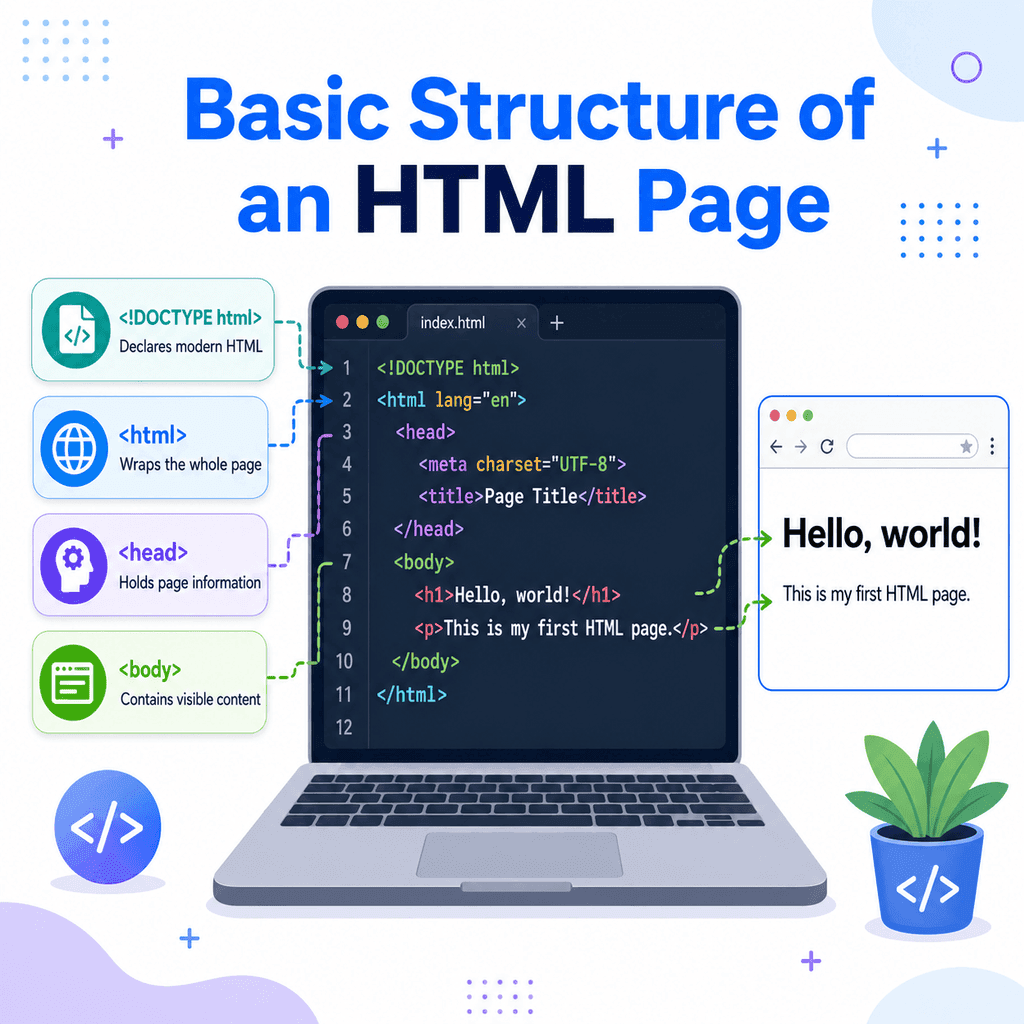
Every HTML page has a basic structure. This structure tells the browser what type of document it is reading, where the page begins, where hidden page information goes, and where the visible content belongs.
The four most important parts of a basic HTML page are:
<!DOCTYPE html><html><head><body>These parts form the foundation of almost every HTML document.
A Basic HTML Page
Here is a simple HTML page:
<!DOCTYPE html><html lang=”en”><head> <meta charset=”UTF-8″> <title>My First HTML Page</title></head><body> <h1>Hello, world!</h1> <p>This is my first HTML page.</p> </body></html>At first, this may look like a lot of code. However, each part has a clear job.
The <!DOCTYPE html> declaration tells the browser to use modern HTML.
The <html> element wraps the whole page.
The <head> element contains information about the page.
The <body> element contains the visible page content.
The <!DOCTYPE html> Declaration
The first line of a modern HTML page is usually:
<!DOCTYPE html>This is called the document type declaration, or doctype.
It tells the browser that the page should be read as a modern HTML document.
The doctype is not an HTML element. It does not have an opening and closing tag. It is a declaration that appears before the rest of the HTML.
Write it at the very top of the document:
<!DOCTYPE html><html lang=”en”>…</html>Do not place it inside the <html>, <head>, or <body> element.
Why the Doctype Matters
Browsers can display web pages in different rendering modes.
The modern doctype helps the browser use standards mode, which means the browser follows modern web standards as closely as possible.
If the doctype is missing or incorrect, older browser behaviour may be triggered. This can make layouts and styling behave unpredictably.
For most modern web pages, use:
<!DOCTYPE html>You do not need to memorise older doctypes from previous versions of HTML.
The <html> Element
The <html> element is the root element of the page.
It wraps all the other HTML elements.
<html lang=”en”> …</html>The opening tag is:
<html lang=”en”>The closing tag is:
</html>Everything else in the document usually goes inside the <html> element, except the doctype.
The lang Attribute
The <html> element often includes a lang attribute:
<html lang=”en”>The lang attribute tells browsers, search engines, translation tools, and assistive technologies the main language of the page.
For an English page, use:
<html lang=”en”>For British English, you can use:
<html lang=”en-GB”>For Spanish, you could use:
<html lang=”es”>The exact value depends on the language of the page.
Using a correct language attribute is good practice because it helps software interpret the content more accurately.
The <head> Element
The <head> element contains information about the page.
This information is mostly not displayed as visible page content.
<head> <meta charset=”UTF-8″> <title>My First HTML Page</title></head>The <head> element appears inside the <html> element and before the <body> element.
It is used for metadata, the page title, links to stylesheets, scripts, and other information the browser may need.
Common Content Inside <head>
A basic <head> section often includes:
<meta charset=”UTF-8″>and:
<title>My First HTML Page</title>The <meta charset="UTF-8"> element tells the browser which character encoding to use.
UTF-8 is the standard choice for modern web pages because it supports a wide range of characters, symbols, and languages.
The <title> element sets the title of the page. This title usually appears in the browser tab, bookmarks, and search engine results.
For example:
<title>About Our Company</title>This does not create a visible heading on the page itself. It sets the document title used by the browser.
The <body> Element
The <body> element contains the visible content of the web page.
<body> <h1>Hello, world!</h1> <p>This is my first HTML page.</p> </body>Most of the content you see in the browser window goes inside the <body> element.
This includes:
<h1>Headings</h1><p>Paragraphs</p><a href=”https://www.example.com”>Links</a><img src=”image.jpg” alt=”Description of the image”><ul> <li>List items</li></ul>If you want users to see something on the page, it usually belongs inside the <body>.
<head> vs <body>
The difference between <head> and <body> is important.
The <head> contains information about the page.
The <body> contains the visible content of the page.
For example, this belongs in the <head>:
<title>My Website</title>This belongs in the <body>:
<h1>My Website</h1>The <title> affects the browser tab.
The <h1> appears as visible content on the page.
Here is the correct structure:
<head> <title>My Website</title></head><body> <h1>My Website</h1></body>The Correct Order
A basic HTML page should be written in this order:
<!DOCTYPE html><html lang=”en”><head> <meta charset=”UTF-8″> <title>Page Title</title></head><body> <h1>Visible Page Heading</h1> <p>Visible page content goes here.</p> </body></html>The doctype comes first.
The <html> element wraps the page.
The <head> comes before the <body>.
The <body> contains the visible content.
This order helps the browser understand the document properly.
Indentation and Readability
Indentation means adding spaces at the start of lines to show which elements are inside other elements.
For example:
<html lang=”en”><head> <title>My Page</title></head><body> <h1>Hello</h1> <p>This is a paragraph.</p></body></html>The browser does not require this exact indentation, but it makes the code much easier for humans to read.
A more clearly indented version is:
<!DOCTYPE html><html lang=”en”> <head> <meta charset=”UTF-8″> <title>My Page</title> </head> <body> <h1>Hello</h1> <p>This is a paragraph.</p> </body></html>Both versions can work, but consistent indentation helps you spot mistakes.
Common Mistake: Putting Visible Content in the <head>
A common mistake is placing visible page content inside the <head>.
Incorrect:
<head> <title>My Page</title> <h1>Welcome</h1></head>The <h1> element should not be inside the <head>.
Correct:
<head> <title>My Page</title></head><body> <h1>Welcome</h1></body>The <head> is for information about the page.
The <body> is for content displayed on the page.
Common Mistake: Forgetting the Closing Tags
The <html>, <head>, and <body> elements should normally be closed properly.
Incorrect:
<!DOCTYPE html><html lang=”en”><head> <title>My Page</title><body> <h1>Hello</h1>Better:
<!DOCTYPE html><html lang=”en”><head> <title>My Page</title></head><body> <h1>Hello</h1></body></html>Browsers may try to fix missing tags automatically, but you should not rely on that. Writing clear, complete HTML makes your code easier to understand and maintain.
Common Mistake: Putting the Doctype in the Wrong Place
The doctype should be the first thing in the HTML file.
Incorrect:
<html lang=”en”><!DOCTYPE html><head> <title>My Page</title></head><body> <h1>Hello</h1></body></html>Correct:
<!DOCTYPE html><html lang=”en”><head> <title>My Page</title></head><body> <h1>Hello</h1></body></html>The doctype comes before the <html> element.
Building the Page Step by Step
You can think of the document structure in layers.
First, declare the document type:
<!DOCTYPE html>Then add the root element:
<!DOCTYPE html><html lang=”en”></html>Then add the <head> and <body> sections:
<!DOCTYPE html><html lang=”en”><head></head><body></body></html>Then add metadata to the <head>:
<!DOCTYPE html><html lang=”en”><head> <meta charset=”UTF-8″> <title>My First Page</title></head><body></body></html>Then add visible content to the <body>:
<!DOCTYPE html><html lang=”en”><head> <meta charset=”UTF-8″> <title>My First Page</title></head><body> <h1>Hello, world!</h1> <p>This is my first HTML page.</p></body></html>This is a complete basic HTML page.
A Simple Mental Model
A useful way to remember the structure is:
DOCTYPE = tells the browser this is modern HTMLhtml = wraps the whole documenthead = information about the pagebody = visible page contentAnother way to think about it is like a document folder:
The doctype labels the document type.
The <html> element is the folder that contains everything.
The <head> is the information sheet about the document.
The <body> is the actual content people read.
Best Practices
Place <!DOCTYPE html> at the very top of the file.
Use <html lang="en"> or another appropriate language value.
Put metadata, page titles, stylesheet links, and similar information inside <head>.
Put visible page content inside <body>.
Use <title> inside the <head> to set the browser tab title.
Use headings and paragraphs inside the <body> for visible content.
Indent your code consistently.
Close your <html>, <head>, and <body> elements clearly.
Summary
A basic HTML page has a predictable structure.
It starts with:
<!DOCTYPE html>Then the page is wrapped in:
<html>Inside the <html> element, there are usually two main sections:
<head>and:
<body>The <head> contains information about the page, such as the page title and metadata.
The <body> contains the visible content users see in the browser.
A complete basic page looks like this:
<!DOCTYPE html><html lang=”en”><head> <meta charset=”UTF-8″> <title>Page Title</title></head><body> <h1>Visible Page Heading</h1> <p>Visible page content goes here.</p> </body></html>Once you understand this structure, every HTML page becomes easier to read, write, and troubleshoot.