
Introduction
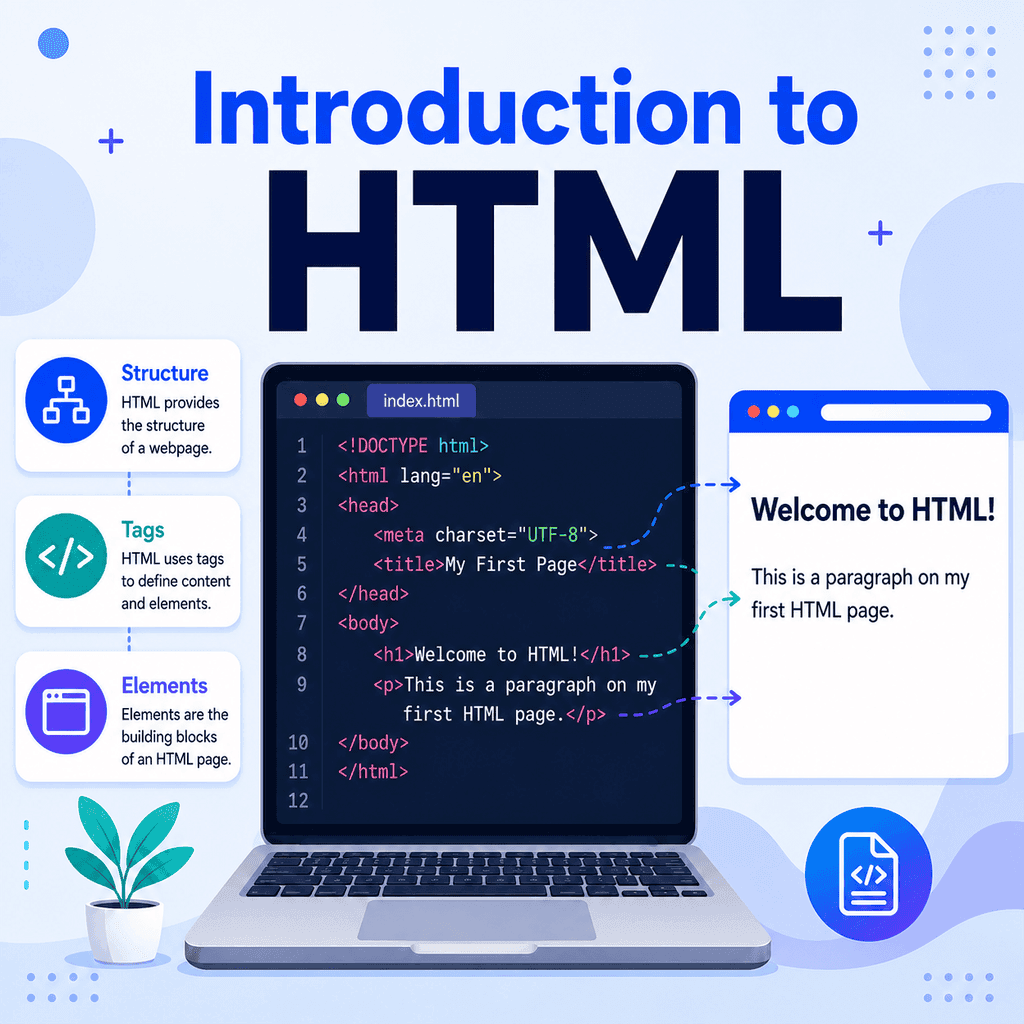
HTML is the standard language used to structure content on the web. Every web page you visit uses HTML in some way. It tells the browser what different parts of a page are, such as headings, paragraphs, links, images, lists, buttons, forms, and sections.
HTML does not usually control how a page looks. That is mostly the job of CSS. HTML also does not usually control how a page behaves. That is mostly the job of JavaScript.
Instead, HTML gives a web page its structure and meaning.
What Does HTML Stand For?
HTML stands for HyperText Markup Language.
Each part of the name is useful:
“HyperText” refers to text that can link to other pages, documents, or sections of a website.
“Markup” means that the content is labelled with tags that describe what each part is.
“Language” means it follows a set of rules that browsers understand.
In simple terms, HTML is a way of marking up content so a browser can display it as a web page.
What HTML Does
HTML is used to describe the structure of a page.
For example, you can use HTML to say:
<h1>This is the main heading</h1><p>This is a paragraph of text.</p><a href=”https://www.example.com”>This is a link</a>The browser reads this HTML and displays it as page content.
The <h1> element tells the browser that the text is a main heading.
The <p> element tells the browser that the text is a paragraph.
The <a> element tells the browser that the text is a hyperlink.
HTML Uses Elements
Most HTML is made from elements.
An element usually has three parts:
<p>This is a paragraph.</p>The opening tag is:
<p>The content is:
This is a paragraph.The closing tag is:
</p>Together, these make a complete paragraph element:
<p>This is a paragraph.</p>Not all HTML elements need a closing tag. For example, the line break element is written like this:
<br>The image element is also written without a closing tag:
<img src=”image.jpg” alt=”Description of the image”>These are sometimes called void elements.
HTML Tags and Content
A tag is the part of the HTML written inside angle brackets.
For example:
<h1>and:
</h1>are tags.
The full element includes the opening tag, the content, and the closing tag:
<h1>Welcome to My Website</h1>The content is the part between the tags:
Welcome to My WebsiteIt is common to hear people say “HTML tag” when they mean “HTML element”. In casual conversation, this is usually understood. However, technically, the element is the whole thing.
HTML Attributes
Attributes give extra information to an HTML element.
They are written inside the opening tag.
For example, a hyperlink uses the href attribute to tell the browser where the link should go:
<a href=”https://www.example.com”>Visit Example</a>In this example:
href=”https://www.example.com”is the attribute.
The attribute name is:
hrefThe attribute value is:
https://www.example.comAttributes usually follow this pattern:
name=”value”Another common example is an image:
<img src=”photo.jpg” alt=”A person walking in a park”>Here, src tells the browser where the image file is located.
The alt attribute gives alternative text for the image. This is useful for accessibility and for situations where the image cannot load.
A Basic HTML Document
A complete HTML page usually has a standard structure.
<!DOCTYPE html><html lang=”en”><head> <meta charset=”UTF-8″> <title>My First HTML Page</title></head><body> <h1>My First HTML Page</h1> <p>This is a simple web page made with HTML.</p> </body></html>This may look complicated at first, but each part has a purpose.
The <!DOCTYPE html> Declaration
The first line is:
<!DOCTYPE html>This tells the browser that the document is using modern HTML.
It is not an HTML element. It is a declaration that helps the browser understand how to read the page.
The <html> Element
The <html> element wraps the whole page.
<html lang=”en”> …</html>The lang="en" attribute tells the browser that the main language of the page is English.
This can help browsers, search engines, translation tools, and assistive technologies.
The <head> Element
The <head> element contains information about the page.
This information is not usually shown as visible page content.
<head> <meta charset=”UTF-8″> <title>My First HTML Page</title></head>The <meta charset="UTF-8"> element tells the browser what character encoding to use. UTF-8 supports a wide range of characters and is the standard choice for most modern web pages.
The <title> element sets the title shown in the browser tab and is also used by search engines and bookmarks.
The <body> Element
The <body> element contains the visible content of the page.
<body> <h1>My First HTML Page</h1> <p>This is a simple web page made with HTML.</p> </body>Most of the HTML you write when creating page content goes inside the <body> element.
Headings, paragraphs, links, images, lists, tables, and forms usually appear inside the body.
Common HTML Elements
HTML includes many elements, but you can start by learning a small group.
Headings are used for titles and section headings:
<h1>Main Heading</h1><h2>Section Heading</h2><h3>Subsection Heading</h3>Paragraphs are used for blocks of text:
<p>This is a paragraph.</p>Links are created with the <a> element:
<a href=”https://www.example.com”>Visit Example</a>Images are added with the <img> element:
<img src=”photo.jpg” alt=”A useful description of the image”>Lists are used to group related items:
<ul> <li>HTML</li> <li>CSS</li> <li>JavaScript</li></ul>These elements are enough to create a simple web page.
HTML Is About Meaning, Not Just Appearance
A key idea in HTML is that elements should describe the meaning of the content.
For example, if something is the main heading of the page, use an <h1> element:
<h1>About Our Company</h1>Do not use a paragraph just because you can make it look large later:
<p>About Our Company</p>The first example gives the browser meaningful structure. The second example is only text.
CSS can make either one look big, but only the <h1> clearly says, “This is the main heading.”
HTML, CSS, and JavaScript
HTML is often used with CSS and JavaScript.
HTML structures the content.
CSS styles the content.
JavaScript adds behaviour and interactivity.
For example:
<p>This is a paragraph.</p>This is HTML. It creates the paragraph.
p { color: blue;}This is CSS. It makes the paragraph text blue.
alert(“Hello!”);This is JavaScript. It creates an interactive browser alert.
A useful way to think about them is:
HTML is the structure.
CSS is the presentation.
JavaScript is the behaviour.
Creating Your First HTML File
To create a simple HTML page, you only need a text editor and a web browser.
Create a new file called:
index.htmlThen add this code:
<!DOCTYPE html><html lang=”en”><head> <meta charset=”UTF-8″> <title>My First Page</title></head><body> <h1>Hello, world!</h1> <p>This is my first HTML page.</p> </body></html>Save the file.
Then open it in your web browser.
You should see a heading and a paragraph displayed on the page.
Common Mistakes to Avoid
One common mistake is forgetting the closing tag.
Incorrect:
<p>This is a paragraph.Correct:
<p>This is a paragraph.</p>Another common mistake is placing visible content inside the <head> instead of the <body>.
Incorrect:
<head> <h1>Welcome</h1></head>Correct:
<body> <h1>Welcome</h1></body>Another mistake is forgetting quotation marks around attribute values.
Incorrect:
<a href=https://www.example.com>Visit Example</a>Better:
<a href=”https://www.example.com”>Visit Example</a>Modern browsers may still understand some imperfect HTML, but it is better to write clear and consistent code.
Best Practices
Use HTML elements for their meaning, not just their appearance.
Put visible page content inside the <body> element.
Use headings in a logical order.
Use paragraphs for normal blocks of text.
Use descriptive link text.
Always include useful alt text for meaningful images.
Use lowercase tag names for consistency.
Use indentation to make your code easier to read.
Keep your HTML simple and well structured.
Summary
HTML is the language used to structure content on the web.
It uses elements such as headings, paragraphs, links, images, and lists to describe different parts of a page.
A simple HTML element looks like this:
<p>This is a paragraph.</p>A complete HTML document usually includes <!DOCTYPE html>, <html>, <head>, and <body>.
HTML works alongside CSS and JavaScript. HTML provides the structure, CSS controls the appearance, and JavaScript adds behaviour.
Once you understand the basic structure of HTML, you can start building simple web pages and gradually add more elements as your skills grow.