
Introduction
HTML is made from small building blocks called elements. These elements tell the browser what different parts of a web page are.
For example, HTML can tell the browser:
<h1>This is a heading</h1><p>This is a paragraph.</p><a href=”https://www.example.com”>This is a link</a>At first, HTML can look like a collection of symbols, angle brackets, and words. Once you understand elements, tags, and attributes, the structure becomes much easier to read.
This guide explains the difference between HTML elements, opening tags, closing tags, empty elements, and attributes.
What Is an HTML Element?
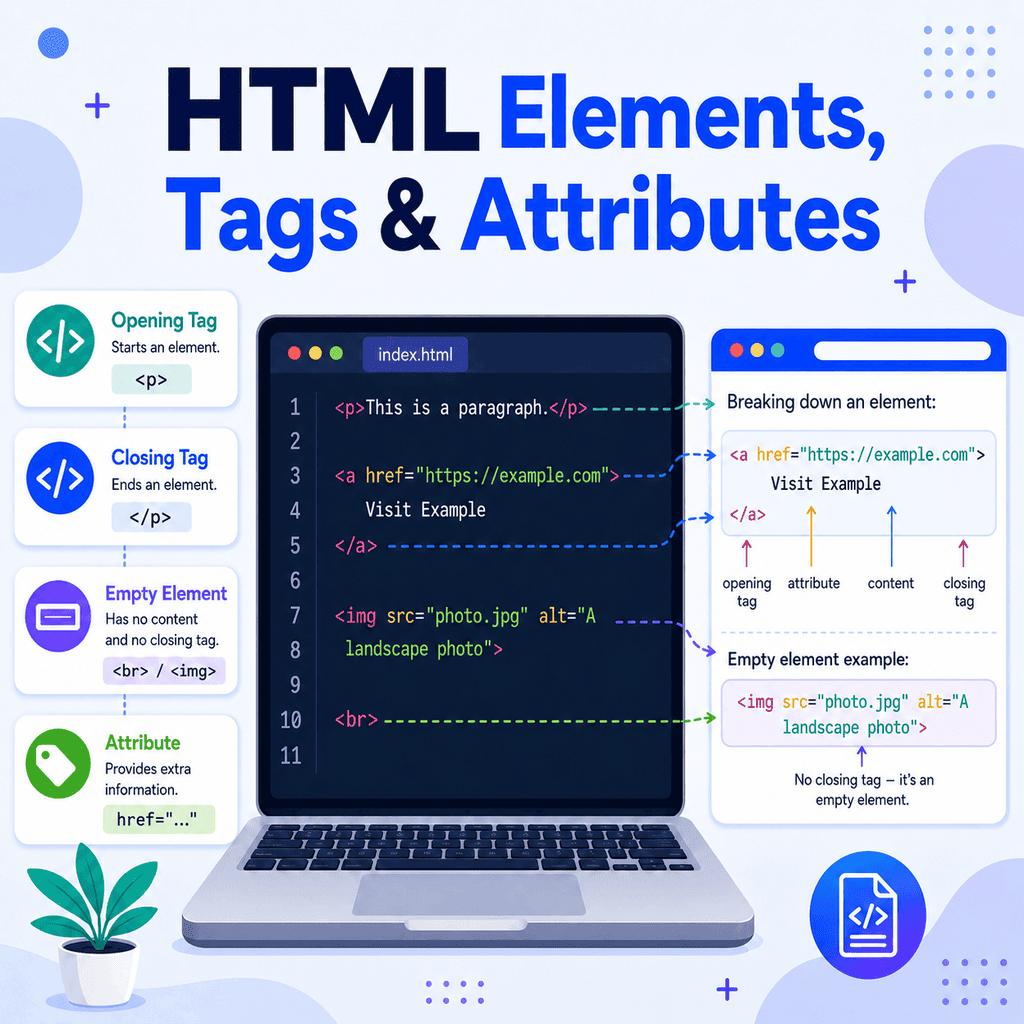
An HTML element is a complete piece of HTML that describes part of a web page.
A typical element has three parts:
<p>This is a paragraph.</p>Those three parts are:
<p>The opening tag.
This is a paragraph.The content.
</p>The closing tag.
Together, these create one complete paragraph element:
<p>This is a paragraph.</p>The browser reads this and understands that the text should be treated as a paragraph.
What Is an HTML Tag?
A tag is the part of an HTML element written inside angle brackets.
For example:
<p>and:
</p>are both tags.
The opening tag starts the element.
The closing tag ends the element.
The full element includes the tags and the content:
<p>This is a paragraph.</p>People sometimes use the words “tag” and “element” as if they mean the same thing. In casual conversation, this is common. However, there is a useful difference:
A tag is the markup inside angle brackets.
An element is the complete structure, including the opening tag, content, and closing tag.
Opening Tags
An opening tag marks the start of an HTML element.
For example:
<h1>This opening tag starts a main heading.
<p>This opening tag starts a paragraph.
<a>This opening tag starts a hyperlink.
An opening tag is written using the element name inside angle brackets:
<tagname>For example:
<p>means “start a paragraph here”.
Closing Tags
A closing tag marks the end of an HTML element.
It looks similar to the opening tag, but it includes a forward slash /.
For example:
</h1>ends a heading.
</p>ends a paragraph.
</a>ends a hyperlink.
The pattern is:
</tagname>For example:
</p>means “end the paragraph here”.
Opening and Closing Tags Together
Most HTML elements use both an opening tag and a closing tag.
For example:
<h1>Welcome to My Website</h1>The opening tag is:
<h1>The content is:
Welcome to My WebsiteThe closing tag is:
</h1>Here is another example:
<p>HTML is used to structure content on a web page.</p>The opening tag starts the paragraph.
The closing tag ends the paragraph.
The text between them is the paragraph content.
Nesting HTML Elements
HTML elements can be placed inside other HTML elements. This is called nesting.
For example:
<p>This is a <strong>very important</strong> message.</p>In this example, the <strong> element is inside the <p> element.
The paragraph element is:
<p>This is a <strong>very important</strong> message.</p>The strong element is:
<strong>very important</strong>The browser treats “very important” as important text inside the paragraph.
When you nest elements, close them in the correct order.
Correct:
<p>This is <strong>important</strong> text.</p>Incorrect:
<p>This is <strong>important</p></strong>The first element opened on the outside should usually be the last one closed.
Empty Elements
Not all HTML elements have content between an opening and closing tag.
Some elements are empty. This means they do not wrap around text or other content.
For example:
<br>The <br> element creates a line break.
It does not need a closing tag.
You should write:
<br>Not:
<br></br>Another common empty element is <img>, which adds an image:
<img src=”photo.jpg” alt=”A person walking in a park”>The image element does not contain text between an opening and closing tag. Instead, it uses attributes to tell the browser which image to show and how to describe it.
Another example is <hr>, which creates a thematic break:
<hr>Empty elements are sometimes called void elements.
Empty Elements vs Normal Elements
A normal element usually has an opening tag, content, and a closing tag:
<p>This is a paragraph.</p>An empty element does not have content inside it:
<br><hr><img src=”photo.jpg” alt=”A useful description”>Use normal elements when you need to wrap content.
Use empty elements when the element represents something that does not contain content of its own.
What Are Attributes?
Attributes give extra information to an HTML element.
They are written inside the opening tag.
For example:
<a href=”https://www.example.com”>Visit Example</a>In this link, the attribute is:
href=”https://www.example.com”The href attribute tells the browser where the link should go.
Without the href attribute, the browser would not know the destination of the link.
Attribute Names and Values
Most attributes have a name and a value.
The pattern is:
name=”value”For example:
href=”https://www.example.com”The attribute name is:
hrefThe attribute value is:
https://www.example.comHere is another example:
<img src=”logo.png” alt=”Company logo”>This image element has two attributes:
src=”logo.png”and:
alt=”Company logo”The src attribute tells the browser where the image file is.
The alt attribute gives alternative text for the image.
Attributes Go in the Opening Tag
Attributes are placed inside the opening tag.
Correct:
<a href=”https://www.example.com”>Visit Example</a>Incorrect:
<a>Visit Example</a href=”https://www.example.com”>For an image, the attributes also go inside the tag:
<img src=”photo.jpg” alt=”A landscape photo”>Because <img> is an empty element, all the important information is provided through attributes.
Common HTML Attributes
Different elements use different attributes.
The <a> element commonly uses href:
<a href=”about.html”>About Us</a>The <img> element commonly uses src and alt:
<img src=”team.jpg” alt=”Our team standing outside the office”>The <html> element commonly uses lang:
<html lang=”en”>The lang attribute tells the browser the main language of the page.
Many elements can use the class attribute:
<p class=”intro”>This is the introduction.</p>The class attribute is often used with CSS to style elements.
Many elements can also use the id attribute:
<h2 id=”contact”>Contact Us</h2>The id attribute gives an element a unique identifier on the page.
Multiple Attributes
An element can have more than one attribute.
For example:
<a href=”https://www.example.com” target=”_blank” rel=”noopener noreferrer”> Visit Example</a>This link has three attributes:
href=”https://www.example.com”target=”_blank”rel=”noopener noreferrer”The href attribute gives the link destination.
The target="_blank" attribute opens the link in a new tab.
The rel="noopener noreferrer" attribute is commonly used with target="_blank" for security and privacy reasons.
Attributes are separated by spaces inside the opening tag.
Quotation Marks in Attributes
It is good practice to put attribute values in quotation marks.
Recommended:
<a href=”https://www.example.com”>Visit Example</a>Avoid writing attributes without quotes:
<a href=https://www.example.com>Visit Example</a>Browsers may understand some unquoted attribute values, but quoted values are clearer, safer, and easier to read.
Use quotation marks consistently.
Boolean Attributes
Some attributes do not need a value. These are called boolean attributes.
A boolean attribute is either present or not present.
For example, the disabled attribute can be used on a button:
<button disabled>Submit</button>This means the button is disabled.
Another example is checked on a checkbox:
<input type=”checkbox” checked>This means the checkbox is checked by default.
For beginners, the main point is simple: some attributes follow name="value", while a few attributes work just by being present.
A Complete Example
Here is a simple HTML page using elements, tags, empty elements, and attributes:
<!DOCTYPE html><html lang=”en”><head> <meta charset=”UTF-8″> <title>Elements, Tags, and Attributes</title></head><body> <h1>About Our Website</h1> <p class=”intro”>We create simple websites for small businesses.</p> <p> Visit our <a href=”services.html”>services page</a> to learn more. </p> <img src=”office.jpg” alt=”A modern office desk with a laptop”> <hr> <p>Thank you for visiting our website.</p> </body></html>This example includes several important ideas.
The <h1> element has an opening tag, content, and a closing tag:
<h1>About Our Website</h1>The <p> element also has an opening tag, content, and a closing tag:
<p class=”intro”>We create simple websites for small businesses.</p>The paragraph has a class attribute:
class=”intro”The link has an href attribute:
<a href=”services.html”>services page</a>The image is an empty element:
<img src=”office.jpg” alt=”A modern office desk with a laptop”>The horizontal rule is also an empty element:
<hr>Common Mistake: Forgetting the Closing Tag
A common mistake is forgetting to close an element.
Incorrect:
<p>This is the first paragraph.<p>This is the second paragraph.Better:
<p>This is the first paragraph.</p><p>This is the second paragraph.</p>Browsers may try to fix missing tags automatically, but it is better to write clear and complete HTML.
Common Mistake: Closing Elements in the Wrong Order
When elements are nested, they should be closed in the correct order.
Incorrect:
<p>This is <strong>important</p></strong>Correct:
<p>This is <strong>important</strong></p>The <strong> element started inside the paragraph, so it should also close inside the paragraph.
Common Mistake: Putting Attributes in the Closing Tag
Attributes belong in the opening tag, not the closing tag.
Incorrect:
<a>Visit Example</a href=”https://www.example.com”>Correct:
<a href=”https://www.example.com”>Visit Example</a>The browser needs the href attribute when the link starts.
Common Mistake: Adding Closing Tags to Empty Elements
Empty elements do not need closing tags.
Avoid this:
<br></br>Use this:
<br>Avoid this:
<img src=”photo.jpg” alt=”Photo”></img>Use this:
<img src=”photo.jpg” alt=”Photo”>Best Practices
Use opening and closing tags for normal elements.
Close elements in the correct order when nesting them.
Use empty elements only for elements that do not contain content.
Place attributes inside the opening tag.
Use quotation marks around attribute values.
Use clear and meaningful attribute values.
Use alt text for meaningful images.
Use lowercase tag and attribute names for consistency.
Indent nested elements so your HTML is easier to read.
Summary
HTML pages are built from elements.
A typical element has an opening tag, content, and a closing tag:
<p>This is a paragraph.</p>The opening tag starts the element:
<p>The closing tag ends the element:
</p>Some elements are empty and do not have content or closing tags:
<br><hr><img src=”photo.jpg” alt=”Description”>Attributes give extra information to elements:
<a href=”https://www.example.com”>Visit Example</a>In this example, href tells the browser where the link should go.
Once you understand opening tags, closing tags, empty elements, and attributes, HTML becomes much easier to read and write.