
Introduction
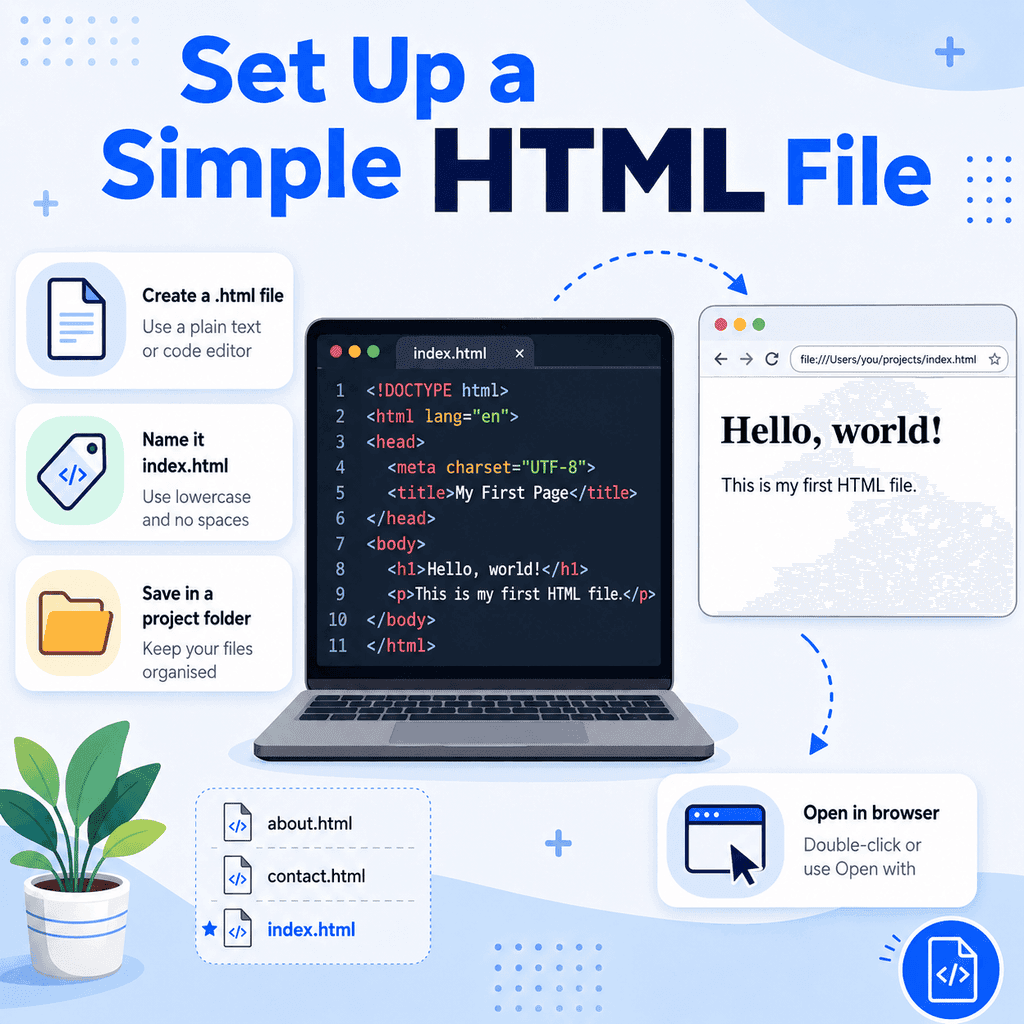
Before you can build a web page, you need somewhere to write your HTML. An HTML page is usually saved as a file with the .html file extension. Once the file is saved, you can open it in a web browser and see the page displayed.
This guide explains how to create an HTML file, how to name it properly, and how to open it in a browser.
What Is an HTML File?
An HTML file is a plain text file that contains HTML code.
For example, an HTML file might contain:
<!DOCTYPE html><html lang=”en”><head> <meta charset=”UTF-8″> <title>My First Page</title></head><body> <h1>Hello, world!</h1> <p>This is my first HTML page.</p> </body></html>When a browser opens this file, it reads the HTML and displays the visible page content.
The browser does not show the tags themselves. Instead, it uses the tags to understand the structure of the page.
The .html File Extension
HTML files usually end with the .html file extension.
For example:
index.htmlabout.htmlcontact.htmlThe file extension tells your computer and browser what type of file it is.
A file called:
index.htmlis treated as an HTML file.
A file called:
index.txtis treated as a plain text file.
This matters because the browser needs to recognise the file as an HTML document.
.html vs .htm
You may sometimes see HTML files ending with .htm instead of .html.
For example:
index.htmBoth .html and .htm can work.
However, .html is the more common modern choice, and it is usually best to use .html unless you have a specific reason not to.
Choosing a Code Editor
You can write HTML in a basic text editor, but a code editor is usually easier.
A code editor can help by showing line numbers, colouring HTML syntax, and making files easier to organise.
Common code editors include Visual Studio Code, Sublime Text, Notepad++, and other plain-text code editors.
Avoid writing HTML in a word processor such as Microsoft Word, Google Docs, or Pages. Word processors add formatting that is not plain HTML and can make the file unsuitable for web development.
Use a plain text editor or code editor instead.
Creating Your First HTML File
Start by creating a new folder for your website project.
For example, you might create a folder called:
my-first-websiteInside that folder, create a new file called:
index.htmlThe file name matters.
The word index is commonly used for the main page of a website. Many web servers automatically look for a file called index.html when someone visits a folder or website address.
For example, if a website folder contains:
index.htmlthe browser may load that file automatically as the home page.
Adding Basic HTML Code
Open index.html in your code editor.
Then add this basic HTML:
<!DOCTYPE html><html lang=”en”><head> <meta charset=”UTF-8″> <title>My First HTML Page</title></head><body> <h1>Hello, world!</h1> <p>This is my first HTML file.</p> </body></html>Save the file.
Saving is important. If you edit the file but do not save it, the browser may still show the old version.
Opening the HTML File in a Browser
After saving the file, open it in a web browser.
You can usually do this by double-clicking the file.
You can also right-click the file and choose an option such as:
Open withThen choose a browser such as Chrome, Firefox, Edge, or Safari.
When the file opens, the browser should display:
Hello, world! This is my first HTML file.The exact appearance may vary slightly between browsers, but the content should be visible.
Opening the File from Your Browser
You can also open an HTML file directly from the browser.
Most browsers let you open a local file using a menu option such as:
File > Open FileYou then choose your .html file from your computer.
Another method is to drag the .html file into an open browser window.
The browser will open the local file and display it as a web page.
Understanding Local File Addresses
When you open an HTML file directly from your computer, the address bar may show something that starts with:
file://For example:
file:///Users/alex/Documents/my-first-website/index.htmlor on Windows:
file:///C:/Users/Alex/Documents/my-first-website/index.htmlThis means the browser is showing a file from your own computer, not from a live website on the internet.
This is normal when practising HTML locally.
Editing and Refreshing the Page
When you make changes to your HTML file, the browser will not always update automatically.
The usual process is:
1. Edit the HTML file in your code editor. 2. Save the file. 3. Go back to the browser. 4. Refresh the page.
For example, you might change:
<h1>Hello, world!</h1>to:
<h1>Welcome to My Website</h1>Then save the file and refresh the browser.
The heading should update.
If nothing changes, check that you saved the file and that the browser is opening the correct file.
Naming HTML Files
Good file names make websites easier to organise.
Use clear, simple names such as:
index.htmlabout.htmlcontact.htmlservices.htmlAvoid spaces in file names.
Instead of:
about us.htmluse:
about-us.htmlor:
about_us.htmlHyphens are commonly used in web file names because they are readable and work well in URLs.
For example:
about-us.htmlis usually clearer than:
aboutus.htmlFile Name Case Matters
On some systems and web servers, file names are case-sensitive.
This means:
About.htmland:
about.htmlmay be treated as different files.
To avoid confusion, use lowercase file names.
Recommended:
about.htmlcontact.htmlmy-first-page.htmlAvoid:
About.HTMLContactPage.htmlMy First Page.htmlLowercase names are easier to type, easier to remember, and less likely to cause problems.
Where to Save Your HTML Files
For a simple website, keep your files inside one project folder.
For example:
my-first-website/ index.html about.html contact.htmlAs your website grows, you may add folders for images, CSS, and JavaScript:
my-first-website/ index.html about.html contact.html images/ css/ js/Keeping related files together makes your project easier to manage.
Checking File Extensions on Windows
On Windows, file extensions may be hidden by default.
This can cause a common problem where a file looks like it is called:
index.htmlbut is actually:
index.html.txtIf the file is really index.html.txt, it may open as a text file instead of an HTML page.
To avoid this, enable file extensions in File Explorer.
Look for a setting such as:
View > Show > File name extensionsThe exact wording may vary depending on your version of Windows.
Once file extensions are visible, check that your file really ends with:
.htmlnot:
.txtA Simple Project Example
Here is a basic folder structure for a small website:
my-first-website/ index.html about.html contact.htmlThe index.html file could contain:
<!DOCTYPE html><html lang=”en”><head> <meta charset=”UTF-8″> <title>Home | My First Website</title></head><body> <h1>Home</h1> <p>Welcome to my first website.</p> <p> <a href=”about.html”>About</a> </p> </body></html>The about.html file could contain:
<!DOCTYPE html><html lang=”en”><head> <meta charset=”UTF-8″> <title>About | My First Website</title></head><body> <h1>About</h1> <p>This page explains more about the website.</p> <p> <a href=”index.html”>Home</a> </p> </body></html>Both files are in the same folder, so they can link to each other using simple file names.
Common Mistake: Saving the File as .txt
One common mistake is saving the file as a text file by accident.
Incorrect:
index.html.txtCorrect:
index.htmlIf your file opens in the browser and shows all the HTML code instead of a web page, check the file extension.
It may not really be saved as an .html file.
Common Mistake: Forgetting to Save Before Refreshing
If you edit your HTML and refresh the browser but nothing changes, the file may not have been saved.
The correct process is:
Edit > Save > RefreshNot:
Edit > RefreshAlways save the file before checking the browser.
Common Mistake: Opening the Wrong File
If you have several copies of the same project, it is easy to open the wrong file.
For example, you may edit:
Documents/my-first-website/index.htmlbut the browser may be showing:
Downloads/my-first-website/index.htmlIf your changes do not appear, check the file path in the browser address bar and compare it with the file you are editing.
Best Practices
Use the .html file extension for HTML files.
Use index.html for the main page of a website.
Use lowercase file names.
Avoid spaces in file names.
Use hyphens to separate words, such as about-us.html.
Keep your website files in a clear project folder.
Save your file before refreshing the browser.
Check that your file is not accidentally saved as .txt.
Use a code editor rather than a word processor.
Summary
A simple HTML page starts as a plain text file saved with the .html extension.
A common main page name is:
index.htmlYou can create the file in a code editor, add your HTML code, save it, and open it in a web browser.
Good file names are simple, lowercase, and easy to understand:
index.htmlabout.htmlcontact.htmlAvoid spaces and accidental extensions such as:
index.html.txtAfter editing your file, remember to save it and refresh the browser.
Once you know how to create, name, save, and open an HTML file, you have the basic workflow needed to start building web pages.