
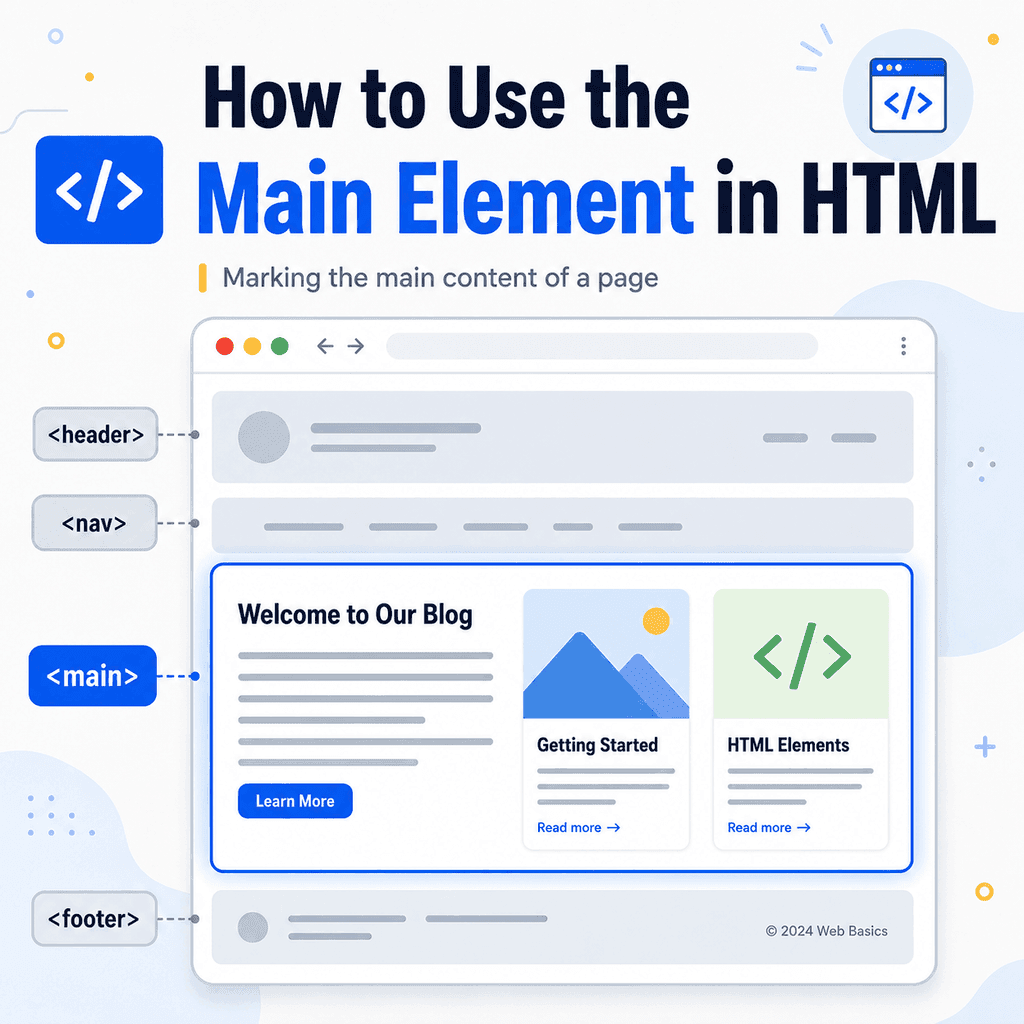
Introduction
The <main> element is used to mark the main content of a web page.
Every web page usually has one central area that contains the main topic, article, product information, service details, form, or page-specific content. The <main> element helps identify that part of the page.
For example:
<main> <h1>About Our Company</h1> <p>We create simple websites for small businesses.</p></main>This tells the browser that the heading and paragraph are part of the main content of the page.
The <main> element is a semantic HTML element. That means it gives meaning to the content inside it. It does not just create a visual container.
What Is the <main> Element?
The <main> element represents the main content of the document.
The content inside <main> should be directly related to the main purpose of the page.
For example, on an “About” page, the <main> element might contain information about the company.
<main> <h1>About Us</h1> <p>We help small businesses build clear, effective websites.</p> <p>Our team focuses on simple design, useful content, and reliable development.</p></main>On a blog article page, the <main> element might contain the article.
<main> <article> <h1>How to Add Images Using HTML</h1> <p>This article explains how the img element works.</p> </article></main>On a contact page, the <main> element might contain a contact form and contact details.
<main> <h1>Contact Us</h1> <p>Use the form below to send us a message.</p> <form> <!– Form fields would go here –> </form></main>Why the <main> Element Matters
The <main> element helps separate the main content from repeated page content.
Many websites have repeated areas such as:
site headerlogomain navigationsidebarfootercopyright textsocial media linksThese parts may appear on many pages.
The <main> element identifies the content that is unique and central to the current page.
For example:
<body> <header> <h1>Bright Web Studio</h1> </header> <nav> <a href=”index.html”>Home</a> <a href=”services.html”>Services</a> <a href=”contact.html”>Contact</a> </nav> <main> <h2>Our Services</h2> <p>We design and build simple websites for small businesses.</p> </main> <footer> <p>© 2026 Bright Web Studio</p> </footer> </body>The header, navigation, and footer are important, but they are not the main content of this page.
The <main> element marks the central page content.
The <main> Element Belongs Inside <body>
The <main> element should be placed inside the <body> element.
For example:
<!DOCTYPE html><html lang=”en”><head> <meta charset=”UTF-8″> <title>Main Element Example</title></head><body> <main> <h1>Welcome to My Website</h1> <p>This is the main content of the page.</p> </main> </body></html>The <head> element contains information about the document.
The <body> element contains the visible page content.
The <main> element belongs inside the <body> because it marks part of the visible page.
A Page Should Usually Have One <main> Element
A page should usually have one <main> element.
This is because there is usually one main content area for the document.
For example:
<body> <header> <h1>My Website</h1> </header> <main> <h2>Welcome</h2> <p>This is the main content.</p> </main> <footer> <p>© 2026 My Website</p> </footer> </body>Avoid using multiple visible <main> elements on the same page.
Incorrect:
<main> <h1>About Us</h1></main> <main> <h1>Contact Us</h1></main>Better:
<main> <section> <h1>About Us</h1> <p>Information about our company.</p> </section> <section> <h2>Contact Us</h2> <p>Information about how to contact us.</p> </section></main>The page has one main area, and that area can contain multiple sections.
What Should Go Inside <main>?
The content inside <main> should be the main, page-specific content.
This may include:
the main page headingarticle contentproduct informationservice descriptionscontact formssearch resultstutorial contentmain sections of the pageimportant images or media related to the page topicFor example:
<main> <h1>Web Design Services</h1> <section> <h2>Small Business Websites</h2> <p>We build simple websites for small businesses.</p> </section> <section> <h2>Website Maintenance</h2> <p>We help keep existing websites updated.</p> </section></main>The <main> element contains the main heading and the sections that explain the page topic.
What Should Not Go Inside <main>?
The <main> element should not usually contain content that is repeated across many pages.
For example, these usually belong outside <main>:
site headermain navigationfootercopyright noticesite-wide sidebarlogo areacookie noticesrepeated social media linksFor example:
<body> <header> <h1>Bright Web Studio</h1> </header> <nav> <a href=”index.html”>Home</a> <a href=”services.html”>Services</a> <a href=”contact.html”>Contact</a> </nav> <main> <h2>Services</h2> <p>Our main service information goes here.</p> </main> <footer> <p>© 2026 Bright Web Studio</p> </footer> </body>The header, navigation, and footer are outside <main> because they are not the unique main content of the page.
<main> and Accessibility
The <main> element is helpful for accessibility.
Assistive technologies, such as screen readers, may allow users to jump directly to the main content of a page.
This can save time because users do not have to move through repeated navigation or header content every time they open a new page.
For example:
<header> <h1>My Website</h1></header> <nav> <a href=”index.html”>Home</a> <a href=”about.html”>About</a> <a href=”contact.html”>Contact</a></nav> <main> <h2>About Us</h2> <p>This is the main content of the page.</p></main>The <main> element makes it clear where the central page content begins.
This is one reason semantic HTML matters. It helps people and software understand the page structure.
<main> and Skip Links
A skip link lets users jump directly to the main content.
This is especially useful for keyboard users and screen reader users.
A simple skip link might look like this:
<a href=”#main-content”>Skip to main content</a> <header> <h1>My Website</h1></header> <nav> <a href=”index.html”>Home</a> <a href=”about.html”>About</a> <a href=”contact.html”>Contact</a></nav> <main id=”main-content”> <h2>Welcome</h2> <p>This is the main content of the page.</p></main>The link points to:
id=”main-content”on the <main> element.
When users activate the skip link, the browser jumps to the main content area.
This helps users avoid repeatedly tabbing through the same navigation links on every page.
<main> vs <body>
The <body> element contains all visible page content.
The <main> element marks the central content inside the body.
For example:
<body> <header> <h1>My Website</h1> </header> <nav> <a href=”index.html”>Home</a> <a href=”about.html”>About</a> </nav> <main> <h2>Welcome</h2> <p>This is the main content.</p> </main> <footer> <p>© 2026 My Website</p> </footer> </body>The <body> contains everything visible.
The <main> contains only the main content.
Think of it like this:
<body> = all visible page content<main> = the main, unique content inside the page<main> vs <section>
The <main> element marks the main content area of the page.
The <section> element groups a distinct section of related content.
A page may have one <main> element containing several <section> elements.
For example:
<main> <h1>Our Services</h1> <section> <h2>Website Design</h2> <p>We design simple, clear websites.</p> </section> <section> <h2>Website Maintenance</h2> <p>We help keep websites updated.</p> </section></main>In this example, <main> identifies the main content area.
Each <section> identifies a specific part of that main content.
<main> vs <article>
The <article> element is used for self-contained content, such as a blog post, news story, tutorial, product card, or forum post.
The <main> element is used for the main content area of the page.
A page can have an <article> inside <main>.
For example:
<main> <article> <h1>How to Use the Main Element in HTML</h1> <p>This article explains how the main element works.</p> </article></main>In this example, <main> marks the main content area.
<article> marks the article itself.
This is a common structure for blog posts and tutorials.
<main> vs <div>
A <div> is a generic container. It does not describe the meaning of the content.
For example:
<div class=”main”> <h1>About Us</h1> <p>We build websites.</p></div>This may work visually, especially with CSS, but the meaning is only suggested by the class name.
A more semantic version is:
<main> <h1>About Us</h1> <p>We build websites.</p></main>The <main> element directly tells the browser that this is the main content area.
Use <main> when you mean the main content of the page.
Use <div> when you need a generic container and no more specific semantic element fits.
Styling the Main Element with CSS
The <main> element gives meaning to the page structure.
CSS controls how it looks.
For example:
<main class=”page-content”> <h1>Welcome</h1> <p>This is the main content of the page.</p></main>You could style it like this:
.page-content { max-width: 900px; margin: 0 auto; padding: 32px;}This centres the main content, limits its width, and adds spacing.
The HTML describes the content.
The CSS controls the layout and visual presentation.
A Complete Example
Here is a complete HTML page using the <main> element:
<!DOCTYPE html><html lang=”en”><head> <meta charset=”UTF-8″> <title>Main Element Example</title></head><body> <header> <h1>Bright Web Studio</h1> <p>Simple websites for small businesses.</p> </header> <nav aria-label=”Main navigation”> <a href=”index.html”>Home</a> <a href=”services.html”>Services</a> <a href=”contact.html”>Contact</a> </nav> <main id=”main-content”> <h2>Web Design Services</h2> <p>We design and build simple websites for small businesses.</p> <section> <h3>Website Design</h3> <p>We create clean, practical website designs.</p> </section> <section> <h3>Website Maintenance</h3> <p>We help keep websites updated and reliable.</p> </section> </main> <footer> <p>© 2026 Bright Web Studio</p> </footer> </body></html>This example has one <main> element.
The header, navigation, and footer are outside <main>.
The main content of the page is inside <main>.
The id="main-content" can be used by a skip link or JavaScript if needed.
Common Mistake: Using More Than One Main Element
A common mistake is adding several <main> elements to the same page.
Incorrect:
<main> <h1>Welcome</h1></main> <main> <h1>Services</h1></main>Better:
<main> <h1>Welcome</h1> <section> <h2>Services</h2> <p>Information about our services.</p> </section></main>Use one main content area and organise content inside it with headings, sections, articles, and other appropriate elements.
Common Mistake: Putting Navigation Inside <main>
Site navigation should usually be outside <main>.
Less appropriate:
<main> <nav> <a href=”index.html”>Home</a> <a href=”about.html”>About</a> </nav> <h1>About Us</h1></main>Better:
<nav> <a href=”index.html”>Home</a> <a href=”about.html”>About</a></nav> <main> <h1>About Us</h1></main>The navigation is repeated site structure.
The <main> element should focus on the page’s main content.
There are exceptions. For example, a table of contents for a long article may appear inside <main> because it helps navigate the main content itself. But the main site navigation usually sits outside it.
Common Mistake: Putting the Site Header Inside <main>
A site header usually belongs outside <main>.
Less appropriate:
<main> <header> <h1>Bright Web Studio</h1> </header> <h2>About Us</h2></main>Better:
<header> <h1>Bright Web Studio</h1></header> <main> <h2>About Us</h2> <p>Information about the company.</p></main>The site header is repeated site identity.
The main element should contain the unique central content of the current page.
Common Mistake: Using <div class="main"> Instead of <main>
This works visually:
<div class=”main”> <h1>Contact Us</h1> <p>Use the form below to contact us.</p></div>But this is more meaningful:
<main> <h1>Contact Us</h1> <p>Use the form below to contact us.</p></main>If the container represents the main content of the page, use <main>.
Common Mistake: Putting Repeated Content Inside <main>
Avoid putting repeated site-wide content inside <main>.
For example, a footer navigation menu should usually be outside <main>:
<main> <h1>About Us</h1> <p>Our company information goes here.</p></main> <footer> <nav> <a href=”privacy.html”>Privacy Policy</a> <a href=”terms.html”>Terms</a> </nav></footer>The main content is the page-specific information.
The footer navigation is repeated support content.
Best Practices
Use <main> to mark the main content of the page.
Place <main> inside the <body> element.
Use one visible <main> element per page.
Keep repeated content such as site headers, main navigation, and footers outside <main>.
Put page-specific content inside <main>.
Use headings, sections, and articles inside <main> to organise the content.
Use an id on <main> if you want to support a skip link.
Use CSS to control the layout and appearance of the main content area.
Use <main> instead of <div class="main"> when the content is genuinely the main content.
Summary
The <main> element marks the main content of a web page.
A simple example looks like this:
<main> <h1>About Us</h1> <p>We create simple websites for small businesses.</p></main>The main content is the central, page-specific content that users came to the page to read or use.
Headers, navigation menus, sidebars, and footers are usually outside <main> because they are repeated page structure.
A page should usually have one visible <main> element.
Used well, <main> makes your HTML clearer, more meaningful, more accessible, and easier to maintain.