
Introduction
The <footer> element is used to represent footer content for a page, section, article, or other part of a web page.
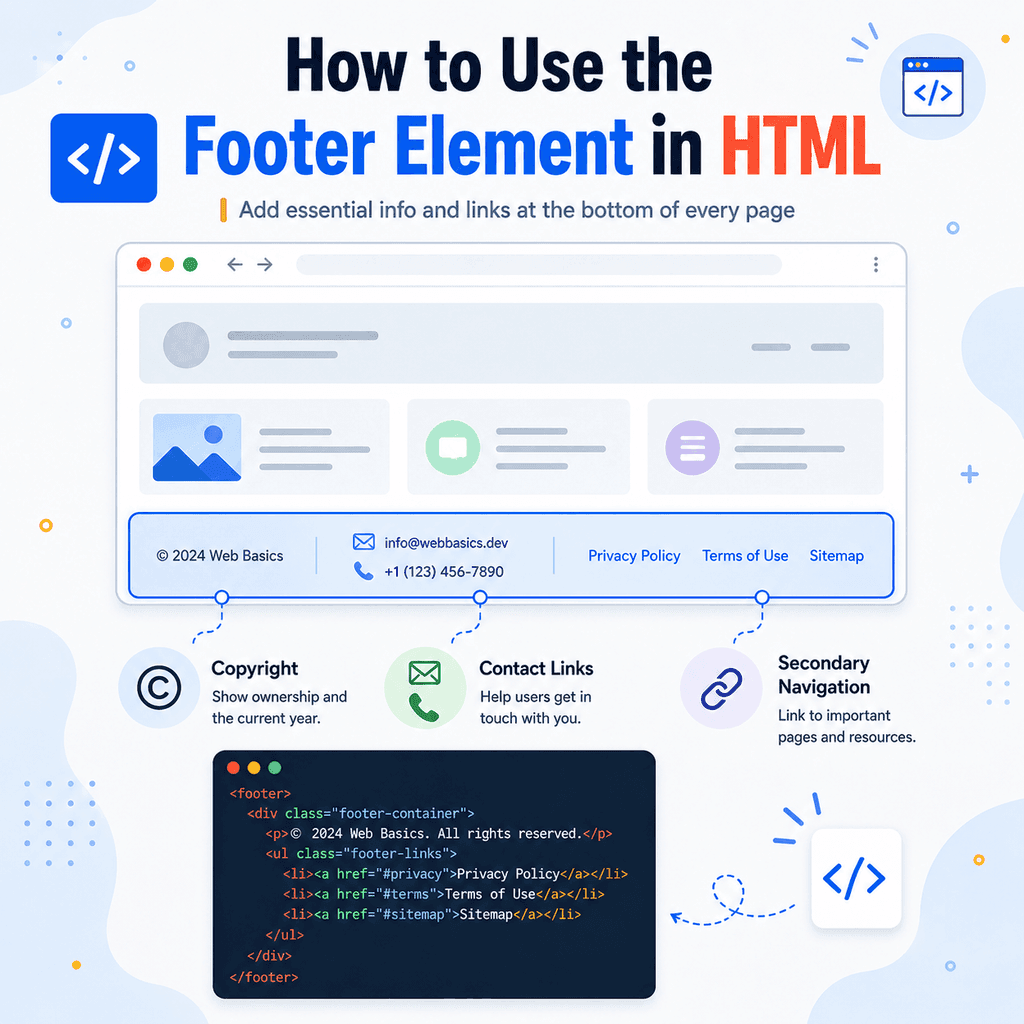
A footer usually contains information that comes after the main content. This may include copyright text, contact links, legal links, secondary navigation, author information, related links, or other supporting details.
For example:
<footer> <p>© 2026 Bright Web Studio</p></footer>This tells the browser that the paragraph is footer content.
The <footer> element is a semantic HTML element. That means it describes the purpose of the content inside it. It does not just create a visual area at the bottom of a page.
What Is the <footer> Element?
The <footer> element represents footer information.
A simple footer might look like this:
<footer> <p>© 2026 My Website</p></footer>This footer contains copyright information.
A larger footer might include several different types of supporting content:
<footer> <p>© 2026 Bright Web Studio</p> <nav> <a href=”privacy.html”>Privacy Policy</a> <a href=”terms.html”>Terms of Use</a> <a href=”contact.html”>Contact</a> </nav></footer>This footer contains copyright text and secondary navigation links.
The Footer Element Belongs Inside the Body
The <footer> element should usually be placed inside the <body> element.
For example:
<!DOCTYPE html><html lang=”en”><head> <meta charset=”UTF-8″> <title>Footer Example</title></head><body> <main> <h1>Welcome</h1> <p>This is the main content of the page.</p> </main> <footer> <p>© 2026 My Website</p> </footer> </body></html>The <head> element contains document information.
The <body> element contains visible page content.
The <footer> appears inside the <body> because it is part of the visible page structure.
What Usually Goes in a Page Footer?
A page footer often contains supporting information about the website.
Common footer content includes:
copyright informationcontact linksprivacy policy linksterms and conditions linksaccessibility statement linkssocial media linkssecondary navigationcompany addressemail addressphone numbersite creditsnewsletter sign-up formsFor example:
<footer> <p>© 2026 Bright Web Studio. All rights reserved.</p> <p> <a href=”mailto:hello@example.com”>hello@example.com</a> </p> <nav> <a href=”privacy.html”>Privacy Policy</a> <a href=”terms.html”>Terms</a> <a href=”accessibility.html”>Accessibility</a> </nav></footer>This footer gives users practical links and information after the main content.
Footer Content Is Usually Supporting Content
The main content of a page should usually go inside <main>.
The footer should contain supporting information that helps users after they have reached the end of the page or section.
For example:
<body> <header> <h1>Bright Web Studio</h1> </header> <main> <h2>Web Design Services</h2> <p>We create simple websites for small businesses.</p> </main> <footer> <p>© 2026 Bright Web Studio</p> <a href=”contact.html”>Contact us</a> </footer> </body>The service information belongs inside <main>.
The copyright and contact link belong inside <footer>.
Adding Copyright Information
Copyright information is one of the most common things found in a footer.
For example:
<footer> <p>© 2026 Bright Web Studio. All rights reserved.</p></footer>The symbol:
©is an HTML character entity that displays as:
©So this:
<p>© 2026 Bright Web Studio</p>will display as:
© 2026 Bright Web StudioYou can also write the copyright symbol directly if your editor and encoding support it:
<p>© 2026 Bright Web Studio</p>Both approaches can work.
Should the Copyright Year Be Updated?
Many websites include the current year in the footer.
For example:
<footer> <p>© 2026 My Website</p></footer>For a simple static HTML page, you can write the year manually.
If you later learn JavaScript or use a content management system, you can make the year update automatically. However, for plain HTML, writing the year manually is fine.
Adding Contact Links
Footers often include contact information.
For example:
<footer> <p>Email us: <a href=”mailto:hello@example.com”>hello@example.com</a></p></footer>The mailto: link opens the user’s email app:
<a href=”mailto:hello@example.com”>hello@example.com</a>You can also add a phone link:
<footer> <p>Call us: <a href=”tel:+441234567890″>01234 567890</a></p></footer>The tel: link can be especially useful on mobile devices because it allows users to start a phone call.
Adding an Address
If the footer includes contact details for a person, company, or organisation, you can use the <address> element.
For example:
<footer> <address> Bright Web Studio<br> 10 High Street<br> Birmingham<br> B1 1AA<br> <a href=”mailto:hello@example.com”>hello@example.com</a> </address></footer>The <address> element is used for contact information.
The <br> elements create line breaks inside the address.
Use <address> for real contact information, not just any postal address or random block of text.
Adding Secondary Navigation
Footers often contain secondary navigation links.
Secondary navigation means links that are useful, but not always part of the main menu.
For example:
<footer> <nav aria-label=”Footer navigation”> <a href=”privacy.html”>Privacy Policy</a> <a href=”terms.html”>Terms of Use</a> <a href=”cookies.html”>Cookie Policy</a> <a href=”accessibility.html”>Accessibility</a> </nav></footer>These links help users find legal, policy, and support pages.
The aria-label="Footer navigation" attribute helps identify the navigation area, especially if the page also has a main navigation menu elsewhere.
Main Navigation vs Footer Navigation
Main navigation usually appears near the top of the page and contains the most important website links.
For example:
<header> <nav aria-label=”Main navigation”> <a href=”index.html”>Home</a> <a href=”services.html”>Services</a> <a href=”contact.html”>Contact</a> </nav></header>Footer navigation usually appears near the bottom and often contains supporting links.
For example:
<footer> <nav aria-label=”Footer navigation”> <a href=”privacy.html”>Privacy Policy</a> <a href=”terms.html”>Terms</a> <a href=”sitemap.html”>Sitemap</a> </nav></footer>Both use <nav> because both contain navigation links. The difference is their purpose and position.
A Page Can Have More Than One Footer
A page can have a main footer, but smaller sections or articles can also have their own footers.
For example:
<article> <h2>How to Add Images Using HTML</h2> <p>This article explains how the img element works.</p> <footer> <p>Written by Chris Smith</p> <p>Published on 12 June 2026</p> </footer></article>In this example, the footer belongs to the article, not the whole page.
The article footer contains information about the article, such as the author and publication date.
A page footer might appear later:
<footer> <p>© 2026 Bright Web Studio</p></footer>This footer belongs to the page or site.
Page Footer vs Article Footer
The meaning of <footer> depends on where it is used.
If the footer is directly inside the <body>, it usually represents the page or site footer.
<body> <main> <h1>Welcome</h1> <p>Main page content.</p> </main> <footer> <p>© 2026 My Website</p> </footer></body>If the footer is inside an <article>, it belongs to that article.
<article> <h2>Latest News</h2> <p>Our new website has launched.</p> <footer> <p>Posted in Company News</p> </footer></article>This is one reason nesting matters in HTML. The position of an element affects what it belongs to.
What Should Not Go Inside a Footer?
A footer should contain supporting information related to the page, section, or article.
It should not usually contain the main page content.
Less appropriate:
<footer> <h1>Our Web Design Services</h1> <p>We build websites for small businesses.</p></footer>Better:
<main> <h1>Our Web Design Services</h1> <p>We build websites for small businesses.</p></main> <footer> <p>© 2026 Bright Web Studio</p></footer>The main service information belongs in <main>.
The footer should contain supporting details.
Footer Does Not Always Mean “At the Very Bottom”
The word “footer” often suggests the bottom of a page.
In many layouts, the page footer appears at the bottom visually. However, the semantic meaning is more important than the visual position.
A footer represents concluding or supporting information for the content it belongs to.
For example, an article footer can appear before the page footer:
<article> <h2>Article Title</h2> <p>Article content.</p> <footer> <p>Written by Chris Smith</p> </footer></article> <footer> <p>© 2026 My Website</p></footer>The first footer concludes the article.
The second footer concludes the page.
Using Footer with Social Links
Footers often contain links to social media profiles.
For example:
<footer> <p>Follow us:</p> <nav aria-label=”Social media links”> <a href=”https://www.example.com”>LinkedIn</a> <a href=”https://www.example.com”>Instagram</a> <a href=”https://www.example.com”>YouTube</a> </nav></footer>If the links go to social media profiles, make the link text clear.
Avoid vague link text such as:
<a href=”https://www.example.com”>Click here</a>Use clear link text:
<a href=”https://www.example.com”>LinkedIn</a>If you use icons as links, make sure the links still have accessible names. For example, you can use useful text, accessible labels, or meaningful alt text depending on the structure.
Styling a Footer with CSS
The <footer> element gives the content meaning.
CSS controls how the footer looks.
For example:
<footer class=”site-footer”> <p>© 2026 Bright Web Studio</p> <nav aria-label=”Footer navigation”> <a href=”privacy.html”>Privacy Policy</a> <a href=”terms.html”>Terms</a> <a href=”contact.html”>Contact</a> </nav></footer>You could style it like this:
.site-footer { padding: 32px; background-color: #f2f6ff; text-align: center;} .site-footer nav { margin-top: 16px;} .site-footer a { margin: 0 8px;}The HTML describes the footer content.
The CSS controls spacing, colour, layout, and alignment.
A Complete Example
Here is a complete HTML page using the <footer> element:
<!DOCTYPE html><html lang=”en”><head> <meta charset=”UTF-8″> <title>Footer Element Example</title></head><body> <header> <h1>Bright Web Studio</h1> <nav aria-label=”Main navigation”> <a href=”index.html”>Home</a> <a href=”services.html”>Services</a> <a href=”contact.html”>Contact</a> </nav> </header> <main> <h2>Welcome</h2> <p>We create simple websites for small businesses.</p> </main> <footer> <p>© 2026 Bright Web Studio. All rights reserved.</p> <address> Email: <a href=”mailto:hello@example.com”>hello@example.com</a> </address> <nav aria-label=”Footer navigation”> <a href=”privacy.html”>Privacy Policy</a> <a href=”terms.html”>Terms</a> <a href=”accessibility.html”>Accessibility</a> </nav> </footer> </body></html>This example has a page header, main content, and a page footer.
The footer contains copyright text, contact information, and secondary navigation links.
Common Mistake: Putting Main Content in the Footer
A footer should not contain the main topic of the page.
Incorrect:
<footer> <h1>About Our Company</h1> <p>We create websites for small businesses.</p></footer>Correct:
<main> <h1>About Our Company</h1> <p>We create websites for small businesses.</p></main> <footer> <p>© 2026 Bright Web Studio</p></footer>Use <main> for the central page content.
Use <footer> for supporting or concluding content.
Common Mistake: Using a Generic Div When Footer Is More Meaningful
This works visually:
<div class=”footer”> <p>© 2026 My Website</p></div>But this is more meaningful:
<footer> <p>© 2026 My Website</p></footer>If the content is footer content, use <footer>.
The element name gives the browser and other tools a clearer understanding of the page structure.
Common Mistake: Forgetting Clear Link Text
Footer links should be understandable.
Weak:
<footer> <a href=”privacy.html”>Click here</a></footer>Better:
<footer> <a href=”privacy.html”>Privacy Policy</a></footer>Clear link text helps users understand where the link goes.
This is especially useful for people using screen readers or scanning a page quickly.
Common Mistake: Confusing Footer Navigation with Main Navigation
Footer navigation should usually support the page, not replace the main navigation.
For example, the footer may include legal and support links:
<footer> <nav aria-label=”Footer navigation”> <a href=”privacy.html”>Privacy Policy</a> <a href=”terms.html”>Terms</a> <a href=”contact.html”>Contact</a> </nav></footer>The main navigation should still appear in a place users expect, often near the top of the page:
<header> <nav aria-label=”Main navigation”> <a href=”index.html”>Home</a> <a href=”services.html”>Services</a> <a href=”contact.html”>Contact</a> </nav></header>The footer is useful, but it should not be the only way to find important pages on most websites.
Common Mistake: Using Footer Only for Copyright
Copyright text is common in footers, but it is not the only possible footer content.
This is valid:
<footer> <p>© 2026 My Website</p></footer>But a footer can also include:
contact linksfooter navigationlegal linksauthor informationsocial linksrelated linksUse the footer to give users useful supporting information, not just a copyright line.
Best Practices
Use <footer> for footer or concluding content.
Place page footers inside the <body>.
Use a page footer for copyright, contact links, legal links, secondary navigation, or site information.
Use article or section footers for author details, dates, categories, or related information.
Keep main page content inside <main>, not <footer>.
Use <nav> inside <footer> when the footer contains navigation links.
Use aria-label when there are multiple navigation areas.
Use clear link text.
Use <address> for relevant contact information.
Use CSS to control the visual design of the footer.
Use <footer> instead of <div class="footer"> when the content is genuinely footer content.
Summary
The <footer> element represents footer content for a page, section, article, or other part of a web page.
A simple page footer might look like this:
<footer> <p>© 2026 My Website</p></footer>A more complete footer might include copyright information, contact links, and secondary navigation:
<footer> <p>© 2026 Bright Web Studio. All rights reserved.</p> <address> Email: <a href=”mailto:hello@example.com”>hello@example.com</a> </address> <nav aria-label=”Footer navigation”> <a href=”privacy.html”>Privacy Policy</a> <a href=”terms.html”>Terms</a> <a href=”contact.html”>Contact</a> </nav></footer>Use <footer> for supporting or concluding information. Use <main> for the central page content. Use <nav> inside the footer when the footer contains a group of navigation links.
Used well, the <footer> element makes your HTML clearer, more meaningful, and easier to maintain.