
Introduction
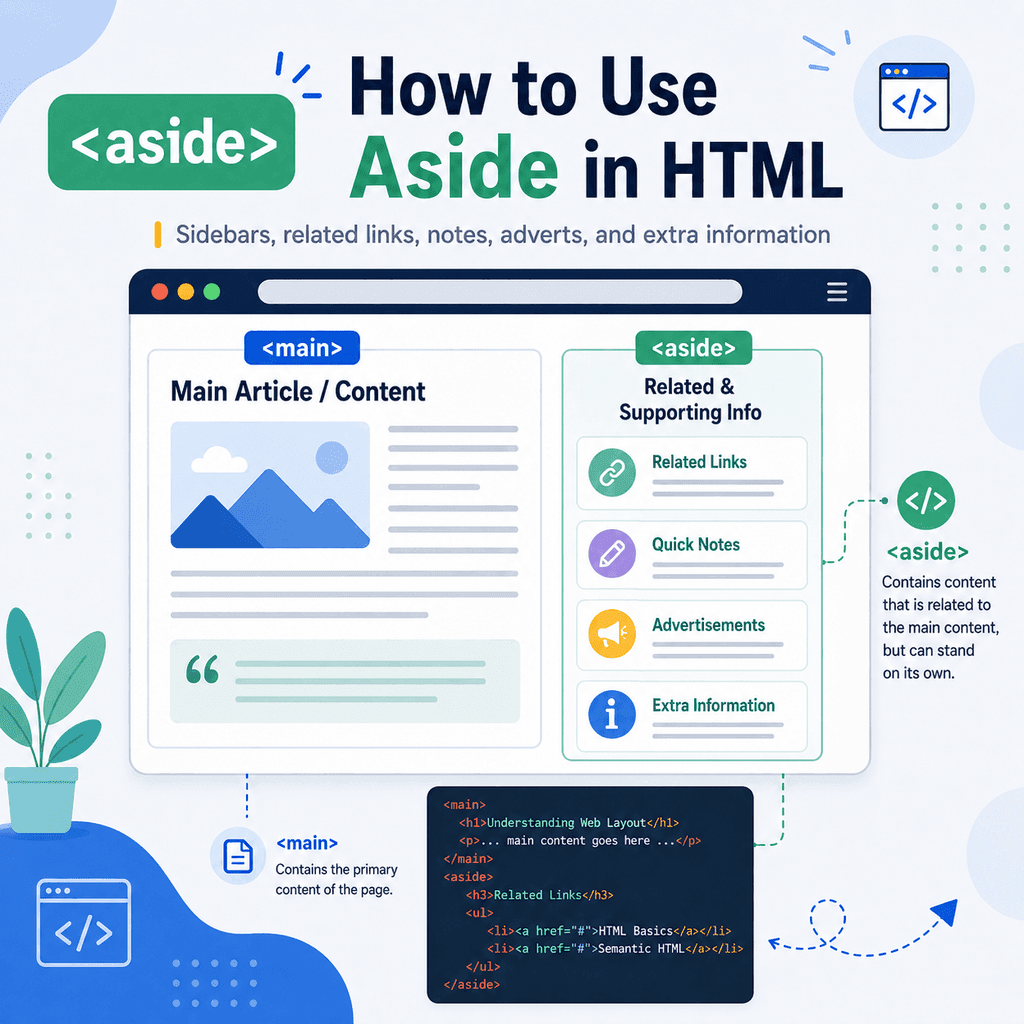
The <aside> element is used for content that is related to the main content, but separate from it.
You can use <aside> for sidebars, related links, notes, adverts, callout boxes, author information, and extra information that supports the main page content.
For example:
<aside> <h2>Related Tutorials</h2> <ul> <li><a href=”html-links.html”>HTML Links</a></li> <li><a href=”html-images.html”>HTML Images</a></li> <li><a href=”semantic-html.html”>Semantic HTML</a></li> </ul></aside>This tells the browser that the content is related to the page, but not part of the main flow of the article or page content.
The <aside> element is a semantic HTML element. That means it gives meaning to the content inside it. It does not just create a visual sidebar.
What Is the <aside> Element?
The <aside> element represents supporting content.
It is often used for information that is connected to the main topic, but could be removed without breaking the main content.
For example:
<main> <article> <h1>How to Add Images Using HTML</h1> <p>The img element is used to add images to a web page.</p> </article> <aside> <h2>Related Articles</h2> <ul> <li><a href=”file-paths.html”>Understanding File Paths in HTML</a></li> <li><a href=”figure-figcaption.html”>Using Figure and Figcaption in HTML</a></li> </ul> </aside></main>The article is the main content.
The aside contains related links.
The related links are useful, but the article would still make sense without them.
What Kind of Content Goes in an Aside?
An <aside> can contain several types of supporting content.
Common examples include:
sidebarsrelated linksextra notesadvertsauthor informationglossary boxesdownload linksnewsletter sign-up boxesquotes or pull quotessupporting explanationsFor example:
<aside> <h2>Quick Tip</h2> <p>Use semantic HTML elements when they describe the purpose of your content.</p></aside>This aside gives the reader an extra tip. It supports the main content, but it is not essential to the main explanation.
Aside Does Not Always Mean Sidebar
The word “aside” is often associated with a sidebar, but the <aside> element does not have to appear visually at the side of the page.
By default, <aside> does not automatically create a sidebar layout.
For example:
<aside> <h2>Note</h2> <p>This information supports the article.</p></aside>This may appear above, below, or beside the main content depending on your HTML and CSS.
The semantic meaning is what matters.
The <aside> element means “this is supporting or tangentially related content”.
CSS controls whether it appears as a sidebar, callout box, note panel, or another visual design.
Using Aside for a Sidebar
A common use of <aside> is for a sidebar.
For example:
<main> <article> <h1>Understanding Semantic HTML</h1> <p>Semantic HTML helps describe the meaning of page content.</p> </article> <aside> <h2>Related Topics</h2> <ul> <li><a href=”html-header.html”>The Header Element</a></li> <li><a href=”html-nav.html”>The Nav Element</a></li> <li><a href=”html-main.html”>The Main Element</a></li> </ul> </aside></main>In this example, the <article> contains the main article.
The <aside> contains related links.
With CSS, you could display the article and aside side by side.
The HTML describes the meaning.
The CSS controls the layout.
Using Aside for Related Links
The <aside> element is useful for related links.
For example:
<aside> <h2>Related Tutorials</h2> <ul> <li><a href=”html-elements.html”>HTML Elements, Tags, and Attributes</a></li> <li><a href=”html-nesting.html”>HTML Nesting and Parent-Child Relationships</a></li> <li><a href=”html-sections.html”>Section and Article Elements</a></li> </ul></aside>This kind of aside is common on blogs, tutorial websites, documentation pages, and news sites.
The links are not the main content, but they help users continue learning or explore related topics.
Using Aside for Notes
An aside can also be used for a note or extra explanation.
For example:
<article> <h1>How to Use the Main Element in HTML</h1> <p>The main element marks the central content of a page.</p> <aside> <h2>Note</h2> <p>A page should usually have only one visible main element.</p> </aside> <p>The main element is useful for accessibility and page structure.</p></article>The note is related to the article, but it is separated from the main explanation.
This can help highlight important supporting information without interrupting the article too much.
Using Aside for Adverts
The <aside> element can be used for adverts or promotional content if the advert is separate from the main content.
For example:
<aside> <h2>Advertisement</h2> <a href=”https://www.example.com”> <img src=”images/ad-banner.jpg” alt=”Advert for example web hosting”> </a></aside>The advert is not part of the main article or page content, but it appears alongside or near it.
If the advertisement uses an image, the image still needs appropriate alt text, especially if it is also a link.
Using Aside for Extra Information
An aside can contain extra information that adds context.
For example:
<article> <h1>How to Use the Footer Element in HTML</h1> <p>The footer element is used for supporting or concluding information.</p> <aside> <h2>Extra Information</h2> <p>The footer element can be used for a whole page, but also for an article or section.</p> </aside></article>This aside gives extra context that supports the article.
The main explanation still works without it, but the aside gives the reader another useful detail.
Aside Inside an Article
An <aside> can be placed inside an <article> when the aside relates specifically to that article.
For example:
<article> <h1>How to Add Images Using HTML</h1> <p>The img element adds an image to a web page.</p> <aside> <h2>Tip</h2> <p>Always include useful alt text for meaningful images.</p> </aside> <p>The src attribute tells the browser where to find the image file.</p></article>In this example, the aside belongs to the article.
It gives a useful tip related to the article content.
Aside Outside an Article
An <aside> can also sit outside an article when it relates to the whole page or site.
For example:
<main> <article> <h1>How to Use Aside in HTML</h1> <p>This article explains how the aside element works.</p> </article> <aside> <h2>More HTML Tutorials</h2> <ul> <li><a href=”semantic-html.html”>Understanding Semantic HTML</a></li> <li><a href=”html-header.html”>How to Use the Header Element</a></li> <li><a href=”html-footer.html”>How to Use the Footer Element</a></li> </ul> </aside></main>Here, the aside is related to the page as a whole.
It offers more tutorials that may interest the reader.
Aside vs Main
The <main> element marks the main content of the page.
The <aside> element marks supporting content that is related but separate.
For example:
<main> <article> <h1>HTML Tutorials</h1> <p>This is the main content of the page.</p> </article> <aside> <h2>Related Links</h2> <p>This is supporting content.</p> </aside></main>The article is the main content.
The aside is extra supporting content.
A useful way to think about it is:
<main> = the main page content<aside> = related but separate supporting contentAside vs Section
The <section> element groups related content as a distinct part of a page or article.
The <aside> element is for content that is related but separate from the main flow.
For example, this is a section:
<section> <h2>Our Services</h2> <p>We design and build simple websites.</p></section>This content is part of the main page topic.
This is an aside:
<aside> <h2>Related Services</h2> <p>You may also be interested in website maintenance.</p></aside>This content supports the main topic but sits slightly apart from it.
Use <section> when the content is a main grouped part of the page.
Use <aside> when the content is related extra information.
Aside vs Div
A <div> is a generic container.
It does not describe the meaning of the content inside it.
For example:
<div class=”sidebar”> <h2>Related Links</h2> <ul> <li><a href=”html-main.html”>Main Element</a></li> <li><a href=”html-footer.html”>Footer Element</a></li> </ul></div>This may work visually, especially with CSS.
A more semantic version is:
<aside class=”sidebar”> <h2>Related Links</h2> <ul> <li><a href=”html-main.html”>Main Element</a></li> <li><a href=”html-footer.html”>Footer Element</a></li> </ul></aside>If the content is genuinely supporting or related extra content, <aside> gives it clearer meaning.
If you only need a generic wrapper for layout, <div> may still be appropriate.
Aside and Headings
An aside should usually have a heading when it contains a distinct group of information.
For example:
<aside> <h2>Related Articles</h2> <ul> <li><a href=”html-images.html”>How to Add Images Using HTML</a></li> <li><a href=”html-figure.html”>Using Figure and Figcaption in HTML</a></li> </ul></aside>The heading explains what the aside contains.
A heading is especially helpful for accessibility and for users scanning the page.
For a very short aside, a heading may not always be necessary, but in most beginner examples it is a good habit.
Aside and Accessibility
Semantic HTML helps users and software understand page structure.
The <aside> element can help identify supporting content.
For example, assistive technologies may present it as complementary content.
This can help users understand that the content is related, but not part of the main article or page flow.
Clear headings inside asides are also useful:
<aside> <h2>Related Tutorials</h2> <ul> <li><a href=”html-links.html”>HTML Links</a></li> <li><a href=”html-lists.html”>HTML Lists</a></li> </ul></aside>The heading tells users what kind of supporting content they are entering.
Styling Aside with CSS
The <aside> element gives meaning to the HTML.
CSS controls the appearance.
For example:
<aside class=”sidebar”> <h2>Related Tutorials</h2> <ul> <li><a href=”html-header.html”>Header Element</a></li> <li><a href=”html-nav.html”>Nav Element</a></li> <li><a href=”html-main.html”>Main Element</a></li> </ul></aside>You could style it like this:
.sidebar { padding: 24px; background-color: #f2f6ff; border-left: 4px solid #3366cc;} .sidebar h2 { margin-top: 0;}This makes the aside look like a highlighted sidebar or callout box.
The HTML describes the content.
The CSS controls spacing, colours, borders, and layout.
Creating a Page Layout with Aside
A common layout has main content and a sidebar.
For example:
<main class=”page-layout”> <article> <h1>Understanding Semantic HTML</h1> <p>Semantic HTML helps describe the meaning of page content.</p> </article> <aside> <h2>Related Tutorials</h2> <ul> <li><a href=”html-header.html”>Header Element</a></li> <li><a href=”html-nav.html”>Nav Element</a></li> <li><a href=”html-footer.html”>Footer Element</a></li> </ul> </aside></main>CSS could place the article and aside side by side:
.page-layout { display: grid; grid-template-columns: 2fr 1fr; gap: 32px;}The article takes up more space.
The aside appears beside it as supporting content.
On smaller screens, you might use CSS to stack them vertically.
A Complete Example
Here is a complete HTML page using the <aside> element:
<!DOCTYPE html><html lang=”en”><head> <meta charset=”UTF-8″> <title>Aside Element Example</title></head><body> <header> <h1>Web Basics</h1> </header> <main> <article> <h2>How to Use Aside in HTML</h2> <p>The aside element is used for supporting content that is related to the main content.</p> <p>It can be used for sidebars, notes, adverts, related links, and extra information.</p> </article> <aside> <h2>Related Tutorials</h2> <ul> <li><a href=”semantic-html.html”>Understanding Semantic HTML</a></li> <li><a href=”html-section-article.html”>Section and Article Elements</a></li> <li><a href=”html-footer.html”>Footer Element</a></li> </ul> </aside> </main> <footer> <p>© 2026 Web Basics</p> </footer> </body></html>This example has a header, main area, article, aside, and footer.
The article contains the main page content.
The aside contains related tutorials.
The footer contains page footer information.
Common Mistake: Using Aside for Main Content
Do not use <aside> for the main topic of the page.
Less appropriate:
<aside> <h1>About Our Company</h1> <p>We create websites for small businesses.</p></aside>Better:
<main> <h1>About Our Company</h1> <p>We create websites for small businesses.</p></main>The main topic belongs in <main>.
The aside should contain supporting or related extra content.
Common Mistake: Thinking Aside Must Always Be a Sidebar
An aside can be a sidebar, but it does not have to be.
For example, this is still a valid aside:
<aside> <h2>Note</h2> <p>This tip gives extra context for the current section.</p></aside>It could appear in the middle of an article as a note box.
The word “aside” describes meaning, not visual position.
Common Mistake: Using Aside for Unrelated Content
The content inside <aside> should still be related to the surrounding content or page.
Less useful:
<aside> <h2>Random Fact</h2> <p>The moon is about 384,400 km from Earth.</p></aside>This may not be appropriate on a page about HTML unless there is a clear reason.
Better:
<aside> <h2>HTML Tip</h2> <p>Use semantic elements when they describe the content more clearly than a generic div.</p></aside>An aside should support the current content.
Common Mistake: Using Div When Aside Is More Meaningful
This is common:
<div class=”sidebar”> <h2>Related Links</h2> <ul> <li><a href=”html-main.html”>Main Element</a></li> <li><a href=”html-footer.html”>Footer Element</a></li> </ul></div>This may work visually, but this is more meaningful:
<aside class=”sidebar”> <h2>Related Links</h2> <ul> <li><a href=”html-main.html”>Main Element</a></li> <li><a href=”html-footer.html”>Footer Element</a></li> </ul></aside>If the content is related supporting content, <aside> is usually a better semantic choice.
Common Mistake: Forgetting a Heading
An aside with several links or pieces of information should usually have a heading.
Less clear:
<aside> <ul> <li><a href=”html-links.html”>HTML Links</a></li> <li><a href=”html-images.html”>HTML Images</a></li> </ul></aside>Better:
<aside> <h2>Related Tutorials</h2> <ul> <li><a href=”html-links.html”>HTML Links</a></li> <li><a href=”html-images.html”>HTML Images</a></li> </ul></aside>The heading explains what the aside contains.
Best Practices
Use <aside> for related supporting content.
Use it for sidebars, related links, notes, adverts, callout boxes, and extra information.
Make sure the aside content is related to the surrounding page or article.
Do not use <aside> for the main topic of the page.
Do not assume <aside> must visually appear on the side.
Use headings inside asides when they contain a group of information.
Use <nav> inside <aside> if the aside contains a group of navigation links.
Use CSS to control whether the aside appears as a sidebar, note box, callout, or stacked content block.
Use <div> instead if the content is only a generic layout wrapper and has no supporting-content meaning.
Summary
The <aside> element is used for content that is related to the main content but separate from it.
A simple example looks like this:
<aside> <h2>Related Tutorials</h2> <ul> <li><a href=”semantic-html.html”>Understanding Semantic HTML</a></li> <li><a href=”html-main.html”>How to Use the Main Element</a></li> </ul></aside>Use <aside> for sidebars, related links, notes, adverts, callout boxes, and extra information.
The content should support the main content without being essential to it.
The <aside> element gives the content semantic meaning. CSS controls how it looks.
Used well, <aside> makes your HTML clearer, more structured, and easier to understand.