
Introduction
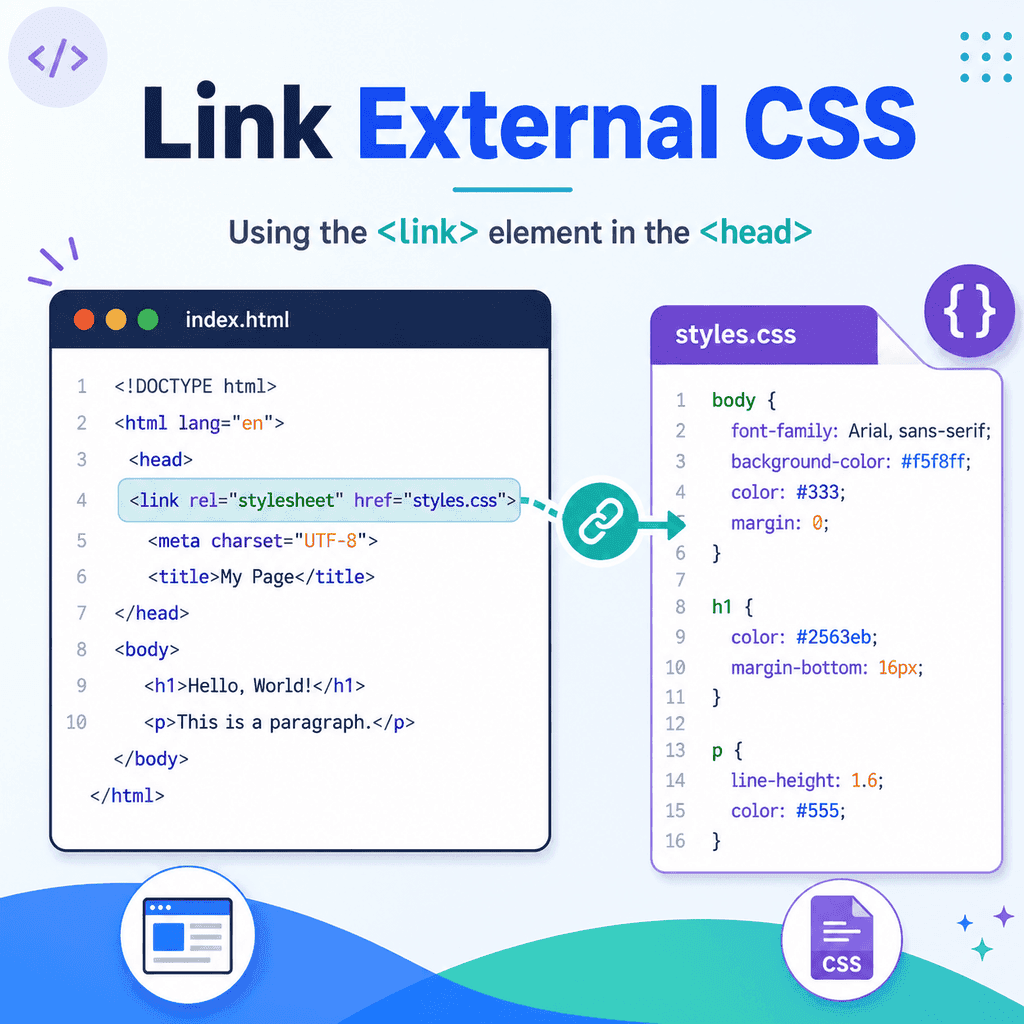
CSS can be written directly inside an HTML page, but most real websites use external CSS files.
An external CSS file is a separate file that contains your CSS code.
For example:
styles.cssYour HTML file connects to that CSS file using the <link> element.
The basic code looks like this:
<link rel=”stylesheet” href=”styles.css”>This line usually goes inside the <head> element of your HTML document.
External CSS is useful because it keeps your HTML and CSS separate.
HTML provides the structure.
CSS provides the visual style.
The <link> element connects them.
What Is an External CSS File?
An external CSS file is a separate file that stores CSS rules.
For example, your HTML file might be called:
index.htmlYour CSS file might be called:
styles.cssThe HTML file contains the page structure:
<h1>Welcome</h1><p>This page is styled with CSS.</p>The CSS file contains the styles:
h1 { color: navy;} p { line-height: 1.6;}The browser needs to know where the CSS file is.
That is why the HTML page uses a <link> element.
Why Use an External CSS File?
External CSS keeps styling separate from page content.
This makes your code easier to organise.
For example, the HTML can focus on meaning:
<h1>About Us</h1><p>We design and build simple websites.</p>The CSS can focus on appearance:
h1 { font-size: 2.5rem; color: navy;} p { color: #333333;}This separation makes websites easier to update.
If you want to change the design, you can edit the CSS file without changing the HTML structure.
External CSS Can Style Multiple Pages
One external CSS file can style many HTML pages.
For example:
my-website/ index.html about.html contact.html styles.cssEach HTML file can link to the same stylesheet:
<link rel=”stylesheet” href=”styles.css”>This means index.html, about.html, and contact.html can all share the same design.
If you change styles.css, the design can update across every page that links to it.
This is one of the main benefits of using external CSS.
The Basic Link Element
The basic external stylesheet link is:
<link rel=”stylesheet” href=”styles.css”>This tells the browser:
this page is linked to an external filethe external file is a stylesheetthe stylesheet file is called styles.cssThe <link> element has two important attributes:
reland:
hrefThe rel attribute tells the browser what kind of relationship the linked file has to the HTML page.
The href attribute tells the browser where the file is.
Where the Link Element Goes
The stylesheet <link> element belongs inside the HTML <head>.
For example:
<head> <meta charset=”UTF-8″> <title>My Web Page</title> <link rel=”stylesheet” href=”styles.css”></head>The <head> contains information about the page and links to resources the page needs.
The visible page content goes in the <body>.
Do not place the stylesheet link in the body as normal content.
Less appropriate:
<body> <link rel=”stylesheet” href=”styles.css”> <h1>Welcome</h1></body>Better:
<head> <link rel=”stylesheet” href=”styles.css”></head><body> <h1>Welcome</h1></body>A Complete Basic Example
Here is a complete HTML page linked to an external CSS file:
<!DOCTYPE html><html lang=”en”><head> <meta charset=”UTF-8″> <meta name=”viewport” content=”width=device-width, initial-scale=1.0″> <title>External CSS Example</title> <link rel=”stylesheet” href=”styles.css”></head><body> <h1>Welcome</h1> <p>This page is styled using an external CSS file.</p> </body></html>The external CSS file might be called styles.css:
body { font-family: Arial, sans-serif; line-height: 1.6;} h1 { color: navy;} p { color: #333333;}When the browser loads the HTML page, it reads the <link> element, finds the CSS file, and applies the styles.
The <link> Element Is Empty
The <link> element is an empty element.
That means it does not wrap content.
Write:
<link rel=”stylesheet” href=”styles.css”>Do not write:
<link rel=”stylesheet” href=”styles.css”></link>The <link> element does not need a closing tag.
It simply points to another resource.
The rel Attribute
The rel attribute means relationship.
It tells the browser how the linked file relates to the current HTML document.
For a stylesheet, use:
rel=”stylesheet”Example:
<link rel=”stylesheet” href=”styles.css”>This tells the browser that the linked file is a CSS stylesheet.
Without rel="stylesheet", the browser may not apply the file as CSS.
Less complete:
<link href=”styles.css”>Correct:
<link rel=”stylesheet” href=”styles.css”>For external CSS, rel="stylesheet" is essential.
The href Attribute
The href attribute tells the browser where the stylesheet file is.
Example:
<link rel=”stylesheet” href=”styles.css”>The href value is:
styles.cssThis means the browser should look for a file called styles.css.
The browser looks for that file relative to the HTML file.
If the CSS file is in the same folder as the HTML file, this works:
href=”styles.css”If the CSS file is somewhere else, the path must change.
CSS File in the Same Folder
A simple project might look like this:
my-website/ index.html styles.cssBoth files are in the same folder.
In this case, the link is:
<link rel=”stylesheet” href=”styles.css”>The browser starts from index.html.
It looks in the same folder.
It finds styles.css.
Then it applies the CSS.
CSS File in a CSS Folder
Many projects put stylesheets inside a folder called css.
Example:
my-website/ index.html css/ styles.cssIn this case, the link should be:
<link rel=”stylesheet” href=”css/styles.css”>This tells the browser:
look inside the css folderfind styles.cssload it as a stylesheetIf you write this instead:
<link rel=”stylesheet” href=”styles.css”>the browser will look in the same folder as index.html.
It will not find the file if the file is actually inside the css folder.
HTML File Inside a Subfolder
Sometimes your HTML pages are inside a folder.
Example:
my-website/ css/ styles.css pages/ about.htmlThe about.html file is inside the pages folder.
The CSS file is inside the css folder, which is one level above pages.
From about.html, the correct path is:
<link rel=”stylesheet” href=”../css/styles.css”>The ../ means go up one folder.
So this path means:
go up from pages/go into css/load styles.cssThis is a common source of errors when linking stylesheets.
The correct path depends on where the HTML file is located.
Understanding Relative File Paths
Most stylesheet links use relative paths.
A relative path describes a file location relative to the current HTML file.
If the CSS file is in the same folder:
href=”styles.css”If the CSS file is inside a folder:
href=”css/styles.css”If the CSS file is one level above the HTML file:
href=”../styles.css”If the CSS file is one level above and inside a css folder:
href=”../css/styles.css”When CSS does not load, the file path is one of the first things to check.
Using an Absolute URL
Sometimes stylesheets are loaded from another website.
Example:
<link rel=”stylesheet” href=”https://example.com/styles.css”>This uses a full URL.
You may see this with font providers, CSS libraries, or hosted design systems.
For normal learning projects, start with a local CSS file:
<link rel=”stylesheet” href=”styles.css”>External URLs can be useful, but they depend on another server.
If that server is slow, unavailable, or changed, your page may be affected.
Linking More Than One CSS File
An HTML page can link to more than one external CSS file.
Example:
<link rel=”stylesheet” href=”css/reset.css”><link rel=”stylesheet” href=”css/styles.css”>The browser loads them in order.
This means later styles can override earlier styles when the selectors have equal strength.
For example:
<link rel=”stylesheet” href=”css/base.css”><link rel=”stylesheet” href=”css/layout.css”><link rel=”stylesheet” href=”css/components.css”>This can help organise larger projects.
For a simple website, one stylesheet is usually enough.
Order Matters
Stylesheet order can affect the final design.
Example:
<link rel=”stylesheet” href=”base.css”><link rel=”stylesheet” href=”theme.css”>If both files style the same heading, the later file may win.
base.css:
h1 { color: black;}theme.css:
h1 { color: navy;}Because theme.css is linked after base.css, the heading may appear navy.
A simple pattern is:
general styles firstmore specific styles laterThe type Attribute
Older examples may include this:
<link rel=”stylesheet” href=”styles.css” type=”text/css”>In modern HTML, the type="text/css" attribute is usually not needed for a normal stylesheet.
This is enough:
<link rel=”stylesheet” href=”styles.css”>The browser understands that rel="stylesheet" means the linked file should be treated as CSS.
If you see type="text/css" in older code, it is usually harmless.
However, most modern examples leave it out.
Linking CSS in a Complete Page
Here is a complete page using an external stylesheet:
<!DOCTYPE html><html lang=”en”><head> <meta charset=”UTF-8″> <meta name=”viewport” content=”width=device-width, initial-scale=1.0″> <title>My Styled Page</title> <link rel=”stylesheet” href=”css/styles.css”></head><body> <header> <h1>My Styled Page</h1> </header> <main> <p>This page uses an external CSS file.</p> </main> </body></html>The project folder might look like this:
my-website/ index.html css/ styles.cssThe CSS file might contain:
body { font-family: Arial, sans-serif; line-height: 1.6;} h1 { color: navy;}This is a clean and common project structure.
External CSS and the Head Element
The stylesheet link belongs in the <head> because it is part of the document setup.
The <head> often contains:
character encodingviewport settingspage titlemeta descriptionfavicon linksstylesheet linksscript linksExample:
<head> <meta charset=”UTF-8″> <meta name=”viewport” content=”width=device-width, initial-scale=1.0″> <title>My Web Page</title> <link rel=”icon” href=”favicon.ico”> <link rel=”stylesheet” href=”styles.css”></head>The visible page content still belongs in the body:
<body> <h1>My Web Page</h1></body>External CSS and the Body Element
The body contains the content users see and interact with.
For example:
<body> <h1>Welcome</h1> <p>This is visible page content.</p></body>The CSS link should not be treated as visible content.
Avoid this:
<body> <link rel=”stylesheet” href=”styles.css”> <h1>Welcome</h1></body>Use this:
<head> <link rel=”stylesheet” href=”styles.css”></head>This keeps document setup in the head and content in the body.
Checking Whether the CSS File Loaded
A quick way to test your stylesheet link is to add an obvious CSS rule.
In styles.css, write:
body { background-color: lightyellow;}Then refresh the HTML page.
If the background changes, the stylesheet is connected.
If nothing changes, check:
the HTML file is savedthe CSS file is savedthe file name is correctthe folder path is correctrel=”stylesheet” is presentthe browser cache is not showing an old versionThis quick test can help you find linking problems.
Using Browser Developer Tools
Browser developer tools can show whether a CSS file loaded.
In most browsers, you can right-click the page and choose:
InspectThen check the Network tab or Sources tab.
If the CSS file shows a 404 error, the browser could not find it.
A 404 error usually means the path is wrong or the file does not exist where the HTML says it exists.
For example, this link:
<link rel=”stylesheet” href=”css/styles.css”>will fail if there is no css folder or no styles.css file inside it.
Common Folder Structures
A very simple structure:
my-website/ index.html styles.cssLink:
<link rel=”stylesheet” href=”styles.css”>A more organised structure:
my-website/ index.html css/ styles.cssLink:
<link rel=”stylesheet” href=”css/styles.css”>A structure with page folders:
my-website/ css/ styles.css pages/ about.htmlLink from about.html:
<link rel=”stylesheet” href=”../css/styles.css”>The path must match the file location from the point of view of the HTML file.
File Names Matter
The CSS file name in your HTML must match the real file name.
If your CSS file is named:
style.cssthen this will not work:
<link rel=”stylesheet” href=”styles.css”>Use:
<link rel=”stylesheet” href=”style.css”>Also check capital letters.
On some servers, these may be different files:
styles.cssStyles.cssSTYLES.cssUse simple lowercase file names to avoid avoidable problems.
External CSS and Browser Caching
Browsers may cache CSS files.
Caching means the browser stores a copy of the file to load pages faster.
Sometimes you update your CSS, but the browser still shows the old version.
If that happens, try:
refreshing the pagehard refreshing the pageopening the page in a private windowclearing the browser cacherenaming the CSS file temporarilyFor example, you might change:
<link rel=”stylesheet” href=”styles.css”>to:
<link rel=”stylesheet” href=”styles-v2.css”>This can force the browser to load a new file.
For normal learning projects, refreshing or hard refreshing is usually enough.
A Small Website Example
Imagine this project:
my-website/ index.html about.html contact.html css/ styles.cssBecause all HTML files are in the root folder, each page can use:
<link rel=”stylesheet” href=”css/styles.css”>Example index.html:
<!DOCTYPE html><html lang=”en”><head> <meta charset=”UTF-8″> <title>Home</title> <link rel=”stylesheet” href=”css/styles.css”></head><body> <h1>Home</h1></body></html>Example about.html:
<!DOCTYPE html><html lang=”en”><head> <meta charset=”UTF-8″> <title>About</title> <link rel=”stylesheet” href=”css/styles.css”></head><body> <h1>About</h1></body></html>Both pages share the same stylesheet.
A Small Website with a Pages Folder
Now imagine this structure:
my-website/ index.html css/ styles.css pages/ about.html contact.htmlThe home page uses:
<link rel=”stylesheet” href=”css/styles.css”>The pages inside the pages folder use:
<link rel=”stylesheet” href=”../css/styles.css”>Example about.html:
<!DOCTYPE html><html lang=”en”><head> <meta charset=”UTF-8″> <title>About</title> <link rel=”stylesheet” href=”../css/styles.css”></head><body> <h1>About</h1></body></html>The ../ is needed because about.html is one folder deeper.
Common Mistake: Forgetting rel="stylesheet"
Incorrect:
<link href=”styles.css”>Correct:
<link rel=”stylesheet” href=”styles.css”>The rel attribute tells the browser that the linked file is a stylesheet.
Without it, the browser may not apply the CSS.
Common Mistake: Wrong File Path
This only works if styles.css is in the same folder as the HTML file:
<link rel=”stylesheet” href=”styles.css”>If the file is inside a css folder, use:
<link rel=”stylesheet” href=”css/styles.css”>If the HTML file is inside a subfolder, you may need:
<link rel=”stylesheet” href=”../css/styles.css”>Always check your folder structure.
Common Mistake: Putting the Link in the Body
Less appropriate:
<body> <link rel=”stylesheet” href=”styles.css”></body>Better:
<head> <link rel=”stylesheet” href=”styles.css”></head>Stylesheet links belong in the head.
The body is for visible content.
Common Mistake: Wrong File Name
If the CSS file is named main.css, this will not work:
<link rel=”stylesheet” href=”styles.css”>Use the correct file name:
<link rel=”stylesheet” href=”main.css”>Check spelling, hyphens, underscores, and capital letters.
The href value must match the real file path.
Common Mistake: Linking the CSS File Before Creating It
This link points to a file called styles.css:
<link rel=”stylesheet” href=”styles.css”>If that file does not exist yet, the browser cannot load it.
Make sure both files exist:
index.htmlstyles.cssAlso make sure the CSS file is saved with the .css extension, not accidentally as:
styles.css.txtSome text editors may hide file extensions, which can make this confusing.
Common Mistake: CSS Syntax Errors
Sometimes the file is linked correctly, but the CSS has an error.
For example:
h1 { color navy;}This is missing a colon.
Correct:
h1 { color: navy;}If the CSS file is loading but a specific style is not working, check the CSS syntax.
If no styles work at all, check the <link> element and file path first.
Common Mistake: Browser Cache
If you change the CSS but the page still looks the same, the browser may be showing a cached version.
Try refreshing the page.
If that does not work, try a hard refresh.
You can also test with an obvious change:
body { background-color: lightyellow;}If this does not apply, the problem is probably the file link, path, saved file, or cache.
Best Practices
Use an external CSS file for most websites.
Place the stylesheet link inside the <head>.
Use the correct format:
<link rel=”stylesheet” href=”styles.css”>Always include rel="stylesheet".
Use the correct href file path.
Use simple lowercase file names.
Keep CSS files in a clear location, such as a css folder.
Use one shared stylesheet for simple multi-page websites.
Only use multiple stylesheets when it helps organisation.
Remember that stylesheet order matters.
Save both the HTML and CSS files before testing.
Use browser developer tools if the CSS does not load.
Summary
An external CSS file is linked to an HTML page with the <link> element.
The basic code is:
<link rel=”stylesheet” href=”styles.css”>This belongs inside the <head>:
<head> <link rel=”stylesheet” href=”styles.css”></head>The rel="stylesheet" attribute tells the browser that the linked file is a stylesheet.
The href attribute tells the browser where the CSS file is.
If the CSS file is in the same folder as the HTML file, use:
href=”styles.css”If the CSS file is inside a folder, use a path such as:
href=”css/styles.css”If the HTML file is inside a subfolder, you may need:
href=”../css/styles.css”The main things to remember are simple:
put the link in the headinclude rel=”stylesheet”make sure the href path is correctsave both filescheck the browser if styles do not loadOnce the external CSS file is linked correctly, your stylesheet can control the appearance of the HTML page.