
Introduction
When you write tutorials, documentation, examples, or technical notes, you may need to display code on a web page.
For example, you might want to show an HTML paragraph element like this:
<p>This is a paragraph.</p>However, if you type HTML code directly into a web page, the browser may try to read it as real HTML instead of showing it as text.
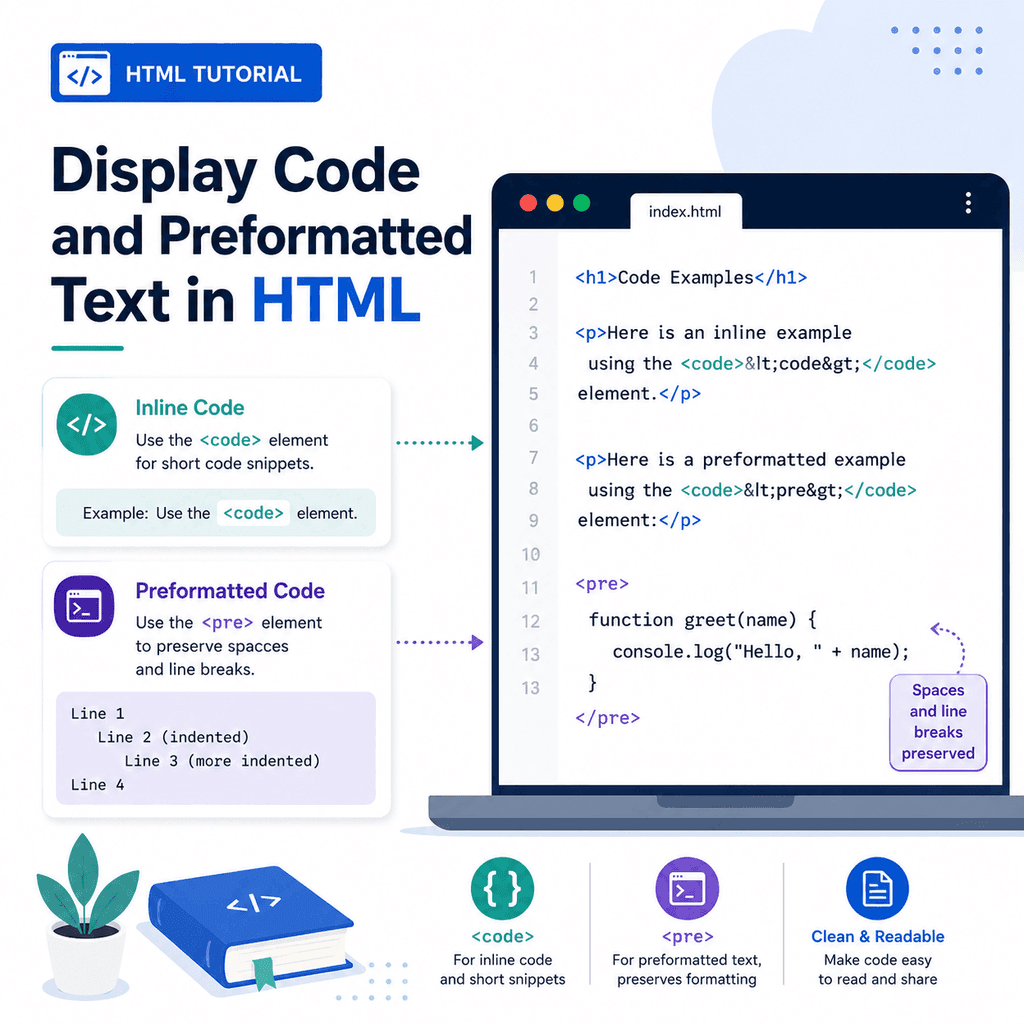
HTML provides two useful elements for displaying code and preserving formatting:
<code>and:
<pre>The <code> element is used for code.
The <pre> element is used for preformatted text, where spaces and line breaks should be preserved.
These two elements are often used together.
Why Displaying Code Needs Special Handling
HTML uses angle brackets to create elements.
For example:
<p>This is a paragraph.</p>If you write this directly into the body of an HTML page, the browser treats it as a real paragraph element.
For example:
<body> <p>This is a paragraph.</p></body>The browser displays:
This is a paragraph.It does not show the <p> and </p> tags.
If you want to show the actual code to the reader, you need to write it in a way that the browser displays as text.
The <code> Element
The <code> element is used to mark text as computer code.
For example:
<p>Use the <code>p</code> element to create a paragraph.</p>This displays the word p as code inside the sentence.
The <code> element is usually used for short pieces of code, such as:
HTML element namesCSS property namesJavaScript variable namesfile namescommandsshort code snippetsFor example:
<p>The <code>href</code> attribute is used to set the destination of a link.</p>In most browsers, text inside <code> appears in a monospace font by default.
Using <code> Inside a Paragraph
The <code> element is commonly used inside normal text.
For example:
<p>The <code>img</code> element is used to add images to a web page.</p>Another example:
<p>Use <code>index.html</code> as the main file name for a simple website.</p>The code stays inline with the rest of the sentence.
This makes <code> useful for short references inside explanations.
Showing HTML Tags as Text
If you want to display an HTML tag itself, you cannot usually write the angle brackets directly.
For example, this may not display the way you expect:
<p>The <p> element creates a paragraph.</p>The browser may treat the second <p> as the start of a real paragraph.
Instead, use HTML character entities.
Write the less-than sign < as:
<Write the greater-than sign > as:
>So this:
<p>The <code><p></code> element creates a paragraph.</p>displays as:
The <p> element creates a paragraph.The browser shows the tag instead of treating it as real HTML.
Common HTML Character Entities for Code Examples
When displaying HTML code, these character entities are especially useful:
< means <> means >& means &For example:
<p>Write <code><h1></code> for a main heading.</p>This displays:
Write <h1> for a main heading.If you need to display an ampersand character itself, write:
&This is useful because ampersands are used to start character entities.
The <pre> Element
The <pre> element is used for preformatted text.
Preformatted text preserves spaces, indentation, and line breaks.
For example:
<pre>Line one Line two is indented Line three is more indented</pre>The browser displays the text with the line breaks and spaces preserved.
This is different from normal HTML text, where extra spaces and line breaks are usually collapsed.
Why Normal HTML Collapses Spaces
In normal HTML, multiple spaces and line breaks are usually treated as a single space.
For example:
<p>This sentencehas lotsof spacing.</p>The browser will usually display it more like this:
This sentence has lots of spacing.This is normal HTML behaviour.
If spacing matters, use <pre>.
Using <pre> for Preformatted Text
The <pre> element is useful when the layout of the text matters.
For example:
<pre>Name: AlexRole: Web DesignerLocation: Birmingham</pre>This preserves the alignment.
Another example:
<pre>Step 1: Open your editorStep 2: Create index.htmlStep 3: Open the file in a browser</pre>The line breaks are preserved.
However, for normal paragraphs, use <p> instead of <pre>.
Use <pre> only when the spacing and line breaks are meaningful.
Using <pre> and <code> Together
When displaying a block of code, it is common to use <pre> and <code> together.
For example:
<pre><code><p>This is a paragraph.</p></code></pre>The <pre> element preserves the formatting.
The <code> element identifies the content as code.
Together, they are useful for multi-line code examples.
A more readable version looks like this:
<pre><code><h1>Welcome</h1><p>This is my first web page.</p></code></pre>This displays the code over multiple lines.
Why Use Both <pre> and <code>?
The two elements have different jobs.
The <code> element says, “This is code.”
The <pre> element says, “Preserve the spacing and line breaks.”
For short inline code, use <code> by itself:
<p>The <code>alt</code> attribute describes an image.</p>For a block of code, use <pre> and <code> together:
<pre><code><img src=”photo.jpg” alt=”A mountain landscape”></code></pre>This gives the code meaning and keeps the formatting clear.
Displaying a Multi-Line HTML Example
Here is an example of a larger HTML code block:
<pre><code><!DOCTYPE html><html lang=”en”><head> <meta charset=”UTF-8″> <title>My Page</title></head><body> <h1>Hello, world!</h1> <p>This is my first HTML page.</p> </body></html></code></pre>Notice that the actual HTML tags are written using character entities:
<and:
>This stops the browser from treating the example as real HTML.
Displaying CSS Code
The same approach works for CSS examples.
For example:
<pre><code>body { font-family: Arial, sans-serif;} p { line-height: 1.6;}</code></pre>This displays the CSS with indentation and line breaks preserved.
CSS code does not usually need < and > to be escaped because CSS does not use HTML angle brackets in the same way.
Displaying JavaScript Code
You can also display JavaScript code:
<pre><code>const message = “Hello, world!”;console.log(message);</code></pre>The <pre> element preserves the line breaks.
The <code> element marks the content as code.
If your JavaScript example includes HTML-like characters, you may still need to escape them.
Inline Code vs Code Blocks
Use inline code for short code references inside a sentence.
For example:
<p>The <code>src</code> attribute tells the browser where to find an image.</p>Use a code block for longer examples:
<pre><code><img src=”images/photo.jpg” alt=”A landscape photo”></code></pre>A simple way to remember this is:
<code> = short code or code text<pre><code> = formatted code blockPreserving Indentation
Indentation is important in code examples because it helps readers understand the structure.
For example:
<pre><code><section> <h2>About Us</h2> <p>We build simple websites.</p></section></code></pre>The spaces before <h2> and <p> are preserved because the code is inside <pre>.
Without <pre>, the browser would usually collapse that spacing.
Be Careful with Indentation Inside <pre>
The <pre> element preserves all spaces and line breaks, including spaces at the start of the code in your HTML file.
For example:
<pre> This line starts with four spaces.</pre>The browser will display those four spaces.
This is useful when you want indentation, but it can also create unwanted extra space if you are not careful.
For cleaner code blocks, many developers place the code immediately after the opening <code> tag:
<pre><code><p>This is a paragraph.</p></code></pre>For multi-line examples, keep the indentation intentional and consistent.
Escaping Code Inside <pre>
A common mistake is thinking that <pre> automatically stops HTML from being read as HTML.
It does not.
For example:
<pre><p>This is a paragraph.</p></pre>The browser may still treat <p> as an HTML paragraph element.
To display the tags as code, escape the angle brackets:
<pre><code><p>This is a paragraph.</p></code></pre>The <pre> element preserves spacing.
It does not automatically escape HTML.
Styling Code with CSS
Browsers usually display <code> and <pre> using a monospace font by default.
You can style them with CSS.
For example:
<pre class=”code-block”><code><p>This is a paragraph.</p></code></pre>CSS:
.code-block { background-color: #f2f6ff; padding: 16px; overflow-x: auto;}The overflow-x: auto; rule is useful for long lines of code. It lets users scroll sideways if the code is wider than the container.
You can also style inline code:
code { font-family: Consolas, Monaco, monospace;}Making Code Blocks Easier to Read
Code blocks should be readable and not too crowded.
Useful styling choices include:
a monospace fontenough paddinga subtle background colourclear line spacinghorizontal scrolling for long linesFor example:
pre { padding: 16px; background-color: #f5f5f5; overflow-x: auto;} code { font-family: Consolas, Monaco, monospace;}The HTML gives the content meaning.
The CSS improves the visual presentation.
Using <pre> for Non-Code Text
The <pre> element is not only for code.
It can be used for any text where spacing matters.
For example:
<pre>Roses are redViolets are blueSpacing mattersIn this text too</pre>This could be useful for poetry, simple text layouts, ASCII art, or aligned plain text.
However, use it carefully. Most normal page text should use paragraphs, headings, lists, and other semantic elements instead.
Code Examples in Articles
Technical articles often use both inline code and code blocks.
For example:
<p>The <code>href</code> attribute is used with the <code>a</code> element.</p> <pre><code><a href=”contact.html”>Contact Us</a></code></pre>The first line explains the concept using inline code.
The second part shows a complete code example.
This is a useful pattern for tutorials.
A Complete Example
Here is a complete HTML page that displays inline code and a code block:
<!DOCTYPE html><html lang=”en”><head> <meta charset=”UTF-8″> <title>Code Display Example</title></head><body> <h1>Displaying Code in HTML</h1> <p>The <code>p</code> element is used to create a paragraph.</p> <p>Here is an example:</p> <pre><code><p>This is a paragraph.</p></code></pre> <p>The <code>pre</code> element preserves spacing and line breaks.</p> </body></html>This example uses:
<code>for short code references,
and:
<pre><code>for a code block.
It also uses < and > so the browser displays the HTML tags as text.
Common Mistake: Writing HTML Code Without Escaping It
Incorrect:
<pre><code><p>This is a paragraph.</p></code></pre>The browser may treat <p> as an actual paragraph element.
Correct:
<pre><code><p>This is a paragraph.</p></code></pre>Use < and > when you want to display HTML tags as text.
Common Mistake: Using <pre> for Normal Paragraphs
Do not use <pre> just to create line breaks in normal text.
Less appropriate:
<pre>This is the first paragraph. This is the second paragraph.</pre>Better:
<p>This is the first paragraph.</p> <p>This is the second paragraph.</p>Use paragraphs for normal text.
Use <pre> when spaces and line breaks need to be preserved exactly.
Common Mistake: Using <code> for Long Blocks Without <pre>
The <code> element alone does not preserve line breaks and indentation in the same way as <pre>.
Less useful for a multi-line example:
<code><section> <h2>About Us</h2></section></code>Better:
<pre><code><section> <h2>About Us</h2></section></code></pre>Use <pre><code> for formatted code blocks.
Common Mistake: Forgetting Horizontal Scrolling
Long code lines can overflow their container.
For example, a long URL or long HTML element may run off the screen.
CSS can help:
pre { overflow-x: auto;}This lets users scroll horizontally instead of breaking the page layout.
Common Mistake: Using Code Styling Without Code Meaning
Sometimes people use <code> just because they like the monospace style.
For example:
<p><code>This is not actually code.</code></p>If the text is not code, a command, a file name, or a technical reference, use CSS instead:
<p class=”monospace-text”>This text is styled in a monospace font.</p>.monospace-text { font-family: monospace;}Use <code> when the text is actually code or a technical code-like reference.
Best Practices
Use <code> for short pieces of code inside text.
Use <pre> when spacing and line breaks need to be preserved.
Use <pre><code> for multi-line code examples.
Escape HTML tags with < and > when displaying HTML code.
Use paragraphs, headings, and lists for normal text instead of <pre>.
Keep code indentation consistent.
Use CSS to make code blocks readable.
Add overflow-x: auto; to code blocks to handle long lines.
Do not use <code> only for visual styling.
Do not use <pre> only to create paragraph spacing.
Summary
The <code> element marks text as code:
<p>Use the <code>href</code> attribute for links.</p>The <pre> element preserves spaces and line breaks:
<pre>Line one Line two is indented</pre>For formatted code blocks, use both together:
<pre><code><p>This is a paragraph.</p></code></pre>When displaying HTML tags as text, escape angle brackets using:
<and:
>Use <code> for code meaning, <pre> for preserved formatting, and CSS for visual styling.
Together, these elements make code examples clearer, more readable, and easier to understand.