
Introduction
HTML tables are used to display data in rows and columns.
A table is useful when you need to show information that belongs in a grid, such as prices, schedules, results, comparisons, product specifications, opening hours, or statistics.
For example, a simple table might show a list of products and prices:
<table> <tr> <td>Website Review</td> <td>£99</td> </tr> <tr> <td>Starter Website</td> <td>£499</td> </tr></table>The table contains rows.
Each row contains cells.
The most important table elements to understand first are:
<table><tr><td>The <table> element creates the table.
The <tr> element creates a table row.
The <td> element creates a table data cell.
What Is an HTML Table?
An HTML table is a structure for displaying tabular data.
Tabular data means information that makes sense in rows and columns.
For example:
Service PriceWebsite Review £99Starter Website £499Maintenance Plan £49/monthThis information fits naturally into a table because each row represents one service, and each column represents a type of information.
The same data can be written in HTML like this:
<table> <tr> <td>Service</td> <td>Price</td> </tr> <tr> <td>Website Review</td> <td>£99</td> </tr> <tr> <td>Starter Website</td> <td>£499</td> </tr> <tr> <td>Maintenance Plan</td> <td>£49/month</td> </tr></table>This is a basic table, but it can be improved with headings and accessibility features.
The <table> Element
The <table> element wraps the whole table.
For example:
<table> …</table>Everything that belongs to the table goes between the opening <table> tag and the closing </table> tag.
A table usually contains rows, and those rows contain cells.
The <tr> Element
The <tr> element creates a table row.
The letters tr stand for “table row”.
For example:
<tr> <td>Website Review</td> <td>£99</td></tr>This creates one row with two cells.
Each row in a table should usually have the same number of cells, especially in simple tables.
The <td> Element
The <td> element creates a table data cell.
The letters td stand for “table data”.
For example:
<td>Website Review</td>This creates one cell containing the text “Website Review”.
A row can contain multiple <td> elements:
<tr> <td>Website Review</td> <td>£99</td> <td>One-off</td></tr>This row has three cells.
A Simple HTML Table
Here is a simple table with three rows and two columns:
<table> <tr> <td>Service</td> <td>Price</td> </tr> <tr> <td>Website Review</td> <td>£99</td> </tr> <tr> <td>Starter Website</td> <td>£499</td> </tr></table>The first row contains:
<td>Service</td><td>Price</td>The second row contains:
<td>Website Review</td><td>£99</td>The third row contains:
<td>Starter Website</td><td>£499</td>This is valid table structure, but the first row should ideally use table header cells.
The <th> Element
The <th> element creates a table header cell.
The letters th stand for “table header”.
Header cells describe what a row or column means.
For example:
<table> <tr> <th>Service</th> <th>Price</th> </tr> <tr> <td>Website Review</td> <td>£99</td> </tr> <tr> <td>Starter Website</td> <td>£499</td> </tr></table>In this example, “Service” and “Price” are column headings.
They should use <th>, not <td>.
Browsers usually display <th> text in bold and centred by default, but the main reason to use <th> is meaning, not appearance.
Why Table Headers Matter
Table headers help users understand what each cell means.
For example, in this row:
<tr> <td>Starter Website</td> <td>£499</td></tr>The value “£499” is clearer when the table has a “Price” header above it.
Headers are also important for accessibility. Screen readers and other assistive technologies can use table headers to help users understand the relationship between cells.
For example, a screen reader may be able to connect the cell “£499” with the column header “Price”.
The scope Attribute
The scope attribute helps define whether a table header applies to a column or a row.
For column headers, use:
<th scope=”col”>Service</th>For row headers, use:
<th scope=”row”>Website Review</th>A simple table with column headers might look like this:
<table> <tr> <th scope=”col”>Service</th> <th scope=”col”>Price</th> <th scope=”col”>Type</th> </tr> <tr> <td>Website Review</td> <td>£99</td> <td>One-off</td> </tr> <tr> <td>Maintenance Plan</td> <td>£49/month</td> <td>Monthly</td> </tr></table>The scope="col" value tells the browser that each header applies to the column below it.
Row Headers
Sometimes the first cell in each row is also a header.
For example:
<table> <tr> <th scope=”col”>Service</th> <th scope=”col”>Price</th> <th scope=”col”>Delivery Time</th> </tr> <tr> <th scope=”row”>Website Review</th> <td>£99</td> <td>3 working days</td> </tr> <tr> <th scope=”row”>Starter Website</th> <td>£499</td> <td>2 to 4 weeks</td> </tr></table>Here, the first row contains column headers.
The first cell of each data row contains a row header.
The row header identifies the service being described.
This can make the table easier to understand.
The <caption> Element
The <caption> element gives a table a title or description.
It should be placed immediately after the opening <table> tag.
For example:
<table> <caption>Website service prices</caption> <tr> <th scope=”col”>Service</th> <th scope=”col”>Price</th> </tr> <tr> <td>Website Review</td> <td>£99</td> </tr></table>The caption tells users what the table is about.
This is especially useful when a page contains several tables.
A good caption should be short and clear.
For example:
<caption>Website service prices</caption>is better than:
<caption>Table 1</caption>because it explains what the table contains.
The <thead> Element
The <thead> element groups the header section of a table.
For example:
<thead> <tr> <th scope=”col”>Service</th> <th scope=”col”>Price</th> <th scope=”col”>Type</th> </tr></thead>The <thead> element usually contains the row of column headings.
It helps make larger tables more organised.
The <tbody> Element
The <tbody> element groups the main body rows of a table.
For example:
<tbody> <tr> <td>Website Review</td> <td>£99</td> <td>One-off</td> </tr> <tr> <td>Maintenance Plan</td> <td>£49/month</td> <td>Monthly</td> </tr></tbody>Most of the table’s data usually goes inside <tbody>.
A table can have one or more <tbody> sections, though simple tables usually only need one.
The <tfoot> Element
The <tfoot> element groups footer rows in a table.
It is often used for totals, summaries, notes, or final rows.
For example:
<tfoot> <tr> <th scope=”row”>Average starting price</th> <td>£216</td> <td>Varies</td> </tr></tfoot>The table footer is not the same as a page footer.
The <tfoot> element belongs inside a table.
The <footer> element belongs to a page, section, or article.
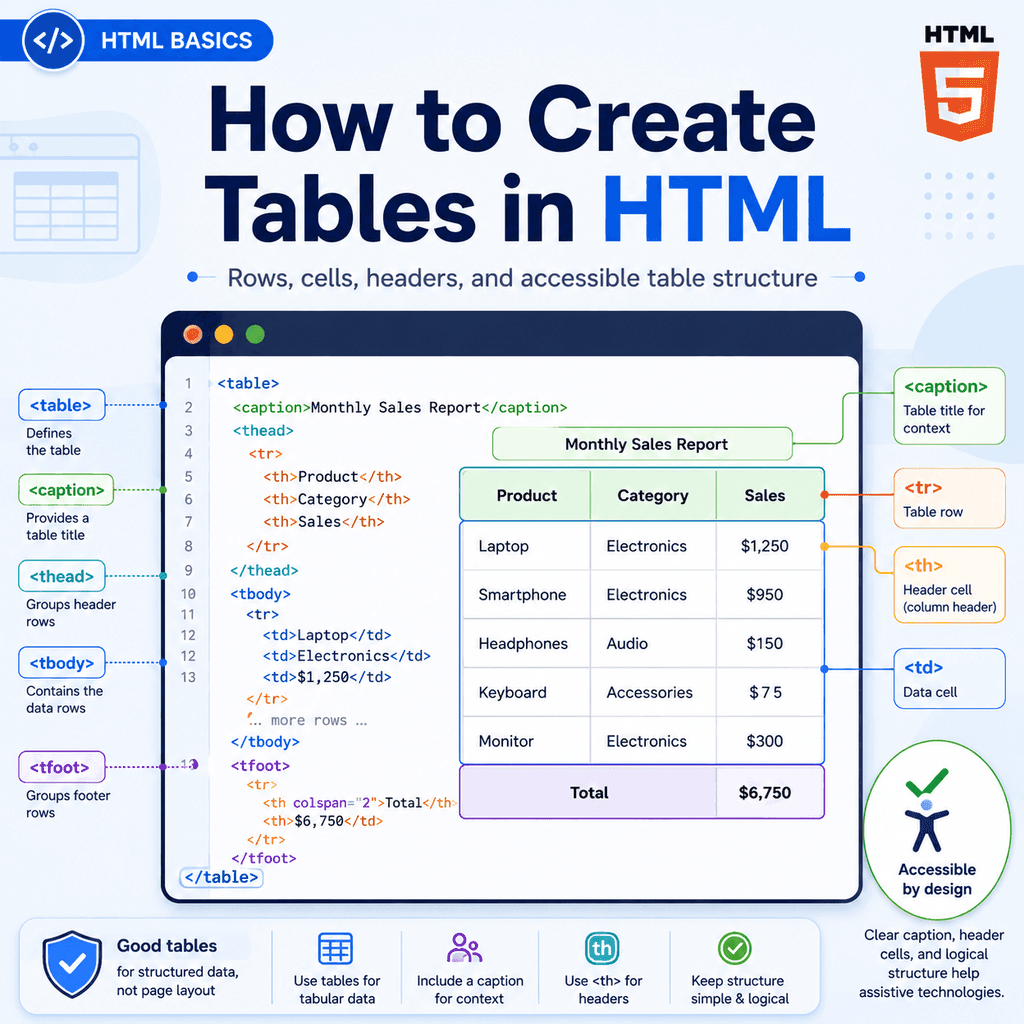
A More Complete Table Structure
Here is a more complete table using <caption>, <thead>, <tbody>, <tfoot>, <th>, and scope:
<table> <caption>Website service prices</caption> <thead> <tr> <th scope=”col”>Service</th> <th scope=”col”>Price</th> <th scope=”col”>Type</th> </tr> </thead> <tbody> <tr> <th scope=”row”>Website Review</th> <td>£99</td> <td>One-off</td> </tr> <tr> <th scope=”row”>Starter Website</th> <td>£499</td> <td>Project</td> </tr> <tr> <th scope=”row”>Maintenance Plan</th> <td>£49/month</td> <td>Monthly</td> </tr> </tbody> <tfoot> <tr> <th scope=”row”>Lowest starting price</th> <td>£49/month</td> <td>Monthly</td> </tr> </tfoot></table>This structure is clearer than a table made only from <tr> and <td>.
The caption describes the table.
The header identifies the columns.
The body contains the main data.
The footer contains summary information.
The row and column headers help explain what each cell means.
How to Make HTML Tables More Accessible
Accessible tables are easier for everyone to understand, especially users who rely on assistive technologies.
A simple accessible table should usually include:
clear column headers<th> elements for headingsscope attributes where helpfula useful captiona logical row and column structuresimple table layoutFor example:
<table> <caption>Opening hours</caption> <thead> <tr> <th scope=”col”>Day</th> <th scope=”col”>Opening Time</th> <th scope=”col”>Closing Time</th> </tr> </thead> <tbody> <tr> <th scope=”row”>Monday</th> <td>09:00</td> <td>17:00</td> </tr> <tr> <th scope=”row”>Tuesday</th> <td>09:00</td> <td>17:00</td> </tr> </tbody></table>This table has a clear caption, column headers, and row headers.
A user can understand what each cell means.
Keep Tables Simple Where Possible
Simple tables are usually easier to read and more accessible.
Avoid making tables unnecessarily complex.
For example, a simple table with clear headings is usually easier than a table with many merged cells, nested tables, or unclear labels.
Good:
<table> <caption>Course dates</caption> <tr> <th scope=”col”>Course</th> <th scope=”col”>Date</th> <th scope=”col”>Location</th> </tr> <tr> <td>HTML Basics</td> <td>12 July</td> <td>Online</td> </tr></table>Harder to understand:
<table> <tr> <td>HTML Basics</td> <td>12 July</td> <td>Online</td> <td>Extra notes and unrelated information</td> </tr></table>The second version has no headers and does not clearly explain the data.
Styling Tables with CSS
HTML should describe the table structure.
CSS should control how the table looks.
For example:
<table class=”price-table”> <caption>Website service prices</caption> <tr> <th scope=”col”>Service</th> <th scope=”col”>Price</th> </tr> <tr> <td>Website Review</td> <td>£99</td> </tr></table>CSS:
.price-table { border-collapse: collapse; width: 100%;} .price-table th,.price-table td { border: 1px solid #cccccc; padding: 8px; text-align: left;}The border-collapse: collapse; rule makes table borders share edges.
The padding creates space inside cells.
The text-align: left; rule aligns the text to the left.
Tables Are for Data, Not Page Layout
Tables should be used for tabular data.
They should not be used to create general page layouts.
In older web design, developers sometimes used tables to position headers, sidebars, and content columns.
For example:
<table> <tr> <td>Sidebar</td> <td>Main content</td> </tr></table>This is not a good modern approach.
Use semantic HTML and CSS for layout instead:
<main class=”page-layout”> <aside> <h2>Related Links</h2> </aside> <section> <h1>Main Content</h1> <p>This is the main page content.</p> </section></main>CSS can then create the layout:
.page-layout { display: grid; grid-template-columns: 1fr 2fr; gap: 24px;}Use tables for data.
Use CSS for layout.
When You Should Use Tables
Use a table when the information genuinely belongs in rows and columns.
Good uses include:
price listsopening hourstimetablescomparison chartsfinancial datastatisticsproduct specificationssports resultsinventory listsresearch resultsFor example:
<table> <caption>Product specifications</caption> <tr> <th scope=”col”>Feature</th> <th scope=”col”>Value</th> </tr> <tr> <td>Weight</td> <td>1.2 kg</td> </tr> <tr> <td>Battery Life</td> <td>10 hours</td> </tr></table>This is a good use of a table because each row compares a feature with a value.
When You Should Not Use Tables
Do not use tables only to arrange content visually.
Avoid tables for:
page layoutsplacing content side by sidecreating columns for designspacing contentaligning images and text for visual effectbuilding cards or gridsFor example, avoid this:
<table> <tr> <td> <h2>Website Design</h2> <p>Simple websites for small businesses.</p> </td> <td> <h2>Website Maintenance</h2> <p>Support for existing websites.</p> </td> </tr></table>If these are service cards, use semantic content and CSS instead:
<section class=”service-grid”> <article> <h2>Website Design</h2> <p>Simple websites for small businesses.</p> </article> <article> <h2>Website Maintenance</h2> <p>Support for existing websites.</p> </article></section>Then use CSS to create the grid layout.
Data Tables vs Layout Misuse
A data table has meaningful relationships between rows and columns.
For example:
Service PriceWebsite Review £99Starter Website £499The row and column positions matter.
The value “£99” is meaningful because it is in the “Price” column for “Website Review”.
That is a data table.
A layout table only uses table cells to position content visually.
For example:
Left content box Right content boxIf the columns only exist to create a visual layout, use CSS instead of a table.
A useful question is:
Would this information still make sense if read row by row as data?If yes, a table may be appropriate.
If no, you probably need semantic HTML and CSS layout instead.
A Complete Example
Here is a complete HTML page using an accessible table:
<!DOCTYPE html><html lang=”en”><head> <meta charset=”UTF-8″> <title>HTML Table Example</title></head><body> <h1>Website Services</h1> <table> <caption>Website service prices and delivery times</caption> <thead> <tr> <th scope=”col”>Service</th> <th scope=”col”>Price</th> <th scope=”col”>Delivery Time</th> </tr> </thead> <tbody> <tr> <th scope=”row”>Website Review</th> <td>£99</td> <td>3 working days</td> </tr> <tr> <th scope=”row”>Starter Website</th> <td>£499</td> <td>2 to 4 weeks</td> </tr> <tr> <th scope=”row”>Maintenance Plan</th> <td>£49/month</td> <td>Ongoing</td> </tr> </tbody> <tfoot> <tr> <th scope=”row”>Lowest starting price</th> <td>£49/month</td> <td>Ongoing</td> </tr> </tfoot> </table> </body></html>This example uses:
<table>to create the table,
<caption>to describe the table,
<thead>to group the header row,
<tbody>to group the main data,
<tfoot>to group the summary row,
<tr>to create rows,
<th>to create header cells,
and:
<td>to create data cells.
Common Mistake: Using <td> for Headers
Incorrect:
<tr> <td>Service</td> <td>Price</td></tr>Better:
<tr> <th scope=”col”>Service</th> <th scope=”col”>Price</th></tr>If a cell is a heading for a row or column, use <th>.
Common Mistake: Forgetting the Caption
A table without a caption can still work, but a caption often makes the table easier to understand.
Less clear:
<table> <tr> <th scope=”col”>Service</th> <th scope=”col”>Price</th> </tr></table>Clearer:
<table> <caption>Website service prices</caption> <tr> <th scope=”col”>Service</th> <th scope=”col”>Price</th> </tr></table>A useful caption helps users understand the table before reading the rows and columns.
Common Mistake: Using Tables for Layout
Avoid this:
<table> <tr> <td>Header area</td> </tr> <tr> <td>Main content</td> </tr> <tr> <td>Footer area</td> </tr></table>Better:
<header> <h1>My Website</h1></header> <main> <p>Main content goes here.</p></main> <footer> <p>© 2026 My Website</p></footer>The second version describes the page structure more clearly.
Use tables for data, not layout.
Common Mistake: Creating Tables with Uneven Rows
A simple table should usually have a consistent number of cells in each row.
Less clear:
<table> <tr> <td>Service</td> <td>Price</td> </tr> <tr> <td>Website Review</td> </tr></table>The second row has only one cell, while the first row has two.
Better:
<table> <tr> <th scope=”col”>Service</th> <th scope=”col”>Price</th> </tr> <tr> <td>Website Review</td> <td>£99</td> </tr></table>Each row now has two cells.
This is easier to read and understand.
Common Mistake: Relying on Table Styling Alone
A table may look understandable visually, but the HTML structure still matters.
For example, making the first row bold with CSS does not make it a real header row.
Less meaningful:
<tr class=”table-heading”> <td>Service</td> <td>Price</td></tr>Better:
<tr> <th scope=”col”>Service</th> <th scope=”col”>Price</th></tr>CSS can change appearance, but HTML should describe meaning.
Best Practices
Use tables for tabular data.
Do not use tables for page layout.
Use <table> to create the table.
Use <tr> for each row.
Use <td> for regular data cells.
Use <th> for row and column headers.
Use scope="col" for column headers.
Use scope="row" for row headers.
Use <caption> to describe the table.
Use <thead>, <tbody>, and <tfoot> to organise larger tables.
Keep tables as simple as possible.
Use CSS to control borders, spacing, alignment, and visual style.
Make sure the table still makes sense when read as rows and columns.
Summary
HTML tables are used to display data in rows and columns.
A basic table uses:
<table><tr>and:
<td>For example:
<table> <tr> <td>Website Review</td> <td>£99</td> </tr></table>A better table often includes headers:
<table> <tr> <th scope=”col”>Service</th> <th scope=”col”>Price</th> </tr> <tr> <td>Website Review</td> <td>£99</td> </tr></table>For clearer and more accessible tables, use <caption>, <th>, scope, <thead>, <tbody>, and <tfoot> where appropriate.
Use tables for data, such as prices, schedules, statistics, comparisons, and specifications.
Do not use tables just to arrange a page visually. Use semantic HTML and CSS layout for that.
Used well, HTML tables make structured data easier to read, understand, and maintain.