
Introduction
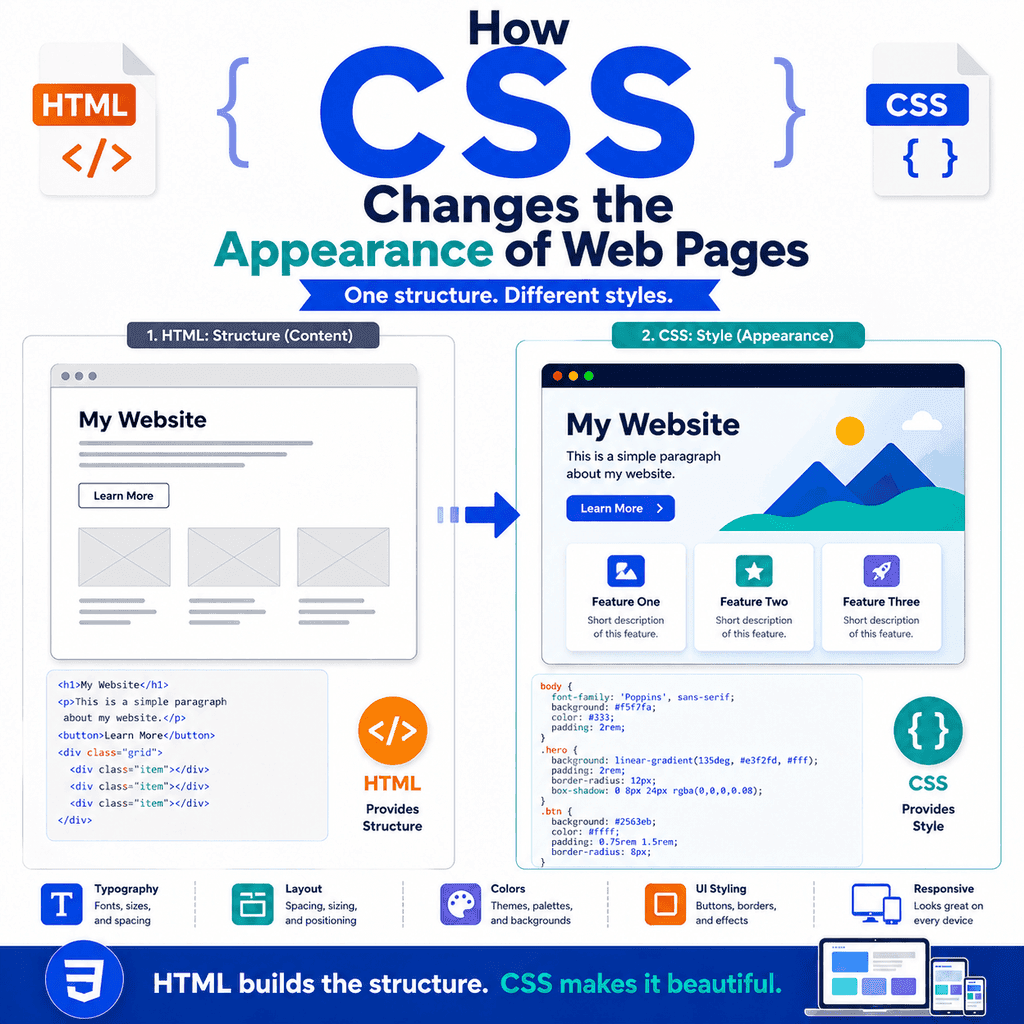
HTML and CSS work together, but they do different jobs.
HTML gives a web page its structure.
CSS changes how that structure looks.
For example, HTML can create a paragraph:
<p>This is a paragraph.</p>CSS can change the paragraph’s colour, size, spacing, and font:
p { color: #333333; font-size: 18px; line-height: 1.6;}The HTML says:
this is a paragraphThe CSS says:
this paragraph should look a certain wayThis separation is one of the most important ideas in web design.
HTML should describe the meaning and structure of the content.
CSS should describe the visual presentation.
Structure vs Presentation
A web page has both structure and presentation.
Structure means the content and its meaning.
Presentation means how that content looks.
For example, this is structure:
<h1>About Us</h1><p>We build simple websites for small businesses.</p><a href=”contact.html”>Contact us</a>This tells the browser that the page has:
a main headinga paragrapha linkCSS can then control the presentation:
h1 { color: navy; font-size: 2.5rem;} p { color: #333333;} a { font-weight: bold;}The HTML gives the page meaning.
The CSS gives the page style.
Why Separating HTML and CSS Matters
Separating structure from presentation makes web pages easier to build and maintain.
If HTML and CSS are kept separate, you can change the design without changing the content structure.
For example, your HTML might stay the same:
<h1>Our Services</h1><p>We offer website design, support, and maintenance.</p>But the CSS can change:
h1 { color: darkgreen;}or:
h1 { color: purple;}The content does not need to change.
Only the visual style changes.
This is useful when redesigning a website, updating branding, improving readability, or making a page work better on different screens.
What HTML Should Do
HTML should describe what the content is.
For example:
<h1>Contact Us</h1>means this is the main heading.
<p>Please send us a message using the form below.</p>means this is a paragraph.
<button type=”submit”>Send message</button>means this is a button.
Good HTML focuses on meaning.
It should answer questions such as:
Is this a heading?Is this a paragraph?Is this a link?Is this a list?Is this a form?Is this the main content?Is this navigation?HTML is not mainly about how things look.
That is the job of CSS.
What CSS Should Do
CSS should describe how the content looks.
For example:
body { font-family: Arial, sans-serif; background-color: #f5f7fb; color: #222222;}This controls the general appearance of the page.
Another example:
button { padding: 12px 18px; border-radius: 6px;}This changes how buttons look.
CSS can control:
coloursfontsspacingalignmentbordersbackgroundslayoutsizingresponsive behaviourhover statesfocus stylesCSS is the visual layer of the page.
A Plain HTML Page
Without CSS, HTML still works.
For example:
<!DOCTYPE html><html lang=”en”><head> <meta charset=”UTF-8″> <title>Plain HTML Page</title></head><body> <h1>Welcome</h1> <p>This is a plain HTML page.</p> <a href=”about.html”>About us</a> </body></html>The browser will display the heading, paragraph, and link.
However, the page will use the browser’s default styles.
The heading will be large and bold.
The paragraph will use the default font.
The link will usually be blue and underlined.
This is valid, but visually basic.
Adding CSS to Change Appearance
Now add a CSS file:
<link rel=”stylesheet” href=”styles.css”>A complete HTML example:
<!DOCTYPE html><html lang=”en”><head> <meta charset=”UTF-8″> <title>Styled HTML Page</title> <link rel=”stylesheet” href=”styles.css”></head><body> <h1>Welcome</h1> <p>This page is styled with CSS.</p> <a href=”about.html”>About us</a> </body></html>The CSS file could contain:
body { font-family: Arial, sans-serif; background-color: #f5f7fb; color: #222222;} h1 { color: navy;} a { color: darkgreen;}The HTML structure is the same.
The CSS changes the way it appears.
CSS Can Change Text
CSS can change how text looks.
For example:
body { font-family: Arial, sans-serif;}This changes the main font.
Another example:
p { font-size: 18px; line-height: 1.6;}This changes paragraph size and line spacing.
Another example:
h1 { font-size: 3rem; font-weight: bold;}This changes the size and weight of main headings.
Text styling affects how readable and professional a page feels.
Good CSS should make text easier to read, not just more decorative.
CSS Can Change Colours
CSS can change text colours and background colours.
Example:
body { color: #222222; background-color: #ffffff;}This sets dark text on a white background.
A heading could have a different colour:
h1 { color: #003399;}A section could have a background colour:
.hero { background-color: #e8f0ff;}The matching HTML might be:
<section class=”hero”> <h1>Learn Web Design</h1> <p>Build clear and useful websites.</p></section>The class connects the HTML section to the CSS rule.
CSS Can Change Spacing
Spacing is controlled with properties such as margin and padding.
For example:
section { margin-bottom: 32px;}This adds space below each section.
Another example:
.card { padding: 24px;}This adds space inside elements with the class card.
The HTML might look like this:
<article class=”card”> <h2>HTML</h2> <p>HTML gives web pages structure.</p></article>The CSS changes the visual spacing.
The HTML still describes the content.
Margin vs Padding
Margin and padding are both used for spacing, but they are not the same.
Margin is space outside an element.
Padding is space inside an element.
Example:
.card { margin-bottom: 24px; padding: 16px;}This means:
margin-bottom = space below the cardpadding = space inside the cardIf elements feel too close together, you may need margin.
If content feels too close to the edge of its box, you may need padding.
CSS gives you control over both.
CSS Can Add Borders
CSS can add borders around elements.
Example:
.card { border: 1px solid #cccccc;}This adds a thin border around elements with the class card.
You can also round the corners:
.card { border: 1px solid #cccccc; border-radius: 8px;}The HTML might be:
<article class=”card”> <h2>Web Design</h2> <p>Learn how websites are planned and built.</p></article>The article remains an article.
CSS simply changes its appearance.
CSS Can Add Backgrounds
CSS can add backgrounds to the page or to specific sections.
Example:
body { background-color: #f5f7fb;}Another example:
.feature-section { background-color: #ffffff; padding: 24px;}HTML:
<section class=”feature-section”> <h2>Featured Lessons</h2> <p>Explore lessons about HTML, CSS, and web design.</p></section>The section has meaning because it is a section.
The class allows CSS to style it.
CSS Can Change Layout
CSS can control where elements appear on the page.
For example, CSS can centre content:
.container { width: 90%; max-width: 1000px; margin: 0 auto;}HTML:
<main class=”container”> <h1>Welcome</h1> <p>This content is centred within a container.</p></main>The main element describes the main content.
The container class controls the layout.
This is a good example of structure and presentation working together.
CSS Can Create Cards
Cards are common in web design.
HTML can create a card-like content structure:
<article class=”card”> <h2>CSS Basics</h2> <p>Learn how CSS changes the appearance of web pages.</p> <a href=”css-basics.html”>Read more</a></article>CSS can make it look like a card:
.card { background-color: white; border: 1px solid #dddddd; border-radius: 8px; padding: 24px; margin-bottom: 20px;}The article is still meaningful HTML.
The CSS provides the card appearance.
CSS Can Style Links
HTML creates links:
<a href=”contact.html”>Contact us</a>CSS can style them:
a { color: #0055cc; font-weight: bold;}CSS can also change links when users hover over them:
a:hover { text-decoration: underline;}The link still works because of HTML.
CSS changes how it looks in different states.
CSS Can Style Buttons
HTML creates buttons:
<button type=”submit”>Send message</button>CSS can style buttons:
button { padding: 12px 18px; border: 0; border-radius: 6px; font-size: 1rem; cursor: pointer;}CSS can also style button states:
button:hover { opacity: 0.9;} button:focus { outline: 2px solid #0055cc;}The :hover state applies when the user points at the button.
The :focus state applies when the button receives keyboard focus or other focus.
Focus styles are important for accessibility.
CSS Can Style Forms
HTML creates form controls:
<form> <label for=”email”>Email address</label> <input type=”email” id=”email” name=”email”> <button type=”submit”>Subscribe</button></form>CSS can make the form easier to read and use:
label { display: block; margin-bottom: 4px;} input { padding: 10px; width: 100%; box-sizing: border-box;} button { margin-top: 12px;}The HTML provides labels and form controls.
The CSS improves the layout and appearance.
CSS Can Make Images Responsive
HTML adds an image:
<img src=”images/example.jpg” alt=”A laptop showing a website design”>CSS can make images fit their containers:
img { max-width: 100%; height: auto;}This helps images shrink on smaller screens.
The image still needs useful HTML attributes such as src and alt.
CSS controls the display size.
HTML provides the image source and meaning.
CSS Can Create Responsive Designs
Responsive design means a page adapts to different screen sizes.
CSS can use flexible widths:
.container { width: 90%; max-width: 1100px;}CSS can also use media queries:
@media (max-width: 700px) { nav { display: block; }}This rule changes the navigation layout when the viewport is 700 pixels wide or less.
HTML provides the navigation:
<nav> <a href=”index.html”>Home</a> <a href=”about.html”>About</a> <a href=”contact.html”>Contact</a></nav>CSS decides how that navigation appears on different screens.
CSS Can Change the Same HTML in Different Ways
The same HTML can look very different with different CSS.
For example:
<section class=”hero”> <h1>Learn CSS</h1> <p>CSS controls how web pages look.</p> <a href=”lessons.html”>Start learning</a></section>One CSS file might make it simple:
.hero { padding: 24px;}Another CSS file might make it more designed:
.hero { padding: 64px 32px; background-color: #e8f0ff; text-align: center;}The HTML content is unchanged.
The visual presentation changes.
This is one reason CSS is powerful.
CSS Should Not Replace Meaningful HTML
CSS can make almost any element look like something else.
For example, CSS can make a paragraph look like a heading:
<p class=”large-title”>About Us</p>.large-title { font-size: 2.5rem; font-weight: bold;}But this is not ideal if the text is actually a heading.
Better HTML:
<h1>About Us</h1>Then style the heading:
h1 { font-size: 2.5rem; font-weight: bold;}HTML should describe meaning first.
CSS should control appearance.
Do Not Choose HTML Elements Based Only on Default Appearance
Browsers give elements default styles.
For example, headings are bold and large by default.
Paragraphs have default spacing.
Links are usually blue and underlined.
However, you should not choose elements only because of their default appearance.
For example, do not use a heading just to make text large:
<h2>This is not really a heading</h2>If the text is not a section heading, choose a more appropriate element and use CSS for appearance.
HTML should match meaning.
CSS can handle visual style.
Classes Help Connect HTML and CSS
Classes are one of the main ways HTML and CSS work together.
HTML:
<p class=”intro”>This is the introduction to the page.</p>CSS:
.intro { font-size: 1.2rem; font-weight: bold;}The class name is:
introThe CSS selector is:
.introThe dot means CSS is selecting a class.
Classes are reusable, so the same class can style several elements.
IDs Can Also Be Styled
CSS can also use IDs.
HTML:
<section id=”contact”> <h2>Contact Us</h2></section>CSS:
#contact { padding: 32px;}The hash symbol selects an ID.
However, for most reusable styling, classes are usually better.
Use IDs for unique elements and page anchors.
Use classes for reusable styles and components.
External CSS Keeps Things Organised
External CSS means CSS is stored in a separate file.
HTML:
<link rel=”stylesheet” href=”styles.css”>CSS file:
body { font-family: Arial, sans-serif;}This keeps the HTML focused on structure.
It keeps the CSS focused on presentation.
This is usually cleaner than writing lots of inline styles directly on elements.
Less ideal:
<p style=”color: blue; font-size: 18px;”>This is a paragraph.</p>Better:
<p class=”intro”>This is a paragraph.</p>.intro { color: blue; font-size: 18px;}A Complete Before and After Example
Here is a plain HTML page:
<!DOCTYPE html><html lang=”en”><head> <meta charset=”UTF-8″> <title>Plain Page</title></head><body> <main> <h1>Learn CSS</h1> <p>CSS changes the appearance of web pages.</p> <section> <h2>Featured Lesson</h2> <p>Learn how structure and presentation work together.</p> <a href=”lesson.html”>Read the lesson</a> </section> </main> </body></html>This page has structure, but it uses only browser default styling.
Now link a CSS file:
<link rel=”stylesheet” href=”styles.css”>Updated HTML:
<!DOCTYPE html><html lang=”en”><head> <meta charset=”UTF-8″> <title>Styled Page</title> <link rel=”stylesheet” href=”styles.css”></head><body> <main class=”container”> <h1>Learn CSS</h1> <p class=”intro”>CSS changes the appearance of web pages.</p> <section class=”card”> <h2>Featured Lesson</h2> <p>Learn how structure and presentation work together.</p> <a class=”button-link” href=”lesson.html”>Read the lesson</a> </section> </main> </body></html>CSS:
body { font-family: Arial, sans-serif; background-color: #f5f7fb; color: #222222; line-height: 1.6; margin: 0;} .container { width: 90%; max-width: 900px; margin: 0 auto; padding: 40px 0;} h1 { color: navy; font-size: 2.5rem;} .intro { font-size: 1.2rem;} .card { background-color: white; border: 1px solid #dddddd; border-radius: 8px; padding: 24px; margin-top: 24px;} .button-link { display: inline-block; padding: 10px 16px; border: 1px solid #333333; text-decoration: none;}The HTML still provides structure.
The CSS now provides a clearer visual design.
What Changed?
The CSS changed several visual parts of the page.
It changed:
the fontthe background colourthe text colourthe page widththe heading sizethe card backgroundthe borderthe spacingthe link appearanceThe HTML did not stop being meaningful.
The main content is still inside <main>.
The heading is still an <h1>.
The lesson area is still a <section>.
The link is still an <a>.
CSS changed the appearance without removing the structure.
Common Mistake: Using HTML for Visual Spacing
Do not use empty paragraphs or repeated line breaks just to create space.
Less suitable:
<p>First paragraph.</p><br><br><p>Second paragraph.</p>Better:
<p>First paragraph.</p><p>Second paragraph.</p>CSS:
p { margin-bottom: 16px;}Use HTML for content.
Use CSS for spacing.
Common Mistake: Using Bold Text Instead of a Heading
Less meaningful:
<p><strong>Our Services</strong></p>Better, if it is a section heading:
<h2>Our Services</h2>Then style it with CSS:
h2 { font-size: 2rem;}Use headings for headings.
Use CSS to control how headings look.
Common Mistake: Using Tables for Layout
Tables should be used for tabular data, not general page layout.
Less suitable:
<table> <tr> <td>Main content</td> <td>Sidebar</td> </tr></table>Better:
<main class=”layout”> <section>Main content</section> <aside>Sidebar</aside></main>CSS can control the layout:
.layout { display: grid; grid-template-columns: 2fr 1fr; gap: 24px;}Use HTML for meaning.
Use CSS for layout.
Common Mistake: Putting Important Content in CSS
CSS can add decorative content in some situations, but important page content should be in HTML.
Less suitable:
.button::after { content: “Submit your application”;}Better:
<button type=”submit”>Submit your application</button>Important text belongs in HTML so users, assistive technologies, search engines, and browsers can access it properly.
CSS should not be the only place where important content exists.
Common Mistake: Removing Focus Styles
Some CSS removes focus outlines:
a:focus,button:focus { outline: none;}This can make the page harder to use for keyboard users.
Better:
a:focus,button:focus { outline: 2px solid #0055cc; outline-offset: 2px;}CSS should improve usability.
It should not remove important interaction cues.
Common Mistake: Fixed Layouts on Small Screens
A fixed-width layout can cause horizontal scrolling:
.container { width: 1200px;}Better:
.container { width: 90%; max-width: 1200px;}This lets the layout adapt to smaller screens.
CSS controls presentation, so it should account for different devices and viewport sizes.
Best Practices
Use HTML for structure and meaning.
Use CSS for appearance and layout.
Keep visual styling out of the HTML when possible.
Use external CSS for most real projects.
Use classes to connect HTML elements to reusable CSS styles.
Use IDs for unique elements and page anchors.
Choose HTML elements based on meaning, not default appearance.
Use CSS for colours, fonts, spacing, borders, backgrounds, and layout.
Use CSS to make pages responsive.
Keep important content in HTML, not CSS.
Keep visible focus styles for links, buttons, and form controls.
Avoid fixed-width layouts that break on small screens.
Test pages with and without CSS when possible.
Summary
CSS changes the appearance of web pages.
HTML gives the page structure:
<h1>Welcome</h1><p>This is a paragraph.</p>CSS changes how that structure looks:
h1 { color: navy;} p { line-height: 1.6;}The key idea is separation:
HTML = structure and meaningCSS = visual presentationCSS can change text, colours, spacing, borders, backgrounds, layouts, forms, buttons, links, images, and responsive behaviour.
Good web pages use both languages properly.
HTML should describe what the content is.
CSS should describe how the content appears.
When you keep those jobs separate, your code becomes cleaner, easier to maintain, and easier to adapt as your website grows.