
Introduction
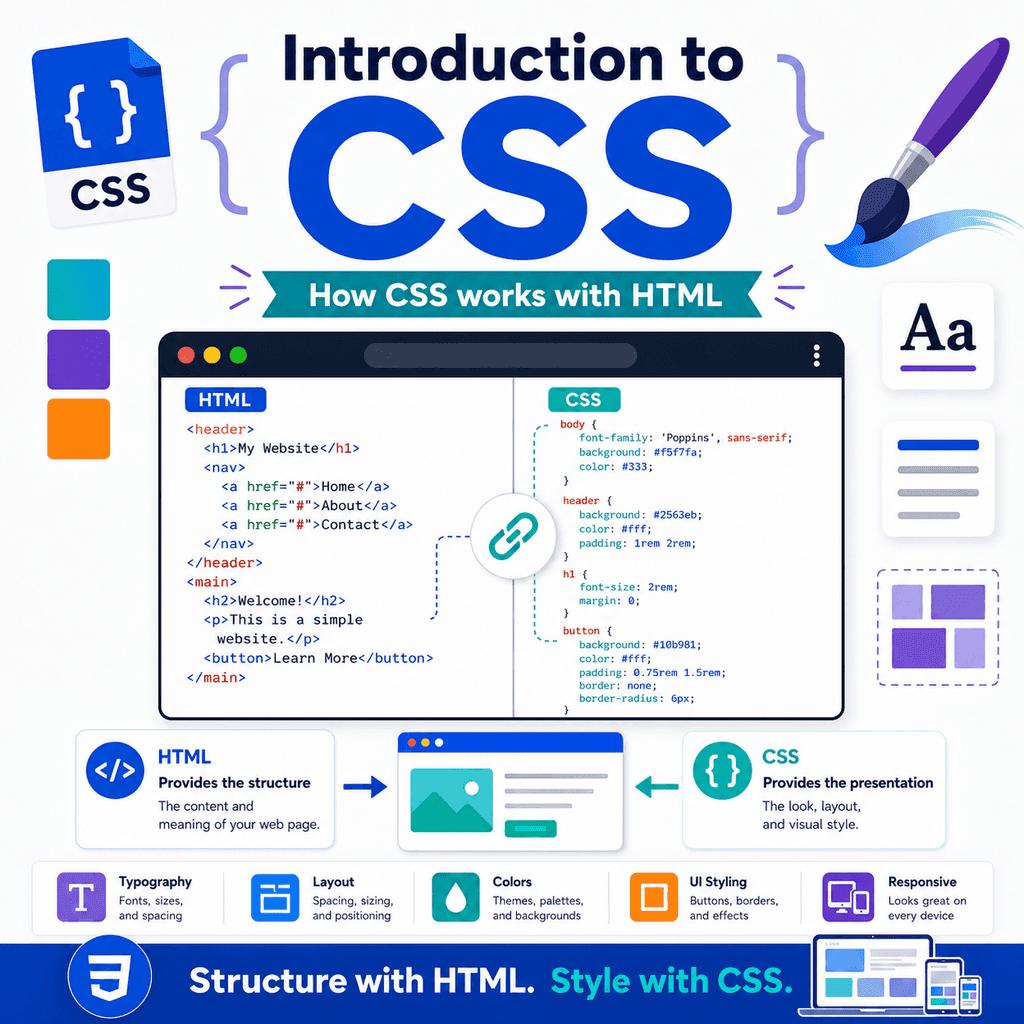
HTML gives a web page its structure.
CSS controls how that structure looks.
For example, HTML can create a heading:
<h1>Welcome to My Website</h1>CSS can change the way that heading appears:
h1 { color: navy; font-size: 2rem;}Without CSS, a web page can still have headings, paragraphs, links, images, lists, and forms.
However, it will usually look plain.
CSS lets you control colours, spacing, fonts, layout, borders, backgrounds, sizing, alignment, and responsive design.
CSS is one of the main technologies used to build websites, along with HTML and JavaScript.
A simple way to think about them is:
HTML = structureCSS = presentationJavaScript = behaviourThis article explains what CSS is, what it does, and how it works with HTML.
What Is CSS?
CSS stands for Cascading Style Sheets.
CSS is a language used to describe how HTML elements should look.
For example, this HTML creates a paragraph:
<p>This is a paragraph.</p>This CSS changes the paragraph’s appearance:
p { color: darkslategray; font-size: 18px;}The browser reads the HTML to understand the content.
Then it reads the CSS to understand how that content should be displayed.
CSS does not replace HTML.
It works with HTML.
What CSS Does
CSS can control many visual parts of a web page.
It can change:
text colourfont sizefont familyline spacingbackground colourpage layoutwidth and heightmargins and paddingbordersshadowsalignmentresponsive behaviourFor example, CSS can make a button look more like a real call-to-action button:
button { padding: 12px 20px; border-radius: 6px; font-size: 1rem;}The HTML creates the button.
The CSS styles the button.
CSS and HTML Work Together
HTML and CSS usually work as a pair.
HTML describes the content:
<h1>About Our Services</h1><p>We build simple websites for small businesses.</p><a href=”contact.html”>Contact us</a>CSS describes the presentation:
h1 { color: navy;} p { line-height: 1.6;} a { font-weight: bold;}The browser combines both.
The HTML tells the browser what the elements are.
The CSS tells the browser how those elements should look.
Why CSS Exists
In the early days of the web, HTML was sometimes used for both structure and appearance.
That made pages harder to maintain.
CSS helps separate content from design.
For example, this HTML should focus on meaning:
<h1>Contact Us</h1><p>Email us to discuss your project.</p>The CSS should handle appearance:
h1 { font-size: 2.5rem;} p { color: #333333;}This separation makes websites easier to update.
If you want to change the design, you can change the CSS without rewriting all the HTML.
A Basic CSS Rule
A CSS rule usually has a selector and a declaration block.
Example:
p { color: blue;}The selector is:
pThis selects all paragraph elements.
The declaration block is:
{ color: blue;}Inside the block, the declaration is:
color: blue;This tells the browser to make paragraph text blue.
Selectors
A selector tells CSS which HTML elements to style.
For example:
h1 { color: navy;}This selects all <h1> elements.
Another example:
p { font-size: 18px;}This selects all <p> elements.
Selectors can target HTML elements, classes, IDs, and more.
For example, a class selector looks like this:
.highlight { background-color: yellow;}It applies to HTML like this:
<p class=”highlight”>This text is highlighted.</p>Properties and Values
A CSS declaration is made from a property and a value.
Example:
color: blue;The property is:
colorThe value is:
blueAnother example:
font-size: 20px;The property is:
font-sizeThe value is:
20pxCSS uses properties to define what should change.
It uses values to define how it should change.
Declaration Blocks
A CSS rule can contain more than one declaration.
For example:
h1 { color: navy; font-size: 2rem; margin-bottom: 16px;}This rule applies three declarations to all <h1> elements.
It sets:
the text colourthe font sizethe bottom marginEach declaration ends with a semicolon.
The semicolon helps separate one declaration from the next.
A Complete HTML and CSS Example
Here is a simple HTML page:
<!DOCTYPE html><html lang=”en”><head> <meta charset=”UTF-8″> <title>CSS Example</title> <link rel=”stylesheet” href=”styles.css”></head><body> <h1>Welcome</h1> <p>This page is styled with CSS.</p> <a href=”about.html”>Learn more</a> </body></html>The CSS file might look like this:
body { font-family: Arial, sans-serif; line-height: 1.6;} h1 { color: navy;} a { color: darkgreen;}The HTML creates the content.
The CSS changes the way the content appears.
Where CSS Can Be Written
CSS can be added to a page in three main ways:
external CSSinternal CSSinline CSSExternal CSS is written in a separate .css file.
Internal CSS is written inside a <style> element.
Inline CSS is written directly on an HTML element.
For most real websites, external CSS is usually the best approach.
External CSS
External CSS uses a separate CSS file.
For example, your project might look like this:
my-website/ index.html styles.cssThe HTML file links to the CSS file:
<link rel=”stylesheet” href=”styles.css”>This line goes inside the <head> element.
The CSS file contains the styles:
body { font-family: Arial, sans-serif;} h1 { color: navy;}External CSS keeps the HTML cleaner.
It also allows the same CSS file to style multiple pages.
Internal CSS
Internal CSS is written inside a <style> element in the HTML file.
Example:
<head> <style> body { font-family: Arial, sans-serif; } h1 { color: navy; } </style></head>This can be useful for small examples or quick testing.
However, for larger websites, internal CSS can become difficult to manage.
A separate CSS file is usually better.
Inline CSS
Inline CSS is written directly on an HTML element using the style attribute.
Example:
<h1 style=”color: navy;”>Welcome</h1>This works, but it is usually not the best way to style a page.
Inline CSS mixes structure and presentation in the same place.
It can also make styles harder to reuse.
A better approach is usually:
<h1>Welcome</h1>and:
h1 { color: navy;}Use external CSS for most styling.
Use inline CSS only for limited special cases or quick tests.
Linking CSS to HTML
The most common way to connect HTML and CSS is with the <link> element.
Example:
<link rel=”stylesheet” href=”styles.css”>This belongs inside the <head>:
<head> <meta charset=”UTF-8″> <title>My Page</title> <link rel=”stylesheet” href=”styles.css”></head>The rel="stylesheet" attribute tells the browser that the linked file is a CSS stylesheet.
The href="styles.css" attribute tells the browser where the CSS file is.
If the path is wrong, the CSS will not load.
CSS File Paths
The href path must point to the correct CSS file.
If styles.css is in the same folder as index.html, use:
<link rel=”stylesheet” href=”styles.css”>Example folder structure:
my-website/ index.html styles.cssIf the CSS file is inside a folder called css, use:
<link rel=”stylesheet” href=”css/styles.css”>Example folder structure:
my-website/ index.html css/ styles.cssCorrect file paths are essential.
If the browser cannot find the CSS file, the page will not be styled.
CSS Changes the Same HTML
One powerful idea is that the same HTML can look very different with different CSS.
For example, this HTML is simple:
<section class=”card”> <h2>HTML</h2> <p>HTML structures web pages.</p></section>This CSS can make it look like a card:
.card { border: 1px solid #cccccc; padding: 16px; border-radius: 8px;}Another CSS file could make it look completely different.
The HTML content stays the same.
The CSS controls the presentation.
CSS Can Style Text
CSS is often used to control typography.
For example:
body { font-family: Arial, sans-serif; font-size: 16px; line-height: 1.6;}This sets the main font, text size, and line spacing.
Headings can be styled too:
h1 { font-size: 2.5rem; font-weight: bold;}Good text styling can make a page easier to read.
CSS should support readability, not just decoration.
CSS Can Style Colours and Backgrounds
CSS can change text colours and background colours.
Example:
body { background-color: #f5f7fb; color: #222222;}This gives the page a light background and dark text.
A section could have its own background:
.hero { background-color: #e8f0ff; padding: 32px;}The HTML might look like this:
<section class=”hero”> <h1>Learn CSS</h1> <p>CSS controls how web pages look.</p></section>The class connects the HTML to the CSS.
CSS Can Control Spacing
Spacing is one of the most important parts of web design.
CSS can control space inside and outside elements.
For example:
section { margin-bottom: 32px; padding: 24px;}The margin controls space outside the element.
The padding controls space inside the element.
Spacing helps separate content and make pages easier to scan.
Without good spacing, a page can feel crowded.
CSS Can Create Layouts
CSS can control how elements are arranged on the page.
For example, CSS can create columns, grids, cards, and responsive layouts.
A simple layout example:
.container { width: 90%; max-width: 1000px; margin: 0 auto;}This creates a centered container that adapts to the screen size.
The HTML might look like this:
<main class=”container”> <h1>Welcome</h1> <p>This content is inside a centered container.</p></main>CSS layout is a large topic, but the basic idea is simple.
HTML creates the content.
CSS arranges the content.
CSS Can Make Pages Responsive
Responsive design means a page adapts to different screen sizes.
For example, a page may look different on a phone than on a desktop.
CSS can use media queries:
@media (max-width: 600px) { body { font-size: 16px; } nav { display: block; }}This CSS applies only when the viewport is 600 pixels wide or less.
Responsive design also often uses flexible widths:
img { max-width: 100%; height: auto;}This helps images fit smaller screens.
CSS Can Style Forms and Buttons
HTML creates form controls.
CSS can make them easier to use and more visually consistent.
Example HTML:
<form> <label for=”email”>Email address</label> <input type=”email” id=”email” name=”email”> <button type=”submit”>Subscribe</button></form>Example CSS:
label { display: block; margin-bottom: 4px;} input { padding: 10px; width: 100%;} button { padding: 10px 16px;}CSS improves the presentation.
The HTML still provides the structure and meaning.
CSS Can Style States
CSS can style elements in different states.
For example, links can change when a user hovers over them:
a:hover { text-decoration: underline;}Buttons can change when focused:
button:focus { outline: 2px solid blue;}These states help users understand what they are interacting with.
Focus styles are especially important for keyboard users.
Do not remove focus outlines unless you replace them with a clear alternative.
The Cascade
The “C” in CSS stands for cascading.
The cascade is the system the browser uses to decide which CSS rule applies when more than one rule targets the same element.
For example:
p { color: black;} .intro { color: navy;}HTML:
<p class=”intro”>Welcome to the site.</p>Both rules target the paragraph.
The class rule may win because it is more specific.
You do not need to master the full cascade immediately.
For now, understand that CSS rules can interact, override, and build on each other.
Inheritance
Some CSS properties are inherited from parent elements.
For example:
body { font-family: Arial, sans-serif; color: #222222;}Many text elements inside the body will inherit the font and colour unless another rule changes them.
This is useful because you can set general styles once.
Then you can override them only where needed.
For example:
h1 { color: navy;}The page text may be dark gray, but headings can be navy.
CSS Comments
CSS comments help explain code.
A CSS comment looks like this:
/* This styles the main page heading */h1 { color: navy;}Comments are ignored by the browser.
They are useful for developers reading the CSS.
Do not put private information in comments because CSS files can usually be viewed by users.
A Simple CSS File
Here is a simple CSS file for a basic page:
/* Basic page styles */body { font-family: Arial, sans-serif; line-height: 1.6; margin: 0; color: #222222; background-color: #f5f7fb;} /* Layout */.container { width: 90%; max-width: 1000px; margin: 0 auto;} /* Headings */h1 { color: navy; font-size: 2.5rem;} /* Links */a { color: darkblue;}This CSS controls the overall page appearance.
It styles the body, layout container, heading, and links.
A Complete HTML and CSS Pair
Here is a complete example using HTML and CSS together.
HTML:
<!DOCTYPE html><html lang=”en”><head> <meta charset=”UTF-8″> <meta name=”viewport” content=”width=device-width, initial-scale=1.0″> <title>Introduction to CSS</title> <link rel=”stylesheet” href=”styles.css”></head><body> <main class=”container”> <h1>An Introduction to CSS</h1> <p class=”intro”> CSS controls how HTML content looks on the page. </p> <section class=”card”> <h2>What CSS Does</h2> <p> CSS can style text, colours, spacing, layout, borders, backgrounds, and responsive behaviour. </p> </section> <a class=”button-link” href=”next-lesson.html”>Continue learning</a> </main> </body></html>CSS:
body { font-family: Arial, sans-serif; line-height: 1.6; margin: 0; background-color: #f5f7fb; color: #222222;} .container { width: 90%; max-width: 900px; margin: 0 auto; padding: 32px 0;} .intro { font-size: 1.2rem;} .card { background-color: white; padding: 24px; border: 1px solid #dddddd; border-radius: 8px; margin: 24px 0;} .button-link { display: inline-block; padding: 12px 18px; text-decoration: none; border: 1px solid #333333;}The HTML gives meaning and structure.
The CSS gives presentation and layout.
Together, they create the page users see.
Common Mistake: Expecting CSS to Create Content
CSS can style content, but HTML creates the content.
For example, this HTML creates a heading:
<h1>Welcome</h1>CSS can style it:
h1 { color: navy;}CSS should not be used as the main way to add important text.
Important content should be written in HTML.
CSS should control how it looks.
Common Mistake: Forgetting to Link the CSS File
If your CSS is in a separate file, the HTML must link to it.
Less complete:
<head> <title>My Page</title></head>Better:
<head> <title>My Page</title> <link rel=”stylesheet” href=”styles.css”></head>If the CSS file is not linked, the browser will not apply it.
Common Mistake: Using the Wrong File Path
This only works if styles.css is in the same folder as the HTML file:
<link rel=”stylesheet” href=”styles.css”>If the CSS file is inside a css folder, use:
<link rel=”stylesheet” href=”css/styles.css”>If the path is wrong, the page may appear unstyled.
Check the file name, folder name, and spelling.
Common Mistake: Mixing Too Much CSS into HTML
Inline styles can make HTML harder to maintain.
Less ideal:
<p style=”color: blue; font-size: 18px;”>This is a paragraph.</p>Better:
<p class=”intro”>This is a paragraph.</p>.intro { color: blue; font-size: 18px;}Using classes and external CSS keeps the code cleaner.
Common Mistake: Using CSS Instead of Semantic HTML
Do not choose HTML elements only because of how they look.
For example, do not use a paragraph as a heading just because CSS can make it large:
<p class=”big-heading”>About Us</p>Better:
<h1>About Us</h1>CSS can then style the heading:
h1 { font-size: 2.5rem;}HTML should describe meaning.
CSS should describe appearance.
Common Mistake: Removing Useful Focus Styles
Some people remove focus outlines because they do not like how they look:
button:focus { outline: none;}This can make the page harder to use with a keyboard.
Better:
button:focus { outline: 2px solid blue;}Focus styles show users where they are on the page.
They are important for accessibility.
Common Mistake: Making Fixed-Width Layouts
A fixed-width layout can cause problems on small screens:
.container { width: 1200px;}On a phone, 1200 pixels may be too wide.
A more flexible approach:
.container { width: 90%; max-width: 1200px;}This lets the layout shrink on small screens and stop growing too wide on large screens.
Best Practices
Use HTML for structure and meaning.
Use CSS for presentation and layout.
Use external CSS for most real projects.
Link CSS with:
<link rel=”stylesheet” href=”styles.css”>Place the link inside the <head>.
Use clear selectors.
Use classes for reusable styles.
Keep CSS organised and readable.
Use comments when they help explain sections.
Avoid excessive inline styles.
Do not use CSS as a replacement for semantic HTML.
Use flexible layouts instead of fixed-width designs.
Keep text readable.
Maintain visible focus styles.
Test the page on different screen sizes.
Summary
CSS stands for Cascading Style Sheets.
CSS controls how HTML content looks.
HTML creates the structure:
<h1>Welcome</h1><p>This is a paragraph.</p>CSS controls the presentation:
h1 { color: navy;} p { line-height: 1.6;}The most common way to connect CSS to HTML is with a <link> element:
<link rel=”stylesheet” href=”styles.css”>CSS can style text, colours, spacing, backgrounds, borders, layouts, buttons, forms, and responsive behaviour.
The main idea is simple:
HTML describes what the content is.CSS describes how the content looks.Once you understand that difference, it becomes much easier to build clean, organised, and well-designed web pages.