
Introduction
CSS has its own way of writing instructions.
These instructions tell the browser which HTML elements to style and what visual changes to apply.
For example:
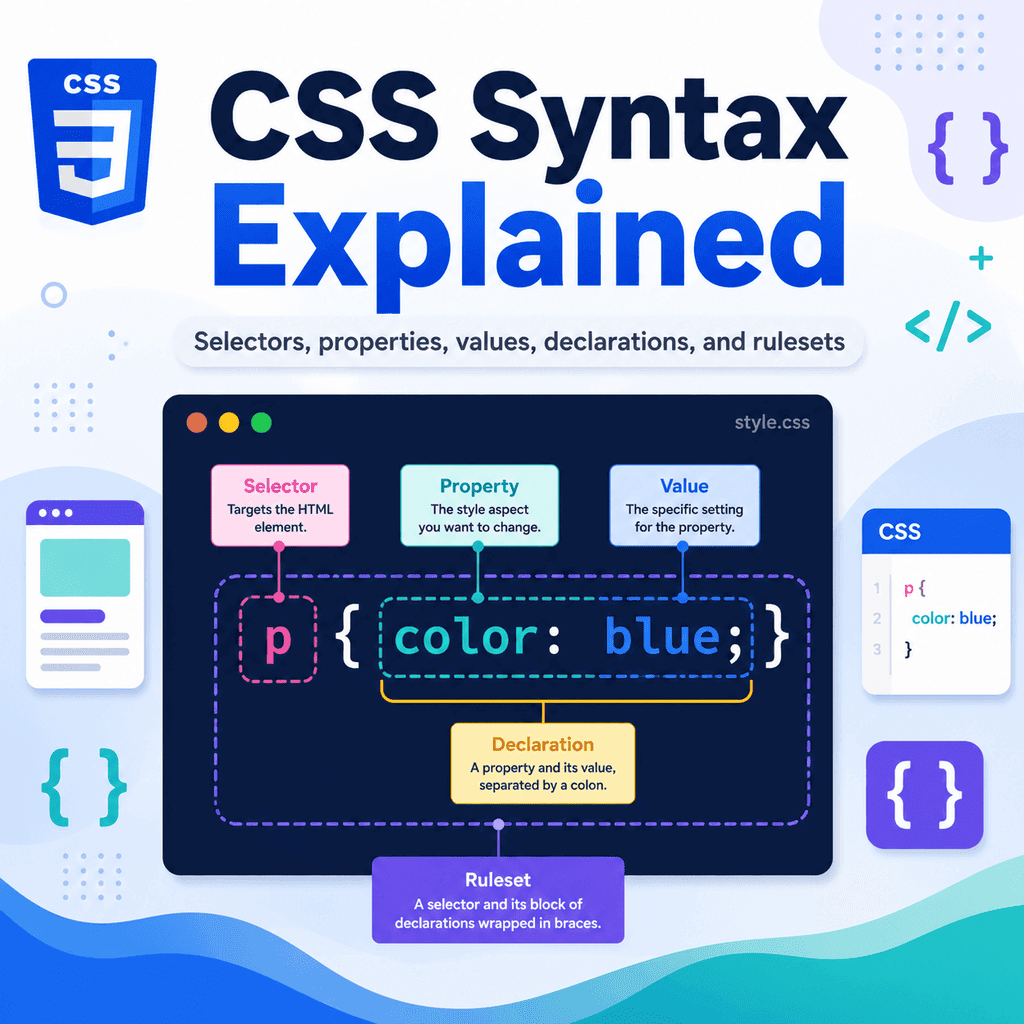
p { color: blue;}This small piece of CSS tells the browser to make paragraph text blue.
To understand CSS properly, you need to understand the main parts of CSS syntax:
selectorspropertiesvaluesdeclarationsrulesetsThese are the building blocks of CSS.
Once you understand them, reading and writing CSS becomes much easier.
What Is CSS Syntax?
Syntax means the rules for how code is written.
CSS syntax is the way CSS code must be structured so the browser can understand it.
A basic CSS rule looks like this:
selector { property: value;}For example:
h1 { color: navy;}This tells the browser:
find all h1 elementsset their text colour to navyThe selector chooses what to style.
The property says what part of the style should change.
The value says what it should change to.
A Simple CSS Example
Here is a simple HTML paragraph:
<p>This is a paragraph.</p>Here is CSS that styles it:
p { color: darkslategray; font-size: 18px;}The selector is:
pThe declarations are:
color: darkslategray;font-size: 18px;The browser applies those styles to all <p> elements.
The paragraph text becomes dark slate gray and 18 pixels in size.
What Is a Selector?
A selector tells CSS which HTML element or elements to style.
For example:
p { color: blue;}The selector is:
pThis selects all paragraph elements.
Another example:
h1 { font-size: 2.5rem;}The selector is:
h1This selects all <h1> elements.
Selectors are how CSS connects to HTML.
Element Selectors
An element selector targets HTML elements by their tag name.
For example:
h1 { color: navy;}This selects all <h1> elements.
Another example:
p { line-height: 1.6;}This selects all <p> elements.
Another example:
button { padding: 12px 18px;}This selects all <button> elements.
Element selectors are simple and useful when you want to style every element of a certain type.
Class Selectors
A class selector targets elements with a specific class attribute.
HTML:
<p class=”note”>This is a note.</p>CSS:
.note { background-color: #f5f5f5;}The selector is:
.noteThe dot means CSS is selecting a class.
This CSS targets any element with:
class=”note”Classes can be reused on many elements:
<p class=”note”>First note.</p><p class=”note”>Second note.</p><p class=”note”>Third note.</p>All three paragraphs can be styled with the same .note rule.
ID Selectors
An ID selector targets an element with a specific id attribute.
HTML:
<section id=”intro”> <h2>Introduction</h2></section>CSS:
#intro { padding: 32px;}The selector is:
#introThe hash symbol means CSS is selecting an ID.
This targets the element with:
id=”intro”An ID should be unique on the page.
Use IDs for one specific element.
Use classes for reusable styles.
Selector Symbols
CSS uses different symbols for different selector types.
An element selector does not need a special symbol:
p { color: blue;}A class selector uses a dot:
.note { color: blue;}An ID selector uses a hash symbol:
#intro { color: blue;}A simple rule is:
p = element selector.note = class selector#intro = ID selectorThese three selector types are among the most common in CSS.
What Is a Declaration Block?
A declaration block is the part of a CSS rule inside the curly braces.
For example:
p { color: blue; font-size: 18px;}The declaration block is:
{ color: blue; font-size: 18px;}The curly braces group the style instructions together.
Everything inside the braces applies to the selector.
In this case, the selector is p, so the declarations apply to paragraph elements.
What Is a Declaration?
A declaration is one style instruction inside a CSS rule.
For example:
color: blue;This is a declaration.
It has two main parts:
propertyvalueThe property is:
colorThe value is:
blueTogether, they tell the browser to set the text colour to blue.
Properties
A property tells CSS what aspect of the element you want to change.
For example:
colorchanges text colour.
font-sizechanges text size.
background-colorchanges background colour.
paddingchanges space inside an element.
marginchanges space outside an element.
In a declaration, the property comes before the colon:
font-size: 18px;Here, font-size is the property.
Values
A value tells CSS what setting to use for a property.
For example:
color: blue;The value is:
blueAnother example:
font-size: 18px;The value is:
18pxAnother example:
background-color: #f5f7fb;The value is:
#f5f7fbDifferent properties accept different kinds of values.
For example, color accepts colour values.
font-size accepts size values.
display accepts layout values such as block, inline, flex, or grid.
Property and Value Together
A property and value work together as a declaration.
Example:
line-height: 1.6;The property is:
line-heightThe value is:
1.6The full declaration tells the browser to set the line height.
Another example:
border-radius: 8px;The property is border-radius.
The value is 8px.
This rounds the corners of an element.
The Colon
In CSS declarations, a colon separates the property from the value.
Correct:
color: blue;Incorrect:
color blue;The browser needs the colon to understand the declaration.
The structure is:
property: value;If the colon is missing, the declaration will not work correctly.
The Semicolon
A semicolon usually ends each declaration.
Correct:
p { color: blue; font-size: 18px;}The semicolon after color: blue separates it from the next declaration.
If there is only one declaration, some browsers may still understand it without a semicolon:
p { color: blue}However, it is better to include semicolons consistently:
p { color: blue;}This helps avoid mistakes when you add more declarations later.
Curly Braces
Curly braces contain the declarations for a selector.
Example:
h1 { color: navy;}The opening brace is:
{The closing brace is:
}If you forget a closing brace, the browser may misunderstand the CSS that follows.
Incorrect:
h1 { color: navy; p { color: gray;}Correct:
h1 { color: navy;} p { color: gray;}Each ruleset should have a clear opening and closing brace.
What Is a Ruleset?
A ruleset is a complete CSS rule.
It includes:
a selectora declaration blockone or more declarationsExample:
h1 { color: navy; font-size: 2.5rem;}The selector is:
h1The declaration block is:
{ color: navy; font-size: 2.5rem;}The declarations are:
color: navy;font-size: 2.5rem;Together, this is one ruleset.
Many people casually call this a CSS rule.
Multiple Declarations in One Ruleset
A ruleset can contain several declarations.
Example:
.card { background-color: white; border: 1px solid #dddddd; border-radius: 8px; padding: 24px;}This ruleset styles elements with the class card.
It sets:
background colourborderrounded cornerspaddingAll of the declarations apply to the same selector.
This is useful because one selector can control several visual details.
Multiple Selectors in One Ruleset
You can apply the same declarations to more than one selector.
For example:
h1,h2,h3 { font-family: Arial, sans-serif;}This applies the same font family to <h1>, <h2>, and <h3> elements.
The selectors are separated by commas.
Another example:
button,input,textarea { font: inherit;}This applies the same declaration to buttons, inputs, and textareas.
Using multiple selectors can reduce repetition.
Whitespace in CSS
CSS is generally flexible with whitespace.
This works:
p{color:blue;}But this is easier to read:
p { color: blue;}Both can be understood by the browser.
However, readable formatting is better for humans.
Good formatting makes CSS easier to scan, edit, and debug.
A common style is:
selector { property: value; property: value;}CSS Comments
CSS comments let you add notes in your stylesheet.
A CSS comment starts with:
/*and ends with:
*/Example:
/* Main page heading */h1 { color: navy;}The browser ignores comments.
Comments are useful for explaining sections of CSS.
Do not put private information in comments because CSS files can usually be viewed by users.
A Full CSS Example
Here is a simple CSS file:
/* Basic page styles */body { font-family: Arial, sans-serif; line-height: 1.6; background-color: #f5f7fb; color: #222222;} /* Main heading */h1 { color: navy; font-size: 2.5rem;} /* Reusable card component */.card { background-color: white; border: 1px solid #dddddd; border-radius: 8px; padding: 24px;}This file includes:
commentselement selectorsa class selectorpropertiesvaluesdeclarationsrulesetsIt shows how CSS syntax works in a real stylesheet.
How CSS Connects to HTML
CSS selectors target HTML elements.
For example, this HTML:
<h1>Welcome</h1> <p>This is a paragraph.</p> <article class=”card”> <h2>Featured Lesson</h2> <p>Learn how CSS syntax works.</p></article>can be styled with this CSS:
h1 { color: navy;} p { color: #333333;} .card { border: 1px solid #dddddd; padding: 24px;}The h1 selector targets the heading.
The p selector targets paragraphs.
The .card selector targets the article with class="card".
This is how CSS finds the elements it should style.
A Complete HTML and CSS Example
HTML:
<!DOCTYPE html><html lang=”en”><head> <meta charset=”UTF-8″> <title>CSS Syntax Example</title> <link rel=”stylesheet” href=”styles.css”></head><body> <main class=”container”> <h1>CSS Syntax Example</h1> <p class=”intro”> This page is styled using selectors, properties, values, declarations, and rulesets. </p> <article class=”card”> <h2>What Is a Ruleset?</h2> <p>A ruleset is a complete CSS rule with a selector and declaration block.</p> </article> </main> </body></html>CSS:
body { font-family: Arial, sans-serif; line-height: 1.6;} .container { width: 90%; max-width: 900px; margin: 0 auto;} .intro { font-size: 1.2rem;} .card { padding: 24px; border: 1px solid #cccccc; border-radius: 8px;}The HTML gives the page structure.
The CSS uses selectors to find elements and declarations to style them.
Reading CSS from Left to Right
When reading CSS, start with the selector.
Example:
.card { padding: 24px; border: 1px solid #cccccc;}Read it like this:
Find elements with class=”card”.Add 24px of padding.Add a 1px solid border.Another example:
h1 { color: navy;}Read it like this:
Find all h1 elements.Make their text colour navy.This simple reading method helps CSS feel less abstract.
Common Mistake: Forgetting the Selector
Incorrect:
{ color: blue;}Correct:
p { color: blue;}The browser needs a selector to know what element should receive the style.
The selector tells CSS what to target.
Common Mistake: Forgetting Curly Braces
Incorrect:
p color: blue;Correct:
p { color: blue;}The declarations must go inside curly braces.
The braces group the declarations with the selector.
Common Mistake: Missing the Colon
Incorrect:
p { color blue;}Correct:
p { color: blue;}The colon separates the property from the value.
Without it, the browser cannot correctly read the declaration.
Common Mistake: Missing the Semicolon
Less reliable:
p { color: blue font-size: 18px;}Better:
p { color: blue; font-size: 18px;}The semicolon separates declarations.
If the semicolon is missing between declarations, the browser may ignore part of the CSS.
Common Mistake: Misspelling Properties
Incorrect:
p { colour: blue;}Correct:
p { color: blue;}CSS property names use American English spelling for color.
If a property is misspelled, the browser usually ignores that declaration.
Another example:
p { font-szie: 18px;}Correct:
p { font-size: 18px;}Small spelling mistakes can stop styles from working.
Common Mistake: Using the Wrong Selector Symbol
Incorrect:
note { color: blue;}if the HTML is:
<p class=”note”>This is a note.</p>Correct:
.note { color: blue;}The dot is required for class selectors.
Another example:
intro { padding: 24px;}if the HTML is:
<section id=”intro”>Correct:
#intro { padding: 24px;}The hash symbol is required for ID selectors.
Common Mistake: Forgetting That Class Names Use Spaces
This HTML has two classes:
<p class=”message warning”>Check your details.</p>The classes are:
messagewarningYou can target them separately:
.message { padding: 12px;} .warning { font-weight: bold;}This is different from:
<p class=”message-warning”>Check your details.</p>That has one class:
message-warningThe matching selector is:
.message-warning { font-weight: bold;}Spaces separate class names.
Hyphens are part of a class name.
Common Mistake: Writing HTML Syntax in CSS
Incorrect CSS:
<p> { color: blue;}Correct CSS:
p { color: blue;}In CSS selectors, do not write angle brackets around element names.
Use:
h1not:
<h1>HTML uses angle brackets.
CSS selectors usually do not.
Common Mistake: Writing CSS Inside an HTML File Without <style>
Incorrect:
<head> p { color: blue; }</head>Correct:
<head> <style> p { color: blue; } </style></head>If you write CSS inside an HTML document, it must go inside a <style> element.
For most real projects, it is usually better to put CSS in a separate .css file and link it with:
<link rel=”stylesheet” href=”styles.css”>Best Practices
Start each ruleset with a clear selector.
Put declarations inside curly braces.
Write declarations as property: value;.
Use a colon between the property and value.
Use semicolons between declarations.
Use element selectors for general element styling.
Use class selectors for reusable styles.
Use ID selectors for unique elements when needed.
Use readable formatting and indentation.
Use comments to organise larger CSS files.
Check spelling carefully.
Remember that class selectors use a dot.
Remember that ID selectors use a hash symbol.
Keep HTML syntax and CSS syntax separate.
Summary
CSS syntax is the way CSS code is written.
A basic CSS ruleset looks like this:
selector { property: value;}For example:
p { color: blue;}The selector chooses what to style.
The property says what style feature should change.
The value says what setting to use.
The declaration is:
color: blue;The full ruleset is:
p { color: blue;}Selectors, properties, values, declarations, and rulesets are the foundation of CSS.
Once you understand these parts, you can read and write CSS more confidently.