
Introduction
Lists are a common part of web pages. You can use them to show steps, menus, features, ingredients, instructions, links, and grouped information.
HTML gives you three main types of lists:
- Unordered lists
- Ordered lists
- Description lists
Each list type has a different purpose. Once you understand how they work, you can use lists to structure information clearly and improve the readability of your web pages.
What Is an HTML List?
An HTML list is a group of related items. For example, you might use a list to show website navigation links:
<ul> <li>Home</li> <li>About</li> <li>Contact</li></ul>In the browser, this would usually appear as a bulleted list:
• Home• About• ContactThe list itself is created using a list container, and each item inside the list is created using an <li> element.
The letters li stand for “list item”.
Unordered Lists
An unordered list is used when the order of the items does not matter.
For example, you might use an unordered list for a group of features, shopping items, or navigation links.
An unordered list is created using the <ul> element.
<ul> <li>Fast loading pages</li> <li>Mobile-friendly design</li> <li>Clear navigation</li></ul>The letters ul stand for “unordered list”.
By default, most browsers display unordered lists with bullet points.
The example above would usually appear like this:
• Fast loading pages• Mobile-friendly design• Clear navigationUse an unordered list when the items belong together, but do not need to appear in a specific sequence.
Ordered Lists
An ordered list is used when the order of the items matters.
For example, you might use an ordered list for instructions, rankings, recipes, or step-by-step processes.
An ordered list is created using the <ol> element.
<ol> <li>Open your code editor</li> <li>Create a new HTML file</li> <li>Add your list markup</li> <li>Open the file in your browser</li></ol>The letters ol stand for “ordered list”.
By default, most browsers display ordered lists with numbers.
The example above would usually appear like this:
1. Open your code editor2. Create a new HTML file3. Add your list markup4. Open the file in your browserUse an ordered list when changing the order would change the meaning of the content.
List Items
Both unordered and ordered lists use the <li> element for each item.
Here is an unordered list:
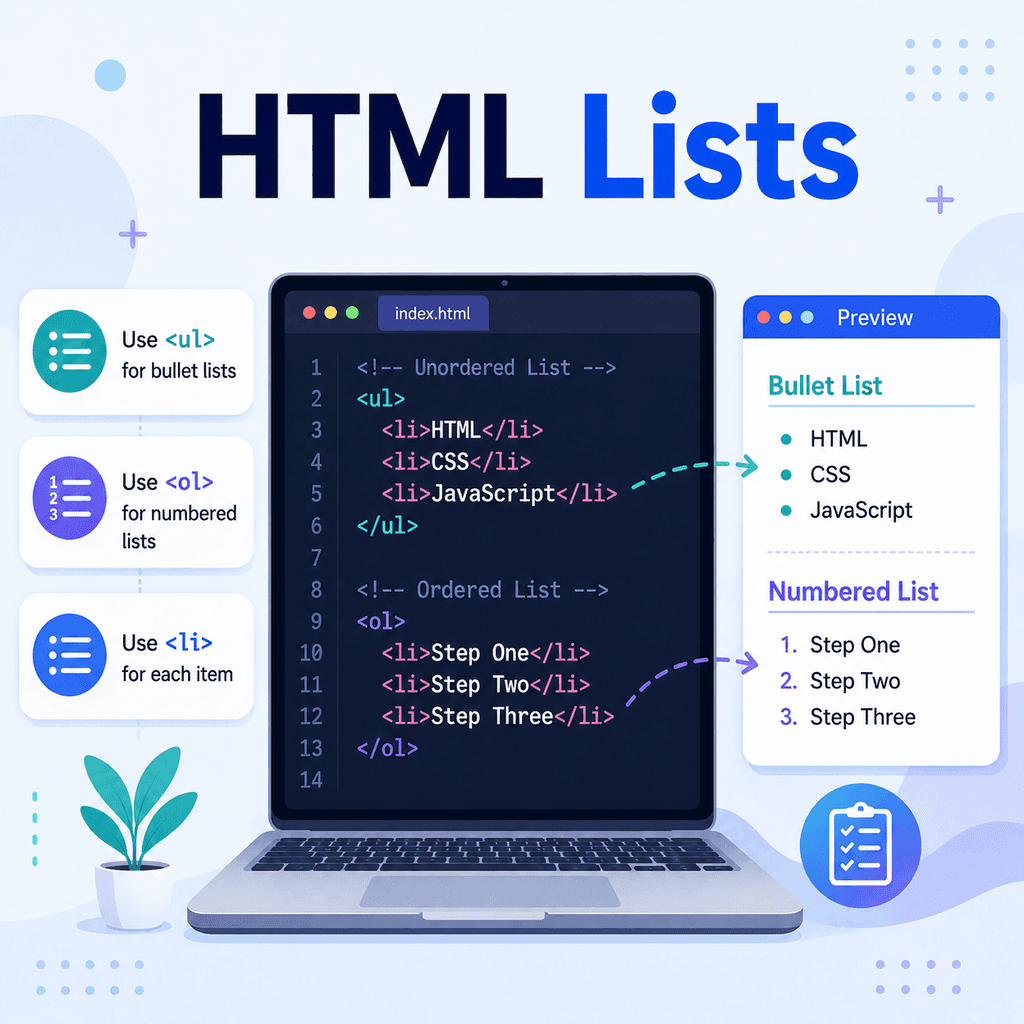
<ul> <li>HTML</li> <li>CSS</li> <li>JavaScript</li></ul>Here is an ordered list:
<ol> <li>Write the HTML</li> <li>Add the CSS</li> <li>Test the page</li></ol>The important point is that <li> elements should be placed inside a list container, such as <ul> or <ol>.
Description Lists
A description list is used for terms and descriptions. It is useful for glossaries, definitions, metadata, FAQs, and structured information where one item needs an explanation.
A description list is created using the <dl> element.
Inside it, you use:
<dt>for the term, and:
<dd>for the description.
Here is an example:
<dl> <dt>HTML</dt> <dd>The language used to structure content on the web.</dd> <dt>CSS</dt> <dd>The language used to style web pages.</dd> <dt>JavaScript</dt> <dd>A programming language used to add interactivity to web pages.</dd></dl>The letters dl stand for “description list”.
The letters dt stand for “description term”.
The letters dd stand for “description details” or “description definition”.
In a browser, description lists are usually displayed with the description indented underneath the term.
Choosing the Right Type of List
Use an unordered list when the order does not matter:
<ul> <li>Apples</li> <li>Bananas</li> <li>Oranges</li></ul>Use an ordered list when the order does matter:
<ol> <li>Preheat the oven</li> <li>Mix the ingredients</li> <li>Bake for 25 minutes</li></ol>Use a description list when you are pairing terms with descriptions:
<dl> <dt>Domain name</dt> <dd>The address people type to visit a website.</dd> <dt>Hosting</dt> <dd>The service that stores your website files online.</dd></dl>The right list type depends on the meaning of the content, not just how you want it to look.
Nested Lists
A nested list is a list inside another list.
Nested lists are useful when you need to show sub-items. For example, you might have a list of web development topics, with smaller lists inside each topic.
<ul> <li>HTML <ul> <li>Headings</li> <li>Paragraphs</li> <li>Lists</li> </ul> </li> <li>CSS <ul> <li>Colours</li> <li>Fonts</li> <li>Layouts</li> </ul> </li></ul>This creates a list where “HTML” and “CSS” each have their own sub-list.
When nesting lists, place the second list inside the relevant <li> element.
Changing the Numbering in Ordered Lists
Ordered lists are numbered by default, but HTML lets you adjust the numbering.
For example, you can start a list at a different number using the start attribute:
<ol start=”5″> <li>Review your code</li> <li>Fix any errors</li> <li>Publish the page</li></ol>This would start the list at number 5.
You can also change the type of marker using the type attribute:
<ol type=”A”> <li>Introduction</li> <li>Main content</li> <li>Conclusion</li></ol>This would usually display the list using capital letters:
A. IntroductionB. Main contentC. ConclusionCommon type values for ordered lists include:
<ol type=”1″>Numbers: 1, 2, 3
<ol type=”A”>Uppercase letters: A, B, C
<ol type=”a”>Lowercase letters: a, b, c
<ol type=”I”>Uppercase Roman numerals: I, II, III
<ol type=”i”>Lowercase Roman numerals: i, ii, iii
Reversing an Ordered List
You can reverse the numbering of an ordered list by using the reversed attribute.
<ol reversed> <li>Third place</li> <li>Second place</li> <li>First place</li></ol>This would usually display the list in reverse numbering order:
3. Third place2. Second place1. First placeThis can be useful for countdowns or ranked lists.
Styling Lists with CSS
HTML should be used to describe the structure and meaning of the content. CSS should be used to control how the list looks.
For example, you can remove bullet points from a list:
<ul class=”nav-list”> <li>Home</li> <li>About</li> <li>Contact</li></ul>.nav-list { list-style-type: none;}You can also add spacing between list items:
.nav-list li { margin-bottom: 10px;}Or you can display list items in a row, which is common for navigation menus:
.nav-list { list-style-type: none; display: flex; gap: 20px;}This keeps the HTML meaningful while allowing CSS to control the layout.
Lists for Navigation Menus
Lists are often used to create website navigation menus because navigation is usually a group of related links.
Here is a simple example:
<nav> <ul> <li><a href=”index.html”>Home</a></li> <li><a href=”about.html”>About</a></li> <li><a href=”services.html”>Services</a></li> <li><a href=”contact.html”>Contact</a></li> </ul></nav>The <nav> element tells the browser that this section contains navigation links.
The <ul> element groups the links together.
Each <li> contains one navigation item.
Each <a> element creates a hyperlink.
Common Mistakes to Avoid
One common mistake is placing list items outside the list container.
Incorrect:
<li>Home</li><li>About</li><li>Contact</li>Correct:
<ul> <li>Home</li> <li>About</li> <li>Contact</li></ul>Another common mistake is using line breaks instead of list markup.
Incorrect:
Apples<br>Bananas<br>Oranges<br>Correct:
<ul> <li>Apples</li> <li>Bananas</li> <li>Oranges</li></ul>Using proper list markup makes the page more meaningful, more accessible, and easier to style.
A third mistake is choosing a list type based only on appearance.
For example, do not use an unordered list just because you want bullet points. Use it because the order does not matter. Likewise, use an ordered list when sequence is part of the meaning.
Accessibility and Lists
Lists help screen readers and other assistive technologies understand how items are grouped.
For example, a screen reader may announce that a list contains a certain number of items. This helps users understand the structure of the content before going through each item.
For accessibility, use real HTML list elements instead of manually typing symbols, numbers, or line breaks.
Better:
<ol> <li>Create the file</li> <li>Write the HTML</li> <li>Test the page</li></ol>Avoid:
1. Create the file<br>2. Write the HTML<br>3. Test the page<br>The first version gives the browser meaningful structure. The second version only gives visual text.
A Complete Example
Here is a simple HTML page using different types of lists:
<!DOCTYPE html><html lang=”en”><head> <meta charset=”UTF-8″> <title>HTML Lists Example</title></head><body> <h1>HTML Lists</h1> <h2>Unordered List</h2> <ul> <li>Simple syntax</li> <li>Clear structure</li> <li>Easy to style</li> </ul> <h2>Ordered List</h2> <ol> <li>Create an HTML file</li> <li>Add your list elements</li> <li>Open the file in a browser</li> </ol> <h2>Description List</h2> <dl> <dt>HTML</dt> <dd>Used to structure web page content.</dd> <dt>CSS</dt> <dd>Used to style web page content.</dd> </dl> </body></html>This example includes an unordered list, an ordered list, and a description list on the same page.
Summary
HTML lists are used to group related information.
The three main types are:
<ul>for unordered lists,
<ol>for ordered lists,
and:
<dl>for description lists.
List items inside unordered and ordered lists use:
<li>Description lists use:
<dt>for terms and:
<dd>for descriptions.
Use unordered lists when order does not matter, ordered lists when order does matter, and description lists when you need to pair terms with explanations.
Lists are simple, but they are one of the most useful tools in HTML. They help structure content clearly, improve accessibility, and make web pages easier to read.