
Introduction
CSS is usually used to style HTML elements.
For example:
p { color: #333333;}This changes how paragraphs look.
CSS can also create small pieces of generated content.
Generated content is content added by CSS rather than written directly in the HTML.
For example:
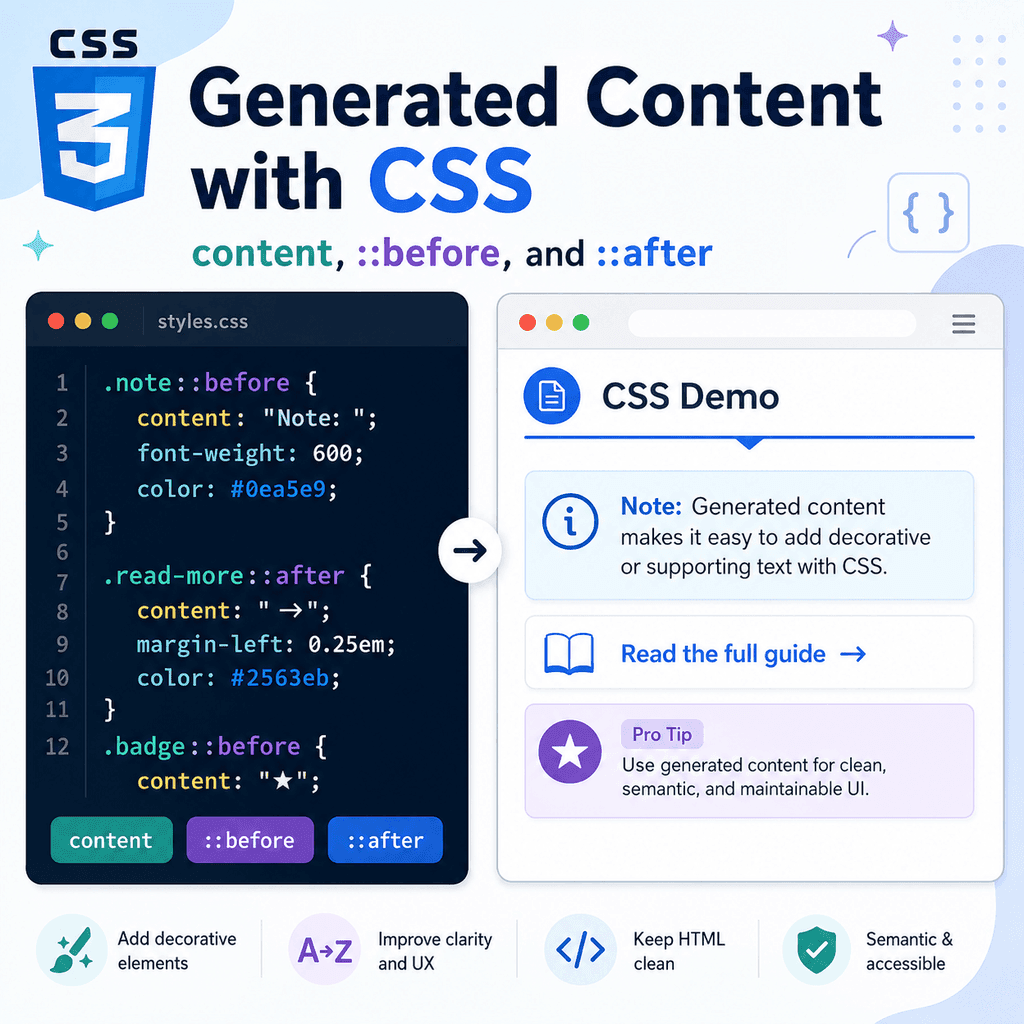
.note::before { content: “Note: “; font-weight: bold;}HTML:
<p class=”note”>Save your CSS file before refreshing the browser.</p>The browser displays something like:
Note: Save your CSS file before refreshing the browser.The word Note: is generated by CSS.
Generated content is usually created with the content property and the ::before and ::after pseudo-elements.
It is useful for decorative or supporting content, such as icons, labels, arrows, separators, badges, and small visual cues.
However, generated content should be used carefully.
Important information should usually be written in the HTML, not only added with CSS.
What Is Generated Content?
Generated content is content the browser creates from CSS.
It is not written directly inside the HTML element.
For example:
<a class=”external-link” href=”https://example.com”>Visit Example</a>CSS:
.external-link::after { content: ” ↗”;}The browser displays an arrow after the link text.
The arrow is not in the HTML.
It is generated by CSS.
Generated content is commonly used with:
::before::aftercontentThe pseudo-element creates a place for the generated content.
The content property defines what appears there.
What Are ::before and ::after?
The ::before and ::after pseudo-elements create generated content before or after an element’s real content.
::before creates content before the element’s content:
.tip::before { content: “Tip: “;}::after creates content after the element’s content:
.external-link::after { content: ” ↗”;}These pseudo-elements are not normal HTML elements.
They are created by the browser for styling and rendering.
You can often see them in browser developer tools, but they do not appear as actual elements in your HTML source.
The content Property
The content property tells the browser what a generated pseudo-element should contain.
Example:
.note::before { content: “Note: “;}The value can be text:
content: “New”;It can be an empty string:
content: “”;It can also use values such as attributes, counters, or images in more advanced CSS.
For this article, the main focus is simple generated text and decorative generated elements.
The most important rule is:
::before and ::after usually need content to appear.content with Text
You can use content to add short text.
Example:
.warning::before { content: “Warning: “; font-weight: bold;}HTML:
<p class=”warning”>Check your form before submitting.</p>The browser displays something like:
Warning: Check your form before submitting.This can be useful for repeated labels.
However, if the word Warning is essential to understanding the message, it is usually better to include it in the HTML:
<p class=”warning”><strong>Warning:</strong> Check your form before submitting.</p>CSS-generated text is best for supporting or decorative content.
content with an Empty String
An empty string is useful when the pseudo-element is decorative.
Example:
.card::before { content: “”; display: block; height: 4px; background-color: navy;}HTML:
<article class=”card”> <h2>CSS Basics</h2> <p>Learn how CSS styles web pages.</p></article>The pseudo-element does not contain text.
It creates a decorative line before the card content.
This is a good use of generated content because the line is visual decoration, not meaningful content.
::before Example
The ::before pseudo-element adds generated content before the element’s real content.
HTML:
<p class=”tip”>Use classes for reusable styles.</p>CSS:
.tip::before { content: “Tip: “; font-weight: bold; color: navy;}The browser displays:
Tip: Use classes for reusable styles.The generated text appears before the real paragraph text.
This can be useful for notes, tips, labels, icons, and decorative markers.
::after Example
The ::after pseudo-element adds generated content after the element’s real content.
HTML:
<a href=”https://example.com” class=”external-link”>External resource</a>CSS:
.external-link::after { content: ” ↗”;}The browser displays:
External resource ↗The generated arrow appears after the link text.
This is useful when adding a small visual cue.
For example, it can suggest that the link goes to another website or opens in a new tab.
Generated Content Is Usually Inline
By default, generated content from ::before and ::after behaves like inline content.
Example:
.note::before { content: “Note: “;}The generated text appears on the same line as the element’s content.
You can change this with display.
Example:
.card::before { content: “”; display: block; height: 4px; background-color: navy; margin-bottom: 16px;}Now the generated pseudo-element behaves like a block.
That lets it act like a horizontal line or decorative strip.
Styling Generated Content
Generated content can be styled with normal CSS properties.
Example:
.badge::after { content: “New”; font-size: 0.75rem; font-weight: bold; margin-left: 0.5rem;}HTML:
<h2 class=”badge”>CSS Selectors</h2>This adds a small New label after the heading.
Generated content can use properties such as:
colorfont-sizefont-weightbackground-colordisplaywidthheightmarginpaddingborderborder-radiuspositionThis makes pseudo-elements very flexible.
Decorative Icons with Generated Content
Generated content is often used for small decorative icons.
Example:
.success::before { content: “✓ “; color: green; font-weight: bold;}HTML:
<p class=”success”>Your settings were saved.</p>The check mark is added with CSS.
This is fine if the icon is decorative or reinforces information already present in the text.
However, if the icon is the only thing that communicates success, the meaning may not be available to all users.
A safer HTML version would include meaningful text:
<p class=”success”><strong>Success:</strong> Your settings were saved.</p>Use generated icons as support, not as the only source of meaning.
Adding Arrows to Links
A common use of ::after is adding arrows to links.
HTML:
<a class=”read-more” href=”article.html”>Read more</a>CSS:
.read-more::after { content: ” →”;}The browser displays:
Read more →This arrow is decorative.
It supports the idea that the link continues to another page.
This is usually an appropriate use of generated content.
Adding External Link Cues
You can combine attribute selectors with generated content.
HTML:
<a href=”https://example.com” target=”_blank”>Visit Example</a>CSS:
a[target=”_blank”]::after { content: ” ↗”;}This adds an arrow to links that open in a new tab.
The selector means:
select links with target=”_blank”then add generated content after themThis gives users a visual cue that the link behaves differently.
For important behavioural information, also consider making the link text or surrounding text clear.
Decorative Lines with ::before
You can create decorative lines without extra HTML.
HTML:
<h2 class=”section-title”>Featured Lessons</h2>CSS:
.section-title::before { content: “”; display: inline-block; width: 32px; height: 4px; background-color: navy; margin-right: 8px; vertical-align: middle;}This adds a line before the heading text.
The line is presentational.
It does not need to be in the HTML.
This keeps the HTML cleaner and leaves the visual styling to CSS.
Decorative Lines with ::after
You can also place decorative lines after elements.
HTML:
<h2 class=”section-heading”>CSS Tutorials</h2>CSS:
.section-heading::after { content: “”; display: block; width: 80px; height: 4px; background-color: navy; margin-top: 12px;}This creates a line below the heading.
This pattern is common in headings, cards, hero sections, and callout blocks.
No extra <div> or <span> is required because the line is decorative.
Generated Badges
You can use ::after for simple badges.
HTML:
<h2 class=”lesson-title is-new”>CSS Selectors</h2>CSS:
.lesson-title.is-new::after { content: “New”; display: inline-block; font-size: 0.75rem; font-weight: bold; margin-left: 0.5rem; padding: 0.15rem 0.4rem; border-radius: 999px;}This creates a small New badge after the lesson title.
However, ask whether New is important content.
If it is important for users, you may prefer:
<h2> CSS Selectors <span class=”badge”>New</span></h2>Generated badges are best when they are visual enhancement rather than essential content.
Using Attribute Values with attr()
The content property can display an attribute value with attr().
Example:
<a href=”https://example.com”>Visit Example</a>CSS:
a::after { content: ” (” attr(href) “)”;}The browser may display:
Visit Example (https://example.com)This can be useful in print styles or debugging.
For normal screen design, be careful.
Displaying full URLs after every link may make the page cluttered.
attr() Example for Print Styles
Generated content can be useful in print stylesheets.
For example, when someone prints a page, links may no longer be clickable.
You can show the URL after each link:
@media print { a[href]::after { content: ” (” attr(href) “)”; }}This means printed pages can show where links point.
This is a useful case because the generated content supports the printed format.
It does not replace the original link text.
Supporting Content vs Essential Content
Generated content is best used for decorative or supporting information.
Good examples include:
arrows after linksdecorative linessmall iconsvisual separatorsnon-essential badgesprint URL hintsrepeated visual markersGenerated content should usually not be the only source of important information.
Avoid relying only on CSS for:
button labelsform instructionsrequired field informationpriceswarningserror messageslegal textimportant status labelsIf users need the information to understand or use the page, put it in the HTML.
Generated Content and Accessibility
Generated content can be handled inconsistently depending on browser, assistive technology, and user settings.
Some generated text may be announced by some assistive technologies.
Some may not.
This is one reason essential content should live in HTML.
For example, this is risky:
.error::before { content: “Error: “;}Better:
<p class=”error”><strong>Error:</strong> Please enter your email address.</p>The CSS can still style the label, but the meaning is present in the document.
Use generated content for presentation and enhancement.
Do not rely on it as the only source of meaning.
Generated Content and Copying Text
Generated content may not behave like normal text when users copy content from a page.
For example:
.note::before { content: “Note: “;}A user copying the paragraph text may or may not get the generated Note: text, depending on the browser and context.
If that text matters, it belongs in the HTML.
This is another reason to keep generated content decorative or supportive.
Generated Content and Translation
Generated content written in CSS may not be handled in the same way as normal HTML text in translation workflows.
Example:
.button::after { content: ” Continue”;}If the site is translated, this CSS-generated text may be missed.
Important visible words should usually be in HTML or managed through a proper content system.
Generated content is better for symbols, decoration, and minor repeated visual cues.
Using Generated Content for Separators
Generated content can create separators between inline items.
HTML:
<nav class=”breadcrumb”> <a href=”index.html”>Home</a> <a href=”lessons.html”>Lessons</a> <a href=”css.html”>CSS</a></nav>CSS:
.breadcrumb a + a::before { content: ” / “; color: #666666;}This adds a slash before every breadcrumb link except the first one.
The selector uses:
a + ato select links that immediately follow another link.
Then ::before adds the separator.
This avoids writing separator characters manually in the HTML.
Using Generated Content for Required Markers
You can use generated content to add a required marker.
HTML:
<label class=”required” for=”email”>Email address</label><input type=”email” id=”email” required>CSS:
.required::after { content: ” *”; color: red;}This adds an asterisk after the label.
However, the form should still communicate required fields clearly.
The required attribute is important for the form control:
<input type=”email” id=”email” required>And if the asterisk needs explanation, include that explanation in the HTML:
<p>* Required field</p>Generated markers can support clarity, but they should not be the only form instruction.
Using ::before and ::after Together
An element can have both ::before and ::after.
HTML:
<h2 class=”fancy-heading”>CSS Generated Content</h2>CSS:
.fancy-heading::before { content: “”; display: inline-block; width: 24px; height: 3px; background-color: navy; margin-right: 8px;} .fancy-heading::after { content: “”; display: inline-block; width: 24px; height: 3px; background-color: navy; margin-left: 8px;}This creates decorative lines before and after the heading.
Because the lines are decorative, pseudo-elements are appropriate.
Positioning Generated Content
Generated content can be positioned with CSS.
HTML:
<article class=”card”> <h2>Featured Lesson</h2> <p>Learn how generated content works.</p></article>CSS:
.card { position: relative; padding: 24px; border: 1px solid #dddddd;} .card::after { content: “”; position: absolute; top: 12px; right: 12px; width: 12px; height: 12px; border-radius: 50%; background-color: navy;}This places a decorative dot in the top-right corner of the card.
The card uses position: relative.
The pseudo-element uses position: absolute.
That makes the dot position itself relative to the card.
Generated Content as Shapes
Generated content does not need to be text.
With content: "", you can create shapes.
Example:
.divider::after { content: “”; display: block; width: 100%; height: 1px; background-color: #dddddd; margin-top: 16px;}HTML:
<h2 class=”divider”>Section Title</h2>This creates a horizontal rule-like decoration after the heading.
This is useful when the line is part of the design rather than document structure.
If the line represents a meaningful thematic break, an HTML <hr> element may be more appropriate.
Generated Content with Counters
CSS can also generate numbers with counters.
This is more advanced, but it is useful to know.
Example:
.steps { counter-reset: step;} .steps li::before { counter-increment: step; content: counter(step) “. “; font-weight: bold;}HTML:
<ol class=”steps”> <li>Create the HTML.</li> <li>Add the CSS.</li> <li>Test the page.</li></ol>In many cases, normal ordered lists already provide numbering:
<ol> <li>Create the HTML.</li> <li>Add the CSS.</li></ol>Use CSS counters only when you need custom generated numbering.
For normal numbered lists, HTML is simpler and more semantic.
A Complete Example
HTML:
<!DOCTYPE html><html lang=”en”><head> <meta charset=”UTF-8″> <title>Generated Content Example</title> <link rel=”stylesheet” href=”styles.css”></head><body> <main class=”container”> <h1 class=”page-title”>Generated Content with CSS</h1> <p class=”note”> Generated content is useful for decoration and supporting visual cues. </p> <nav class=”breadcrumb”> <a href=”index.html”>Home</a> <a href=”lessons.html”>Lessons</a> <a href=”css.html”>CSS</a> </nav> <article class=”card”> <h2 class=”card-title”>Featured Lesson</h2> <p>Learn how to use content, before, and after.</p> <a class=”read-more” href=”lesson.html”>Read more</a> </article> <p> <a href=”https://example.com” target=”_blank”>External resource</a> </p> </main> </body></html>CSS:
body { font-family: Arial, sans-serif; line-height: 1.6;} .container { width: 90%; max-width: 900px; margin: 0 auto;} .page-title::after { content: “”; display: block; width: 80px; height: 4px; background-color: navy; margin-top: 12px;} .note::before { content: “Note: “; font-weight: bold; color: navy;} .breadcrumb a + a::before { content: ” / “; color: #666666;} .card { position: relative; padding: 24px; border: 1px solid #dddddd;} .card::before { content: “”; display: block; height: 4px; background-color: navy; margin-bottom: 16px;} .card::after { content: “”; position: absolute; top: 12px; right: 12px; width: 12px; height: 12px; border-radius: 50%; background-color: navy;} .read-more::after { content: ” →”;} a[target=”_blank”]::after { content: ” ↗”;}This example uses generated content for a title underline, a note label, breadcrumb separators, card decoration, a read-more arrow, and an external-link cue.
How the Complete Example Works
This rule adds a decorative line after the page title:
.page-title::after { content: “”; display: block; width: 80px; height: 4px;}This rule adds a supporting label before the note:
.note::before { content: “Note: “;}This rule adds separators between breadcrumb links:
.breadcrumb a + a::before { content: ” / “;}This rule adds a decorative strip before the card content:
.card::before { content: “”; display: block; height: 4px;}This rule adds a decorative dot to the card:
.card::after { content: “”; position: absolute;}This rule adds an arrow after a read-more link:
.read-more::after { content: ” →”;}Each generated item supports the visual design without requiring extra decorative HTML.
Common Mistake: Forgetting the content Property
This usually will not display anything:
.note::before { font-weight: bold;}This works:
.note::before { content: “Note: “; font-weight: bold;}For ::before and ::after, remember to include content.
For decorative shapes, use:
content: “”;Common Mistake: Putting Essential Text Only in CSS
Less suitable:
.submit-button::after { content: “Submit form”;}Better:
<button class=”submit-button” type=”submit”>Submit form</button>Important text should be in the HTML.
Generated content is not a reliable replacement for meaningful content.
Common Mistake: Using Generated Content Instead of Semantic HTML
This is less suitable:
.section-break::after { content: “”; display: block; height: 1px;}if the line represents a meaningful break in the content.
Better semantic HTML:
<hr>Use CSS decoration for visual styling.
Use HTML elements when the structure has meaning.
Common Mistake: Adding Too Many Decorative Icons
This can become cluttered:
h2::before { content: “★ “;} a::after { content: ” →”;} p::before { content: “• “;} li::after { content: ” ✓”;}Generated content should support the design.
Too many symbols can make the page harder to read.
Use decoration deliberately.
Common Mistake: Forgetting That Generated Content Depends on CSS
If CSS fails to load, generated content will not appear.
That is another reason not to use generated content for essential information.
For example, if required field labels are added only with CSS and the stylesheet fails, users may lose that information.
Important instructions, warnings, labels, and content should remain in the HTML.
Common Mistake: Using ::before or ::after on Elements That Cannot Display Them as Expected
Some elements do not handle ::before and ::after in the way you might expect.
For example, replaced elements such as images and some form controls can be limited.
This may not work as expected:
img::after { content: “Caption”;}A better approach is to wrap the image in a container or use proper HTML:
<figure> <img src=”photo.jpg” alt=”Example photo”> <figcaption>Caption</figcaption></figure>Use pseudo-elements on suitable containers when needed.
Common Mistake: Assuming Generated Content Is Always Announced
Generated text may not be communicated consistently to assistive technologies.
This is risky:
.error::before { content: “Error: “;}Better:
<p class=”error”><strong>Error:</strong> Please enter a valid email address.</p>If the generated content is meaningful, put it in the HTML.
If it is decorative, generated content is usually fine.
Best Practices
Use generated content for decoration and supporting cues.
Use ::before to add content before an element’s content.
Use ::after to add content after an element’s content.
Always include the content property with ::before and ::after.
Use content: "" for decorative shapes, lines, and layout effects.
Keep important information in HTML.
Use generated arrows, separators, badges, and icons carefully.
Avoid using generated content for form labels, button text, error messages, or legal information.
Use semantic HTML when the content has structural meaning.
Test generated content in the browser.
Use browser developer tools to inspect ::before and ::after.
Summary
Generated content is content created by CSS rather than written directly in HTML.
It is usually created with ::before, ::after, and the content property.
Example:
.note::before { content: “Note: “;}::before adds generated content before an element’s real content:
.tip::before { content: “Tip: “;}::after adds generated content after an element’s real content:
.read-more::after { content: ” →”;}Decorative generated content often uses an empty string:
.card::after { content: “”;}The main idea is simple:
Generated content is useful for decoration and supporting cues, but essential content belongs in HTML.Used carefully, generated content helps you keep HTML cleaner while adding useful visual details with CSS.