
Introduction
HTML elements behave in different ways when they appear on a web page.
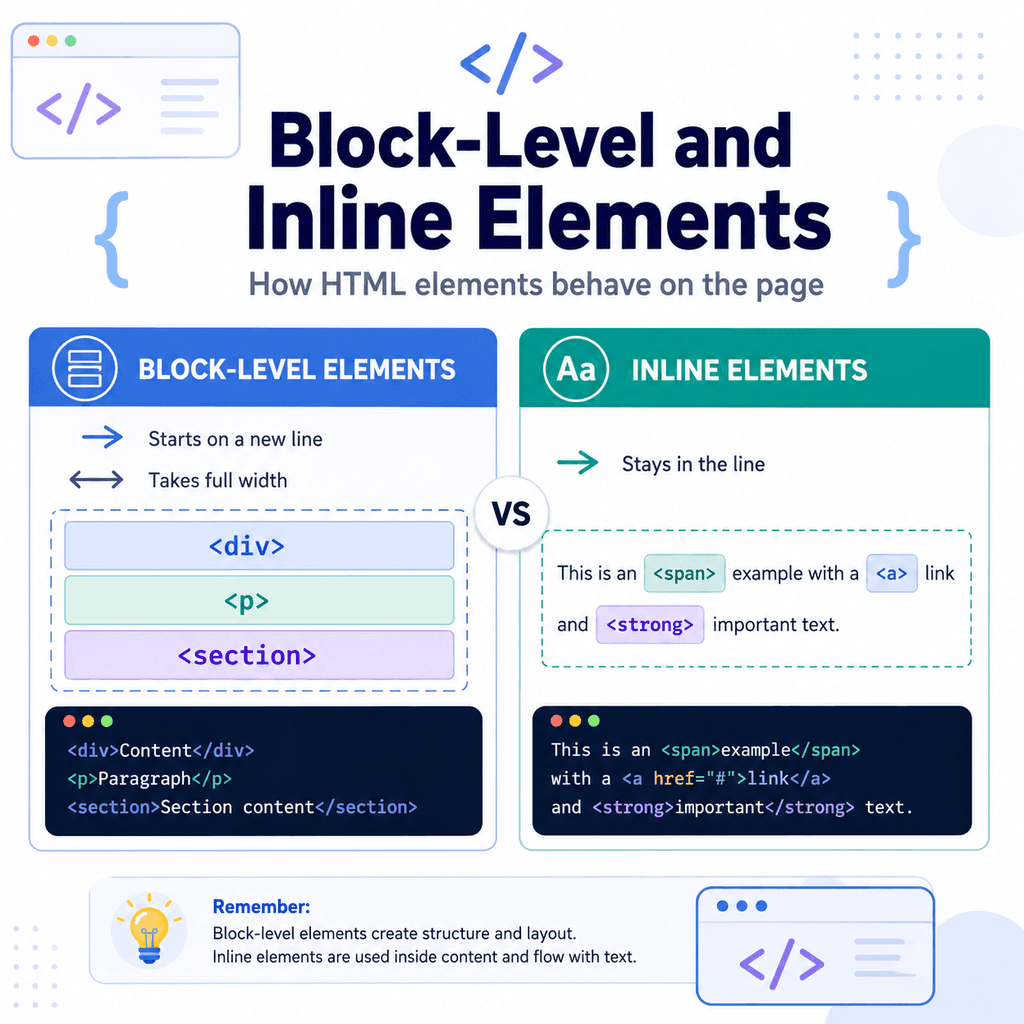
Some elements naturally create large blocks of content. They usually start on a new line and take up the full available width.
Other elements stay inside the flow of a line of text. They only take up as much space as their content needs.
These two behaviours are often described as:
block-leveland:
inlineUnderstanding the difference helps you predict how HTML elements will appear on the page. It also helps when you start using CSS to control layout, spacing, and design.
What Is a Block-Level Element?
A block-level element usually starts on a new line.
It normally takes up the full available width of its parent container.
For example:
<p>This is the first paragraph.</p><p>This is the second paragraph.</p>In the browser, the two paragraphs usually appear on separate lines because <p> is a block-level element.
The first paragraph creates one block.
The second paragraph creates another block.
Each one starts on a new line.
Common Block-Level Elements
Many common HTML elements behave like blocks by default.
Examples include:
<h1><h2><p><div><section><article><header><footer><nav><main><ul><ol><li>These elements are often used for larger parts of a page, such as headings, paragraphs, sections, lists, headers, footers, and layout containers.
A Simple Block-Level Example
Here is a simple example:
<h1>Welcome</h1> <p>This is a paragraph of text.</p> <p>This is another paragraph of text.</p>The <h1> starts on its own line.
The first <p> starts on its own line.
The second <p> also starts on its own line.
This is the normal behaviour for block-level elements.
They stack vertically by default.
Block-Level Elements Take Up Available Width
A block-level element usually takes up the full available width of its parent container.
For example:
<div> <p>This paragraph is inside a div.</p></div>The <p> element does not only take up the width of the words. By default, it stretches across the available width of the container.
This is why block-level elements are useful for building page structure.
They create clear sections and rows of content.
What Is an Inline Element?
An inline element does not usually start on a new line.
It stays inside the flow of the surrounding text.
For example:
<p>This is a <strong>very important</strong> word.</p>The <strong> element is inline by default.
It does not move “very important” onto a new line.
Instead, it stays inside the paragraph.
The sentence continues normally before and after it.
Common Inline Elements
Many HTML elements behave inline by default.
Examples include:
<a><strong><em><span><code><small><q><label>These elements are usually used inside text or alongside other inline content.
A Simple Inline Example
Here is a paragraph containing several inline elements:
<p> Learn <strong>HTML</strong>, practise <em>regularly</em>, and visit <a href=”tutorials.html”>our tutorials page</a>.</p>The <strong> element makes “HTML” important.
The <em> element emphasises “regularly”.
The <a> element creates a link.
All three elements stay inside the same line of text.
They do not create separate blocks.
Block-Level vs Inline Elements
The basic difference is:
Block-level elements create larger blocks of content.Inline elements sit within a line of text.For example:
<p>This is a paragraph.</p><p>This is another paragraph.</p>The two paragraphs appear as separate blocks.
But this:
<p>This is a <strong>strong</strong> word in a sentence.</p>keeps the <strong> element inside the paragraph.
A useful way to think about it is:
block-level = starts a new blockinline = stays in the current lineComparing Div and Span
The <div> and <span> elements are useful for understanding the difference.
The <div> element is a generic block container:
<div class=”card”> <h2>Website Design</h2> <p>Simple websites for small businesses.</p></div>The <span> element is a generic inline container:
<p>Price: <span class=”price”>£49</span></p>The <div> groups larger content.
The <span> targets a small part of a sentence.
Use <div> when you need a generic block container.
Use <span> when you need a generic inline container.
Block Elements Can Contain Other Elements
Block-level elements often contain other elements.
For example:
<section> <h2>Our Services</h2> <p>We design and build websites for small businesses.</p></section>The <section> element contains a heading and a paragraph.
The heading and paragraph are both block-level elements.
This kind of structure is common in HTML.
Another example:
<article> <h2>How to Add Images Using HTML</h2> <p>This article explains the img element.</p> <a href=”html-images.html”>Read more</a></article>The <article> contains a heading, a paragraph, and a link.
The link is inline by default, but it can still appear inside a block-level element.
Inline Elements Usually Sit Inside Text
Inline elements are commonly used inside paragraphs, headings, list items, and other text content.
For example:
<p> Use the <code><img></code> element to add images to a page.</p>The <code> element is inline.
It marks a small piece of code inside the sentence.
Another example:
<p> This offer is <strong>available today only</strong>.</p>The <strong> element is inline.
It marks part of the sentence as important.
Do Not Put Large Block Structures Inside Inline Text
Inline elements are usually intended for smaller pieces of content.
Avoid placing large block structures inside inline elements.
For example, this is a poor structure:
<span> <h2>About Us</h2> <p>We create websites.</p></span>A <span> is an inline container, so it is not the right choice for grouping a heading and paragraph.
Better:
<div> <h2>About Us</h2> <p>We create websites.</p></div>Better still, if the content forms a meaningful section:
<section> <h2>About Us</h2> <p>We create websites.</p></section>Use block-level containers for larger content groups.
Inline Elements Can Be Inside Block-Level Elements
It is very common to place inline elements inside block-level elements.
For example:
<p> Visit our <a href=”contact.html”>contact page</a> to get in touch.</p>The <p> is block-level.
The <a> is inline.
This is a normal and useful pattern.
Another example:
<h1>Learn <span class=”highlight”>HTML</span> Today</h1>The <h1> is block-level.
The <span> is inline.
The span allows part of the heading text to be targeted with CSS.
Lists and Block Behaviour
Lists are useful examples of block-level behaviour.
For example:
<ul> <li>HTML</li> <li>CSS</li> <li>JavaScript</li></ul>The <ul> element creates a block.
Each <li> element creates a list item inside that block.
The list items appear one after another, usually on separate lines.
Each list item can contain inline elements:
<ul> <li>Learn <strong>HTML</strong></li> <li>Practise <em>CSS</em></li> <li>Build a <a href=”project.html”>small project</a></li></ul>This shows block and inline elements working together.
Images and Inline Behaviour
The <img> element behaves like an inline element by default.
For example:
<p> Here is our logo: <img src=”images/logo.png” alt=”Company logo”></p>The image can sit within a line of text.
However, images are often styled with CSS to behave more like blocks in layouts:
img { display: block; max-width: 100%; height: auto;}This can make images easier to position and prevent unwanted gaps around them.
The important point is that default behaviour can be changed with CSS.
CSS Can Change Display Behaviour
HTML elements have default display behaviour, but CSS can change it.
For example, links are inline by default:
<a href=”index.html”>Home</a><a href=”about.html”>About</a><a href=”contact.html”>Contact</a>They usually sit on the same line if there is enough space.
CSS can make them behave like blocks:
a { display: block;}Now each link starts on a new line.
A block-level element can also be made inline:
li { display: inline;}This can make list items appear beside each other.
However, beginners should first understand the default behaviour before changing it with CSS.
The display Property
The CSS display property controls how an element behaves in layout.
Common values include:
display: block;display: inline;display: inline-block;display: flex;display: grid;For this article, the most important values are block and inline.
Example:
.highlight-box { display: block;}Example:
.highlight-word { display: inline;}CSS layout becomes much easier once you understand that HTML elements have default display behaviour.
What Is Inline-Block?
You may also see inline-block.
An inline-block element stays in the line like an inline element, but it can accept width, height, padding, and margins more like a block.
For example:
<a class=”button-link” href=”contact.html”>Contact Us</a>.button-link { display: inline-block; padding: 10px 16px;}The link still sits inline with surrounding content, but it can be styled like a button.
This is useful for buttons, badges, labels, and small UI components.
Margins and Padding Behave Differently
Block and inline elements can behave differently when you add spacing with CSS.
For block-level elements, margins and padding usually behave in an intuitive way.
For example:
p { margin-bottom: 20px;}This creates space below each paragraph.
Inline elements can also have padding and margins, but vertical spacing may not behave the way beginners expect.
For example:
span { margin-top: 20px;}This may not create vertical spacing in the same way a block element would.
If you need a small inline element to have more box-like spacing, inline-block may be useful.
Choosing the Right Element
Do not choose elements only because of their default block or inline appearance.
Choose elements based on meaning first.
For example, if something is a paragraph, use <p>:
<p>This is a paragraph.</p>Do not use a <div> just because it creates a block:
<div>This is a paragraph.</div>If something is a link, use <a>:
<a href=”contact.html”>Contact Us</a>Do not use a <span> and make it look clickable.
HTML should describe meaning.
CSS should control appearance.
Common Mistake: Using <br> Instead of Block Elements
Beginners sometimes use repeated line breaks to create block spacing.
Avoid this:
About Us<br><br>We create websites for small businesses.<br><br>Contact us today.Better:
<h2>About Us</h2> <p>We create websites for small businesses.</p> <p>Contact us today.</p>The second version uses meaningful block-level elements.
Use <br> only when the line break is part of the content, such as in an address or poem.
Do not use <br> to fake layout spacing.
Common Mistake: Using Span for Large Blocks
A <span> should not be used for large sections of content.
Incorrect:
<span class=”card”> <h2>Website Design</h2> <p>Simple websites for small businesses.</p></span>Better:
<div class=”card”> <h2>Website Design</h2> <p>Simple websites for small businesses.</p></div>Better still, if the card is a standalone content item:
<article class=”card”> <h2>Website Design</h2> <p>Simple websites for small businesses.</p></article>Use inline elements for inline content.
Use block-level elements for larger groups.
Common Mistake: Using Div for Everything
Another common mistake is using <div> for all page structure.
Less meaningful:
<div class=”header”>My Website</div><div class=”nav”>Home About Contact</div><div class=”main”>Welcome to the page.</div><div class=”footer”>Copyright 2026</div>Better:
<header> <h1>My Website</h1></header> <nav> <a href=”index.html”>Home</a> <a href=”about.html”>About</a> <a href=”contact.html”>Contact</a></nav> <main> <p>Welcome to the page.</p></main> <footer> <p>© 2026 My Website</p></footer>Many semantic elements are block-level by default, but they also describe the structure more clearly.
Common Mistake: Expecting Inline Elements to Create New Lines
Inline elements do not usually create new lines.
For example:
<span>First span</span><span>Second span</span><span>Third span</span>These may appear on the same line.
If you want separate blocks, use block-level elements:
<div>First block</div><div>Second block</div><div>Third block</div>Or use CSS to change the display behaviour.
A Complete Example
Here is a simple HTML page showing block-level and inline elements together:
<!DOCTYPE html><html lang=”en”><head> <meta charset=”UTF-8″> <title>Block and Inline Example</title></head><body> <header> <h1>Learning HTML Layout Behaviour</h1> </header> <main> <section> <h2>Block-Level Elements</h2> <p>Paragraphs are block-level elements. They start on a new line by default.</p> <div class=”card”> <h3>Example Card</h3> <p>This card is grouped using a div.</p> </div> </section> <section> <h2>Inline Elements</h2> <p> Inline elements, such as <strong>strong</strong>, <em>emphasis</em>, and <a href=”links.html”>links</a>, stay within the line of text. </p> <p> A <span class=”highlight”>span</span> can target a small part of a sentence. </p> </section> </main> <footer> <p>© 2026 Web Basics</p> </footer> </body></html>This example uses:
<header><main><section><p>and:
<div>as block-level elements.
It also uses:
<strong><em><a>and:
<span>as inline elements.
Best Practices
Choose HTML elements based on meaning first.
Use block-level elements for larger structures and content groups.
Use inline elements for small parts of text inside a line.
Use <div> for generic block containers when no more meaningful element fits.
Use <span> for generic inline containers when no more meaningful element fits.
Do not use <br> to create layout spacing.
Do not use <span> for large content blocks.
Do not use <div> for everything when semantic elements would be clearer.
Use CSS to control layout and appearance.
Learn the default behaviour before changing it with CSS.
Summary
HTML elements behave differently on the page.
Block-level elements usually start on a new line and take up the available width:
<p>This is a paragraph.</p><div>This is a div.</div><section>This is a section.</section>Inline elements stay within the flow of text:
<p>This is <strong>important</strong> text with a <a href=”page.html”>link</a>.</p>The <div> element is a generic block container.
The <span> element is a generic inline container.
Block-level and inline behaviour affects how elements appear by default, but CSS can change that behaviour using the display property.
Understanding this difference makes HTML easier to predict, easier to style, and easier to structure correctly.